
How to: Use a USB Video Capture Device to connect your TV connection camera to OBS Studio and stream to YouTubeUpdated 2 months ago
This guide covers how to connect our USB Video Capture Device with the OBS software.
Our USB Capture Device is used to connect our Wireless Analogue and Wired Cable TV connection cameras (pictured below) to a computer. If you are unsure of which camera you have please check here.
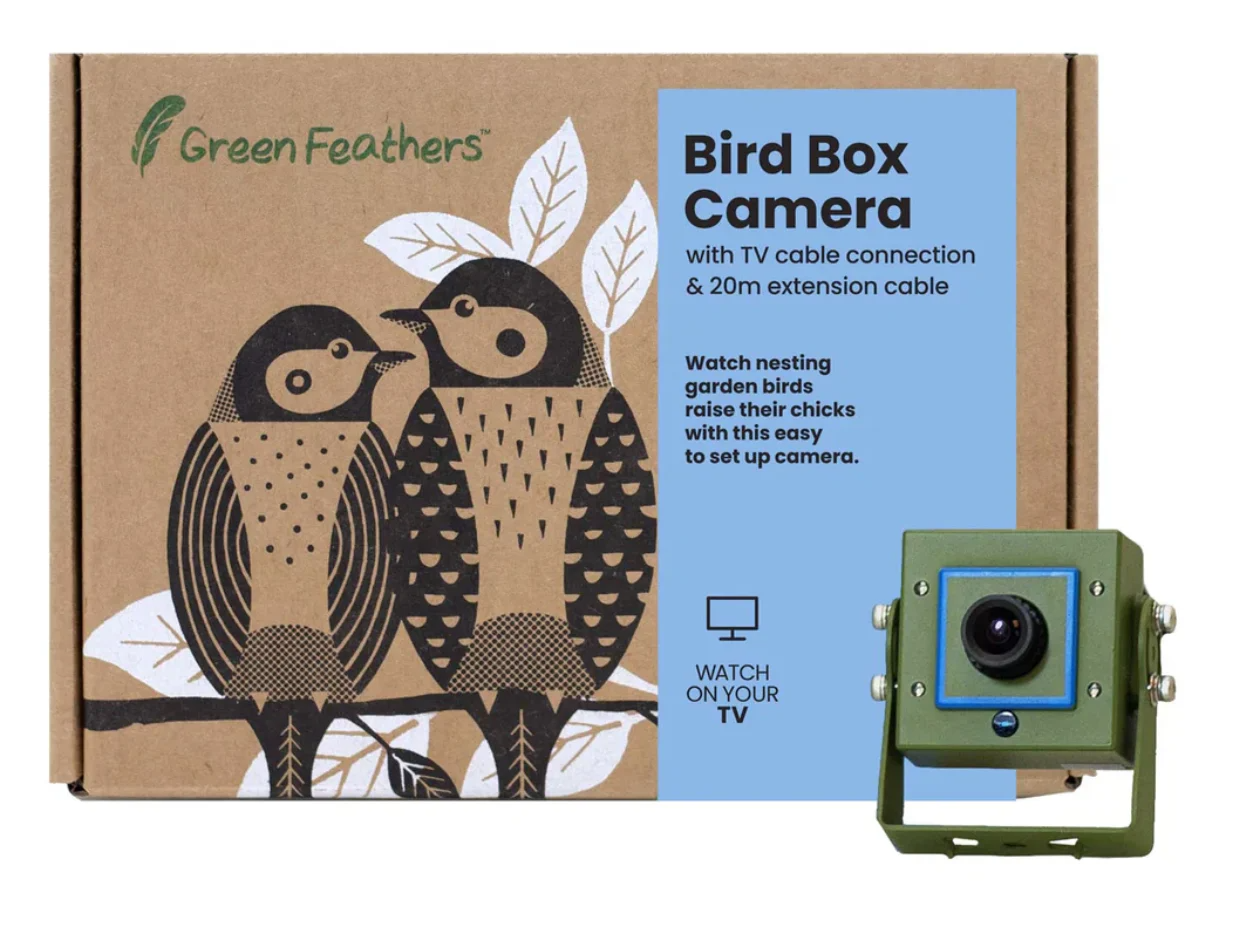 Cable Connection Bird Box & Wildlife Camera Cable Connection Bird Box & Wildlife Camera (GFST1) | 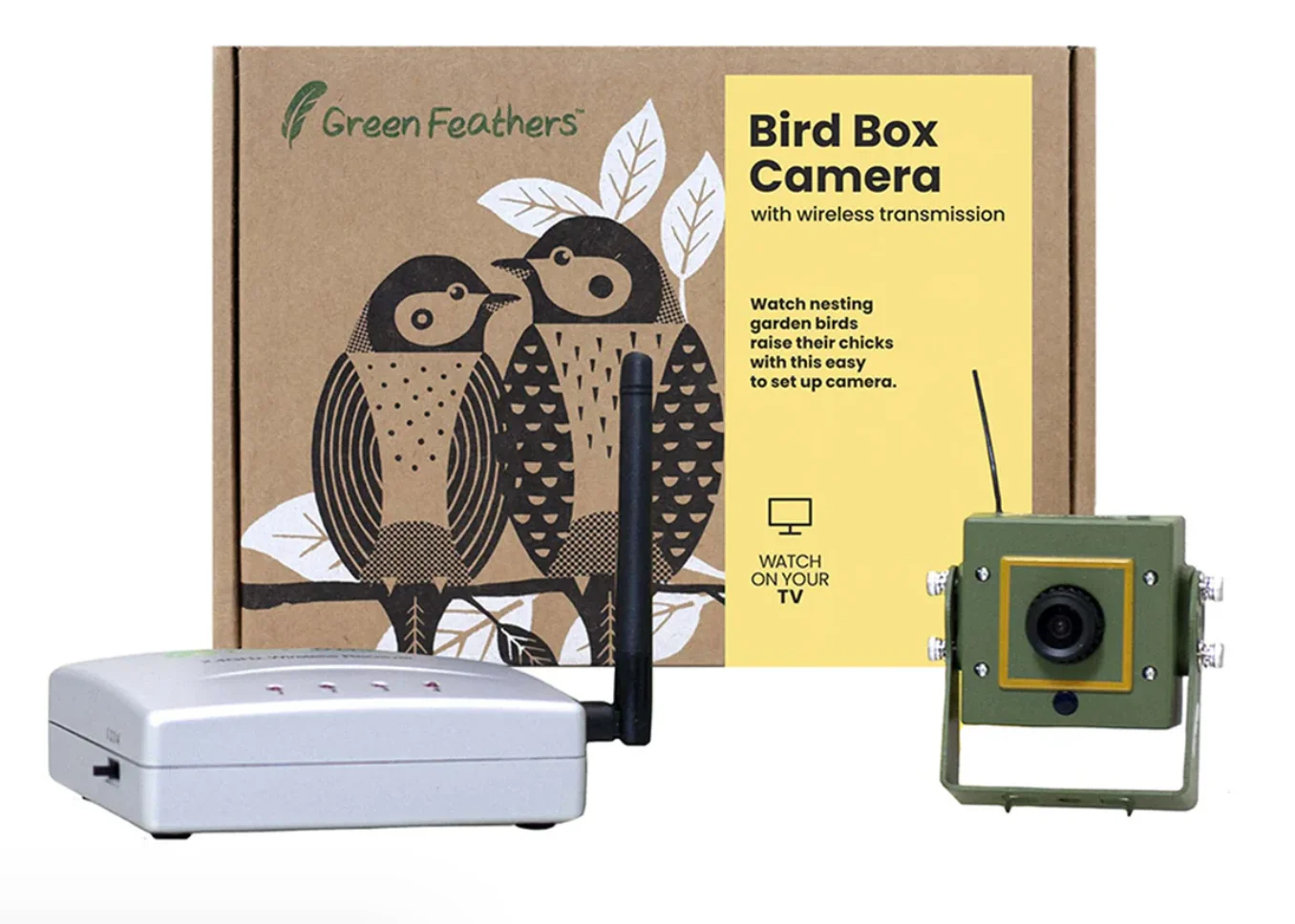 Wireless Transmission Bird Box & Wildlife Camera (GFTX1) Wireless Transmission Bird Box & Wildlife Camera (GFTX1) |
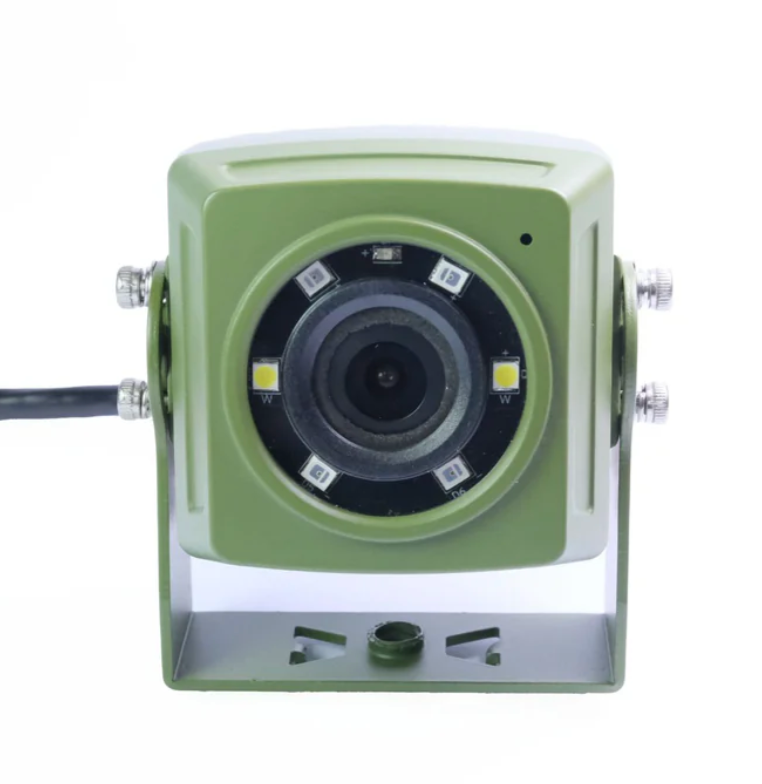 HD Cable Connection Bird Box & Wildlife Camera (GFTV2) HD Cable Connection Bird Box & Wildlife Camera (GFTV2) | |
First start by connecting the USB Device to your computer and install the ‘AV TO USB 2.0’ driver.
Please make sure to have downloaded the OBS software prior to setup.
OBS Download: https://obsproject.com/
Once you have the software downloaded and installed please run it, if this is the first time it has been used it will ask you to go through a setup wizard as this software has many features to it, if you are only using it to view you camera then I would suggest just pressing the cancel button to skip.
Once either skipped or you have progressed through the setup window you will be greeted with the below screen.
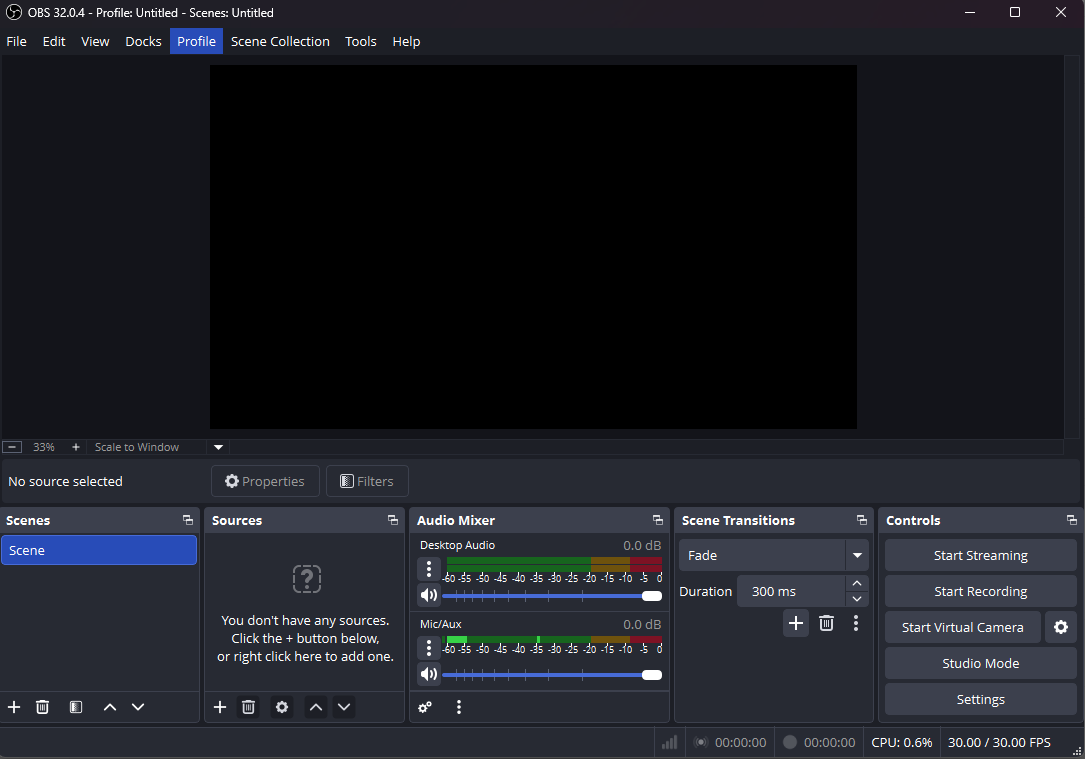
Once this is how the software looks please make sure your USB capture device is plugged in as this will now be required to continue the setup.
Once plugged in click the + symbol under the Sources section on the bottom left, you will get a menu appear like below.
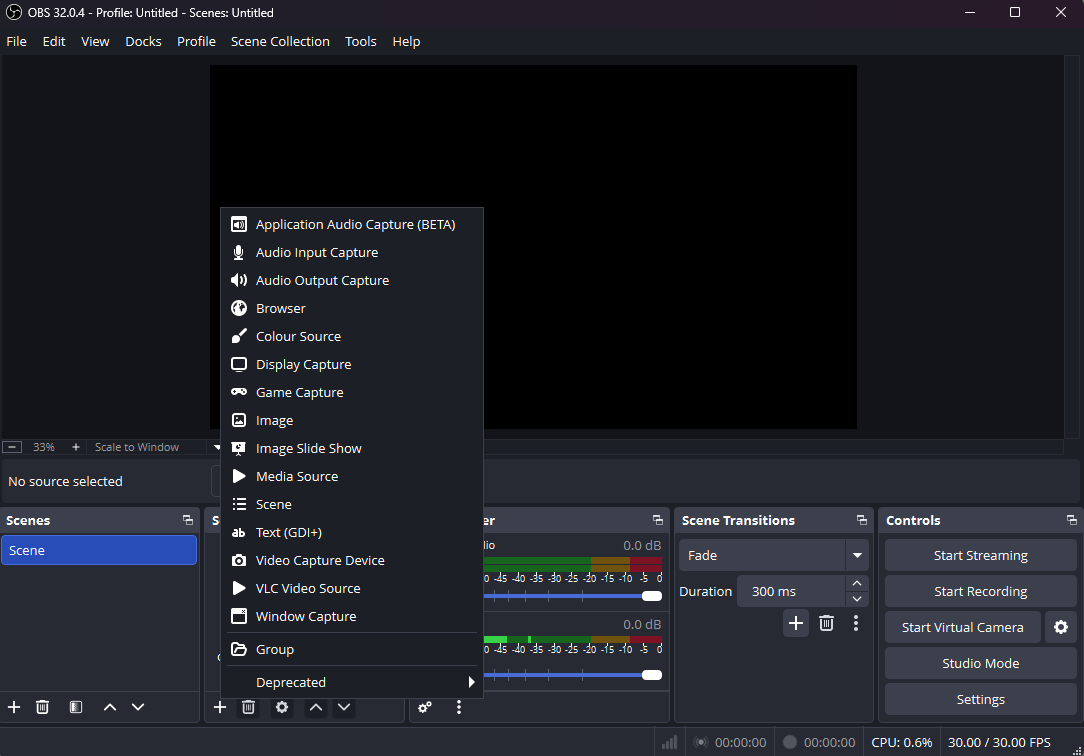
On this menu please select Video Capture Device, a new box will appear for this you can just click Ok or give the device a name and then click Ok.
It will then change to look like below.
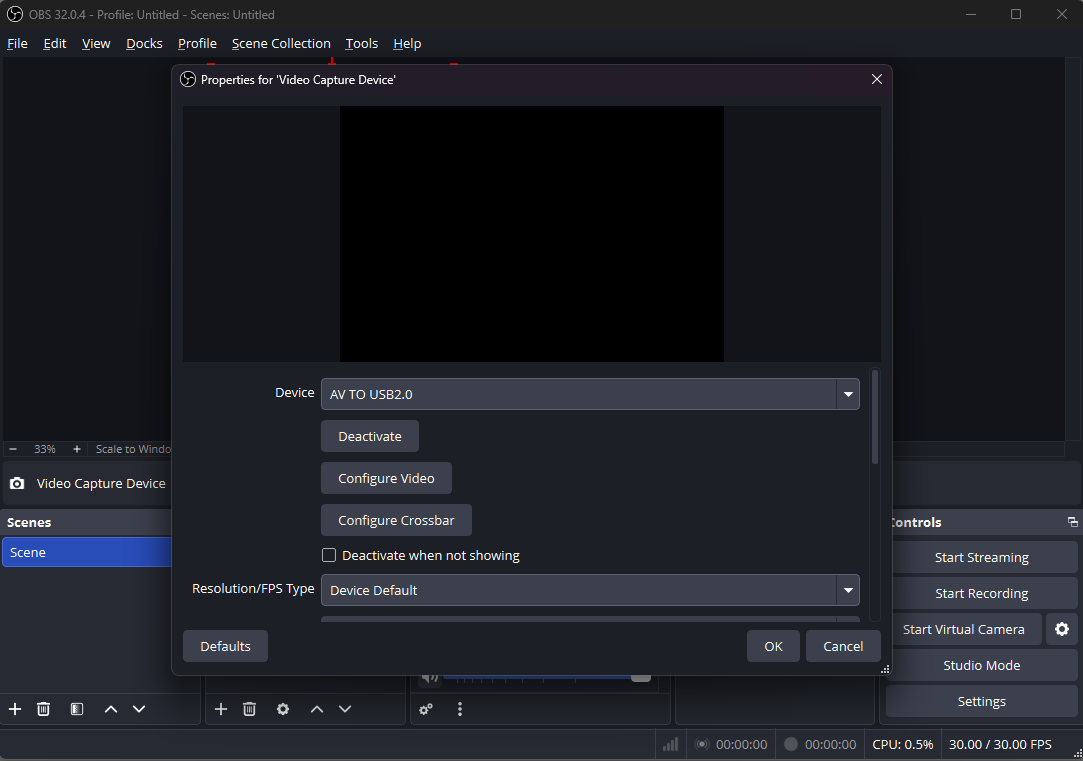
The important part here is the Device, you can see in my screenshot it is showing "AV To USB2.0" this is the capture device we are using, if you have a camera plugged in you will also get a image appear in the box, as I do not mine is just a black box.
Now click 'OK', you should see the image from your camera. If OBS Studio asks for network permissions allow it Private Access. If you now go back to the main screen and show you an image from your camera as long as it is plugged in and turned on.
Streaming to YouTube:
Once you have connected your camera to OBS Studio and allowed network permissions Private Access, you can stream it to YouTube. To do this you must start by going to your YouTube channel account and selecting 'Go live'.
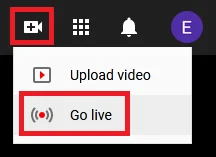
Give your stream a name and category then click 'Create Stream'.

The following window will pop up if it's your first time. Click on the copy button next to 'Stream key' to copy it, then open up OBS Studio again.

In OBS Studio go to File > Settings > Stream.
Select 'YouTube / YouTube Gaming' as the service and paste the stream key into the 'Stream Key' field.
Click 'OK'
Then select 'Start Streaming' on the bottom right of the screen.
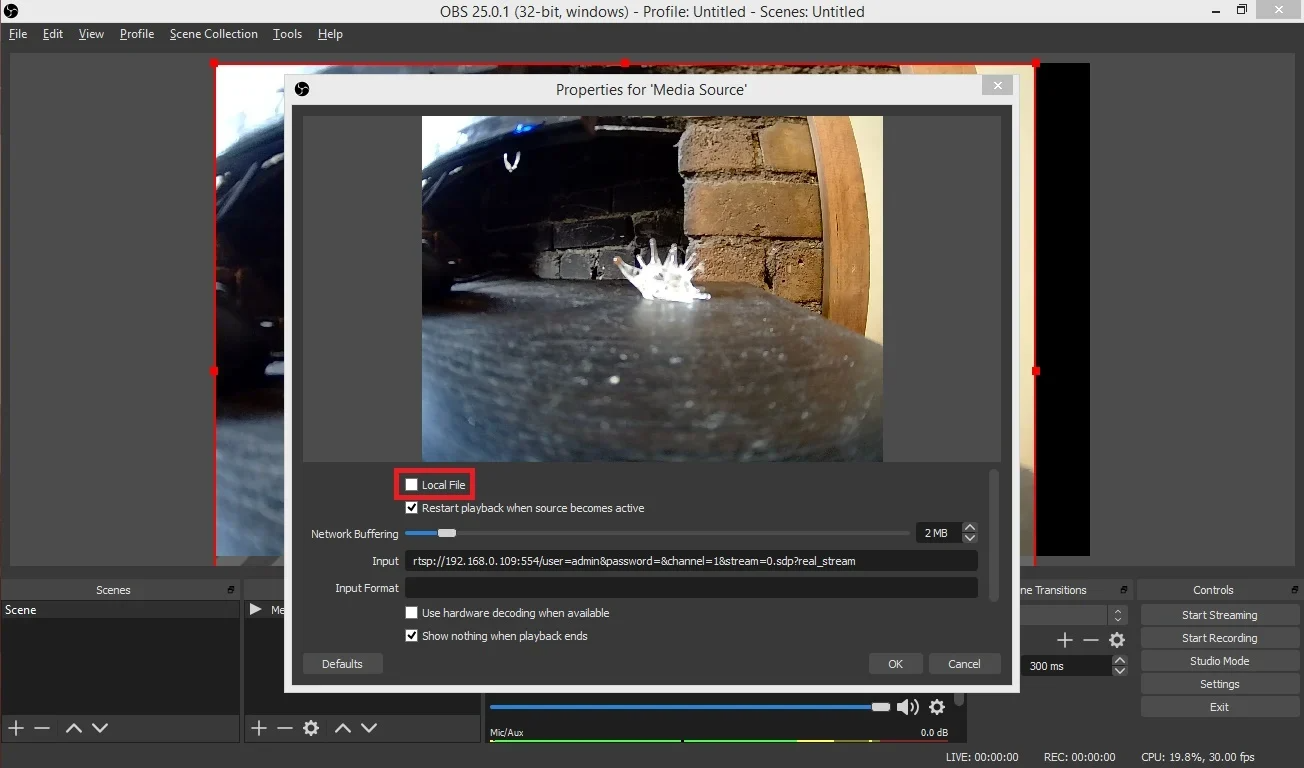
Now if you go back to YouTube, the live stream should be working.
Need more help?
If you need help with anything else please check out our other guides or get in contact.