
How to: Set up your 4th Generation Wi-Fi bullet camera using AP mode on the Green Feathers app (GFWF4B)Updated a month ago
This guide will run you through the AP set up method on the Green Feathers app, for the 4th Gen Wi-Fi bullet camera (GFWF4B) pictured below. If you are unsure of which camera you have please check here.
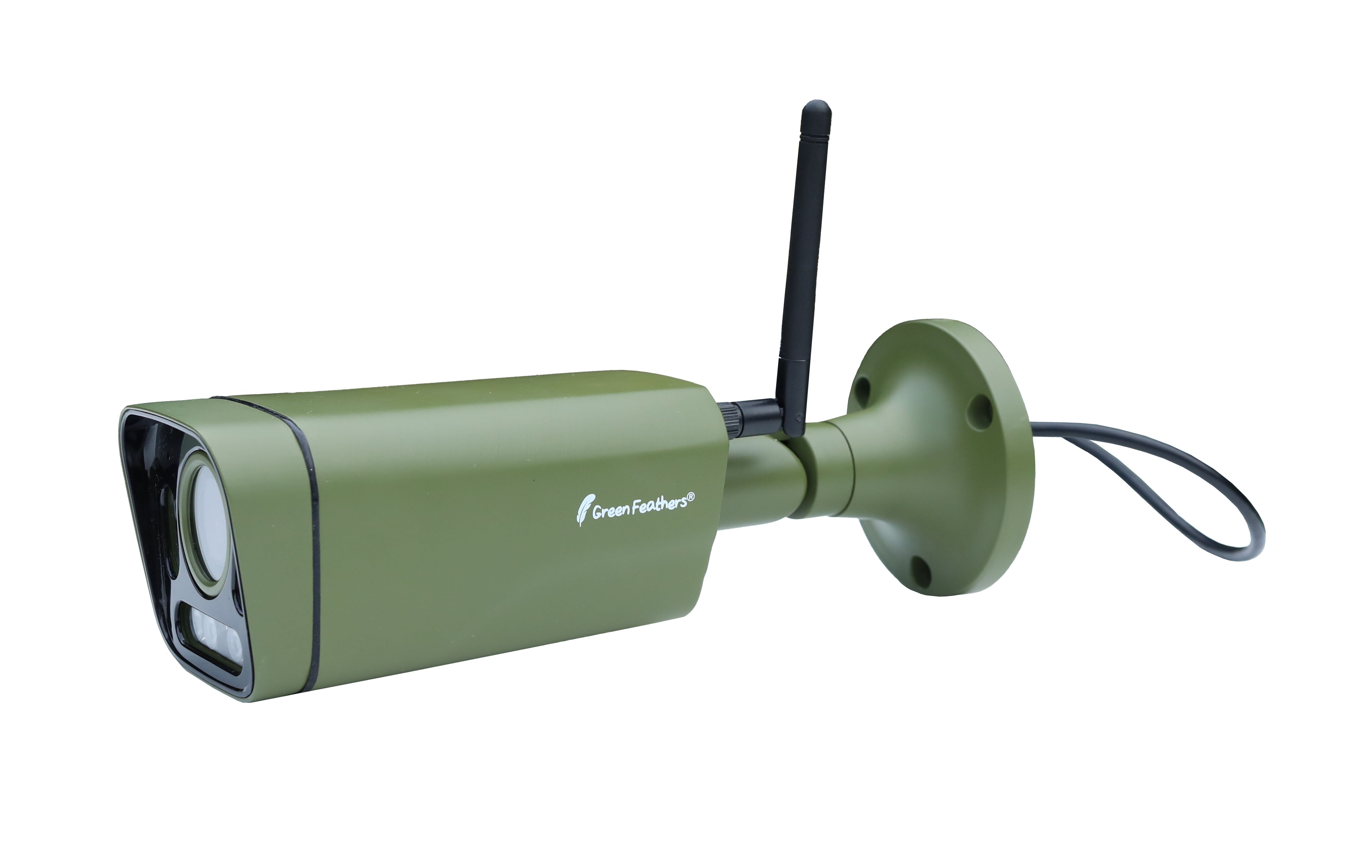 |
Please note: If you have altered the focus on the camera you will need to use AP mode instead of QR mode to connect it to the app. This is because the camera won't be able to read the QR code on your phone screen.
To Start:
Test the WiFi signal strength by taking your smartphone/tablet to the site where you plan to install your camera; if it has a weak signal at the installation site then the camera may struggle to maintain a connection.
Before you mount the camera, make sure it's connected to your WiFi router and can be viewed on the app. It's best to set the camera up when it's plugged in a different room to your router, then once it's connected you can unplug it and install it in the final location
Android from the Google Play store - click here.
iOS from the App store - click here.
To get started, open the app:
1. Registering an account
Tap 'Sign Up' to create an account, then select 'Agree' for the 'User Agreement and Privacy Policy'. If you have already signed up then skip below to the section called 'Adding the camera to the app'.
- Enter your email address, tick 'I Agree User Agreement and Privacy Policy' then tap 'Get Verification Code'. If you would like to use your Google or Facebook account to sign up you can do so by tapping the relevant icon at the bottom of the page.
- Enter this code into the app.

- Set a password for your account - make sure it is something memorable.

Once your account is all setup, just log in to the app!
2. Adding the camera to the app
The first time you go to the Home page, you can choose to allow the app to use your device location. This is not essential, but helps with some features. Next, click "Add Device under the bird icon, or tap the green '+' icon at the top right of the screen and select 'Add Device' from the drop down menu: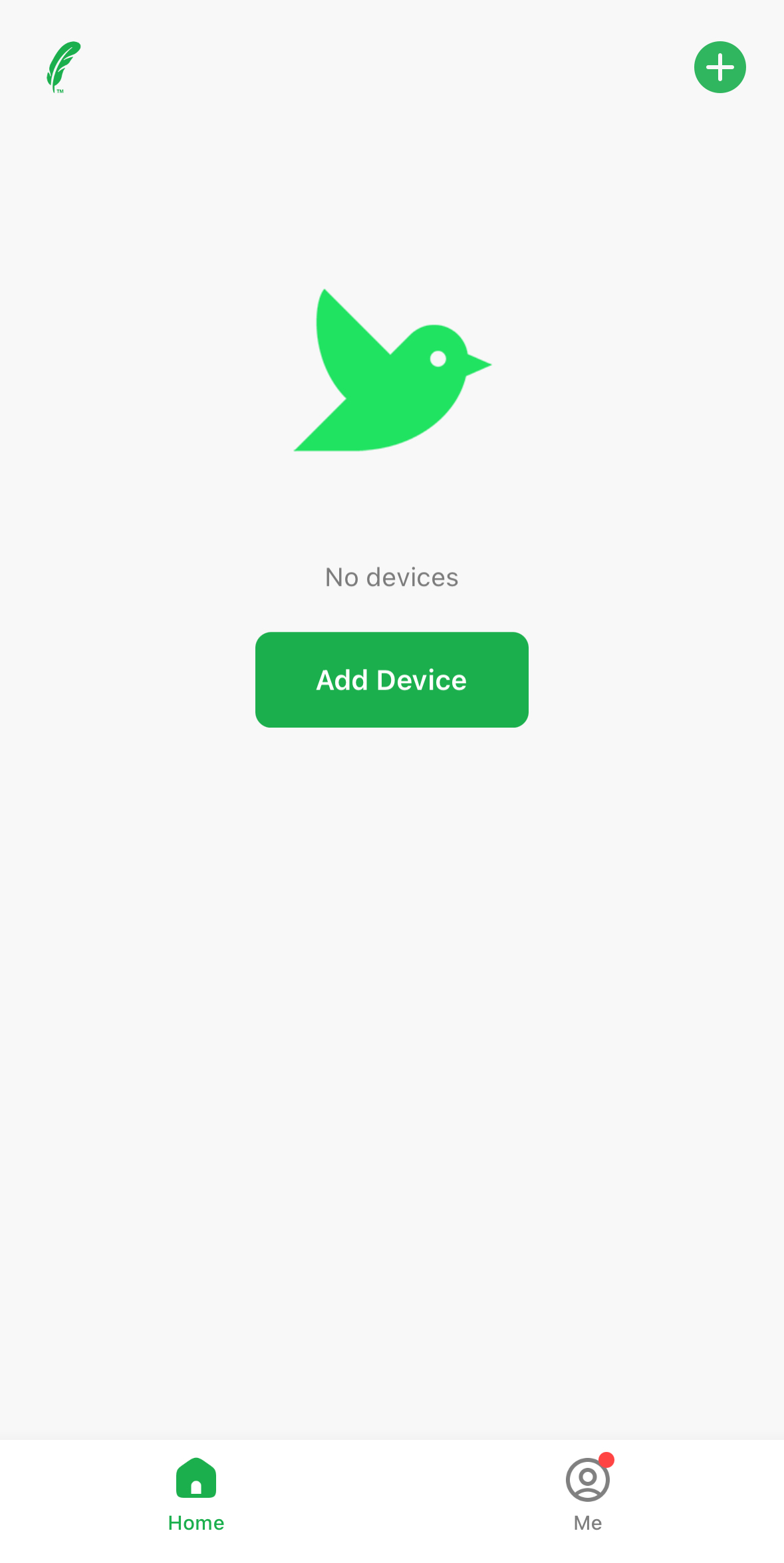


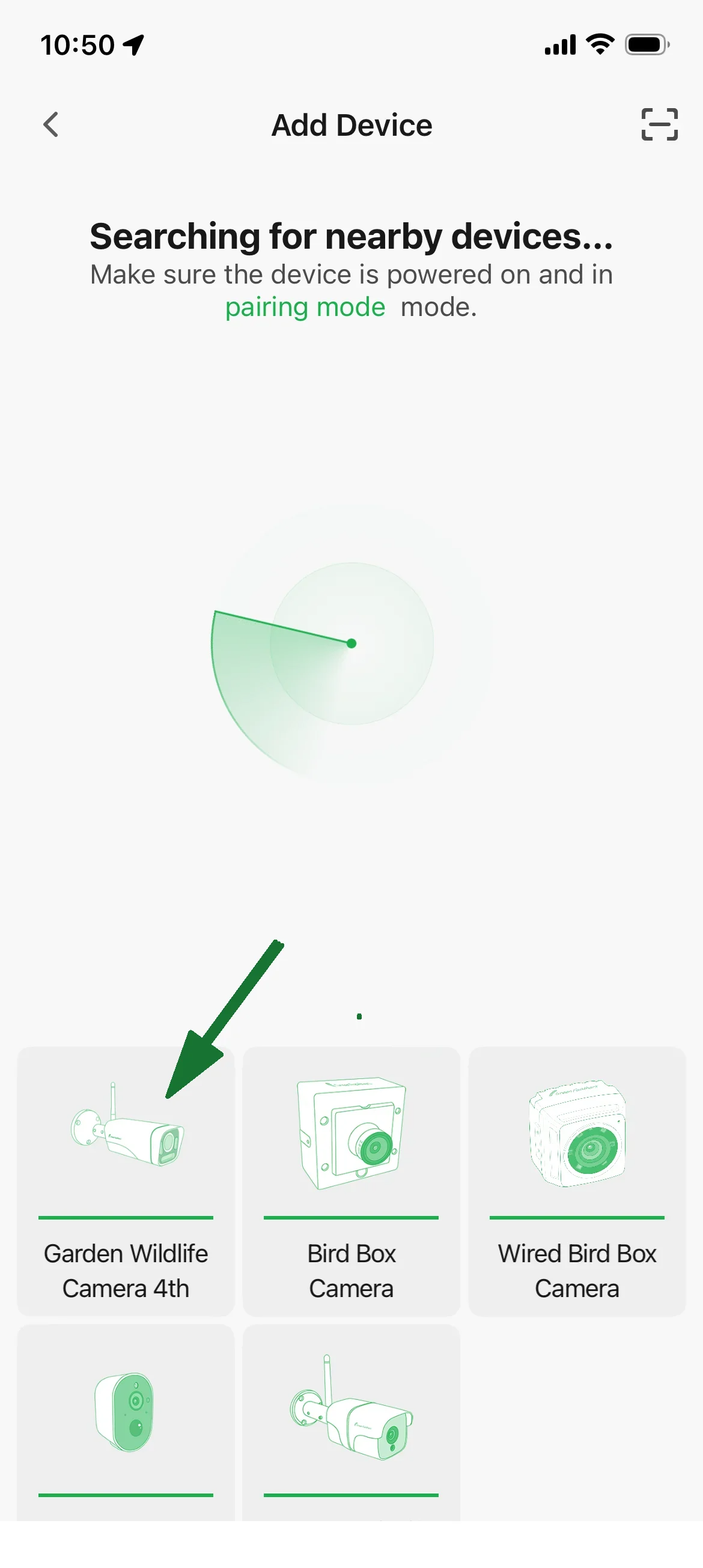
Now select the model of camera you are setting up, then select "QR mode":

3. AP mode and resetting the camera
Follow the instructions below to reset the camera.
- Press and hold the reset button on the cable for 5 seconds and then release. Wait 20-30 seconds for the camera to fully reset.
The indicator light will cycle through it's reset process and you should hear the camera click. - Make sure to place the cap back on the reset button before placing the camera outside
Now select 'Next'.
 |
4. Entering the WiFi details
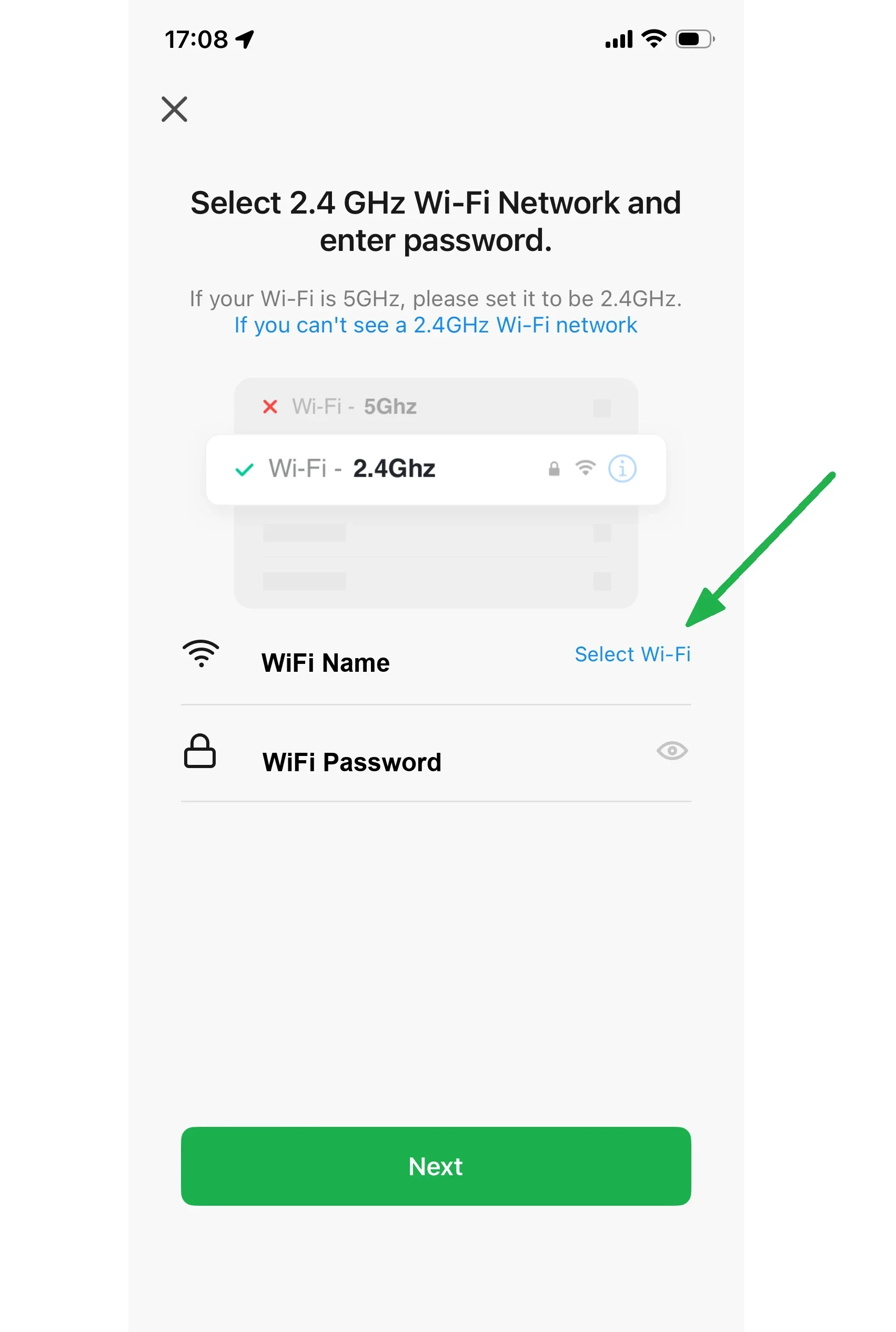
Now you need to enter the details of the WiFi network that you want the camera to connect to. The name of the WiFi network which your phone or tablet is connected to should be automatically filled in, so just enter the password. To change the WiFi network your device is connected to, tap "Select Wi-Fi" to the right of the WiFi name:
5. Connecting to the access point
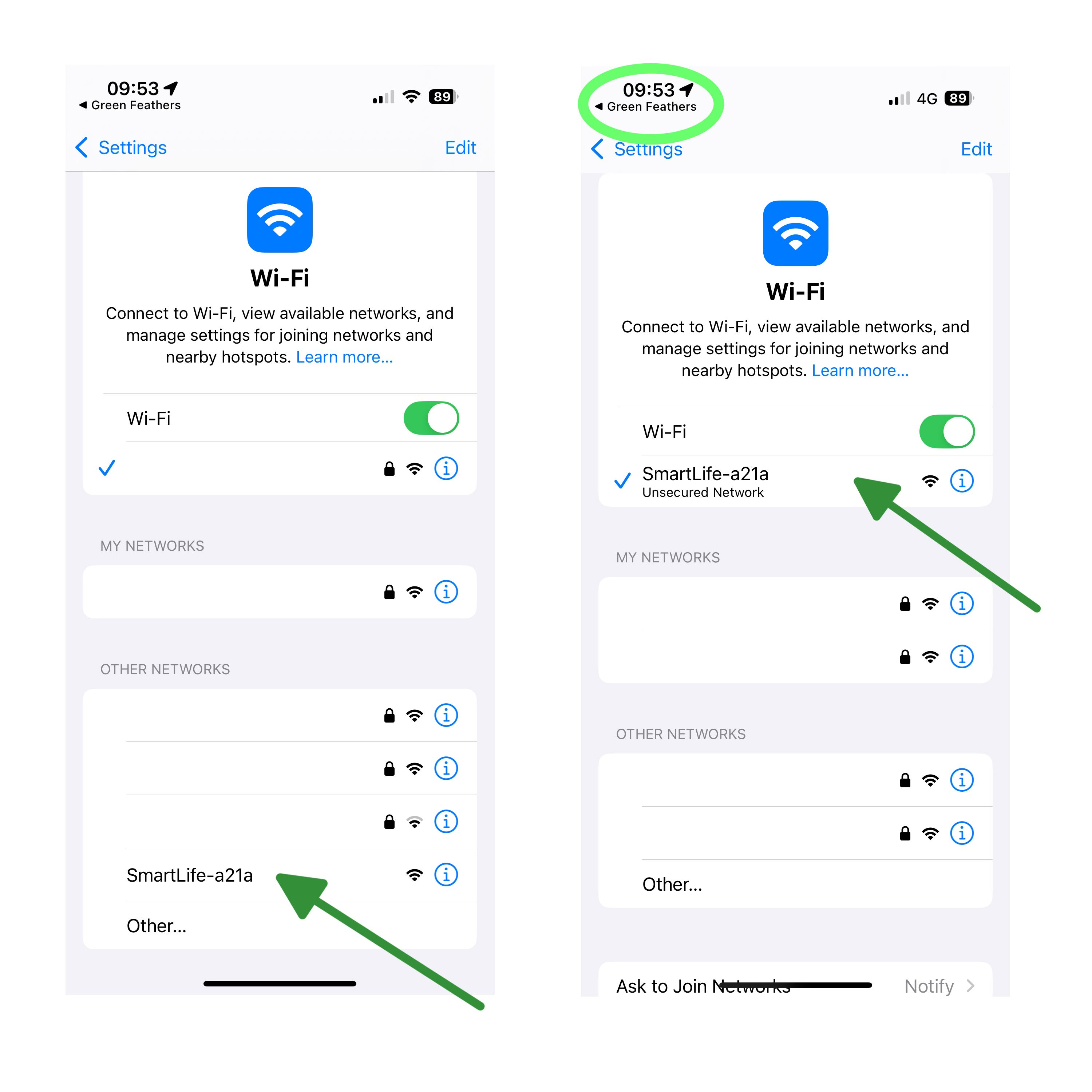
You will now see a page like the one below. Select the 'Go to Connect' button, this should take you to your phone's wifi settings, if it does not, it may have taken you to the Green Feathers app settings, this is normal when navigating from an app to your phone settings. All you need to do from here is navigate to your phones wifi settings then select the 'SmartLife-0000' network to connect to it. Wait until it has a tick next to it, it may say something like 'No Internet Connection' this is normal!
Once it has the tick next to it, you now need to navigate back to the app. On most phones there will be a back button which will take you back, on an iPhone there is a little back button labelled 'Green Feathers' (circled in light green) select that one.
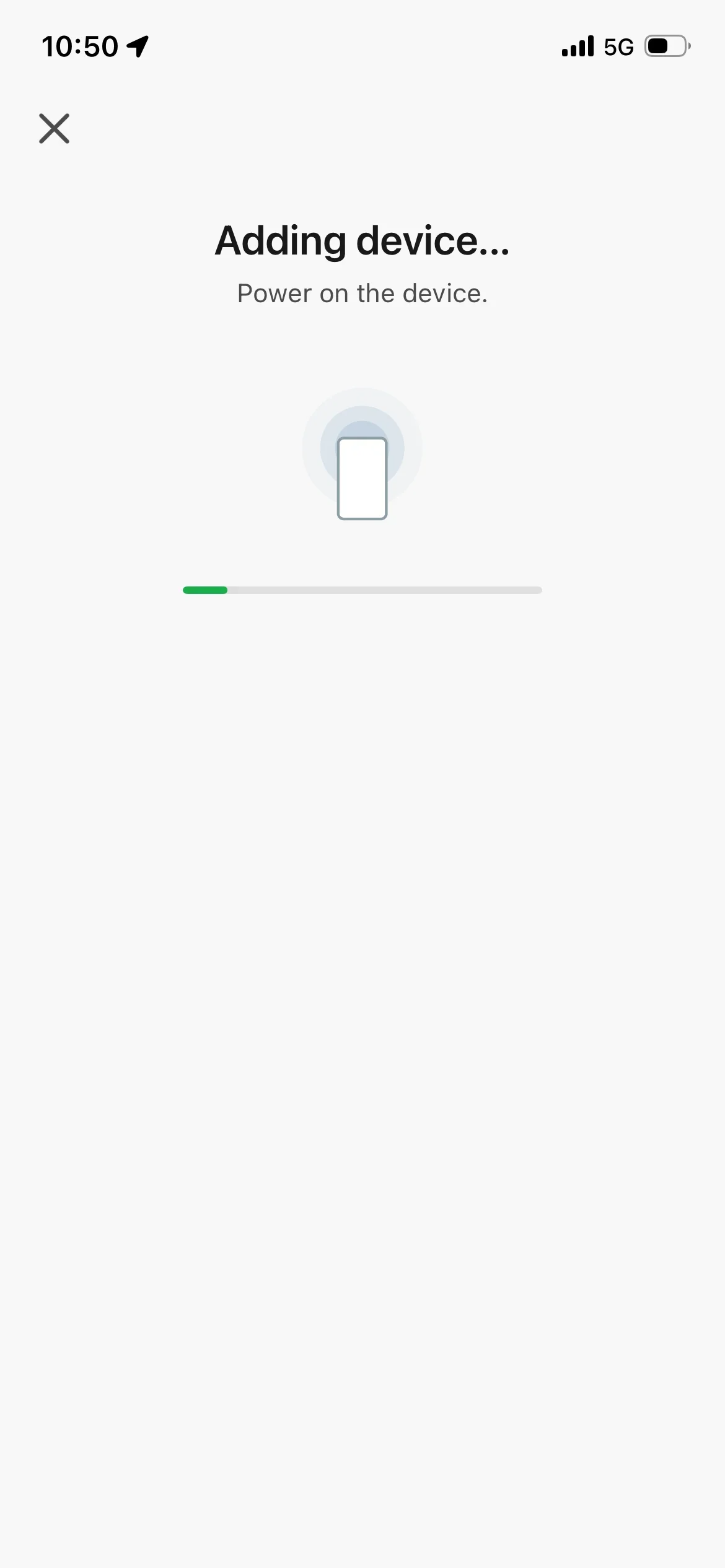
Once you are back to the app it should automatically begin connecting to the camera.
After a minute or so, it should have found the camera and added it to the app, you can set a name for the camera now, or later on in the settings menu.
If it picks up the wifi then it should pick up the wifi, this bar should move across, then it will tell you set a name for the camera, this will indicate that the camera has been added.
Troubleshooting
If the camera does not connect to your WiFi:
- Try resetting it and start again.
- You can also try the QR mode setup method, see here for more info.
- If this still fails, try setting the camera up in a different room, within range of your WiFi router still.
- If you have connected it to your internet router, but it shows the message 'Establishing encrypted channel' and doesn't load:
- Try closing the app and re-opening it.
- If that doesn't work, please check what version of app you are using (go to the 'Me' section of the app, then select Settings > About). You will not need to set the camera back up if you do this, it will remain connected to your Wi-Fi router.
For more information on the Green Feathers app:
For a run through of the app, have a look here.
To read about the motion detection and recording settings have a look here.
To share the camera to other devices check this guide here.
Need more help?
If you need help with anything else please check out our other guides or get in contact.