
How to: Pair or re-pair a camera to the screenUpdated 20 days ago
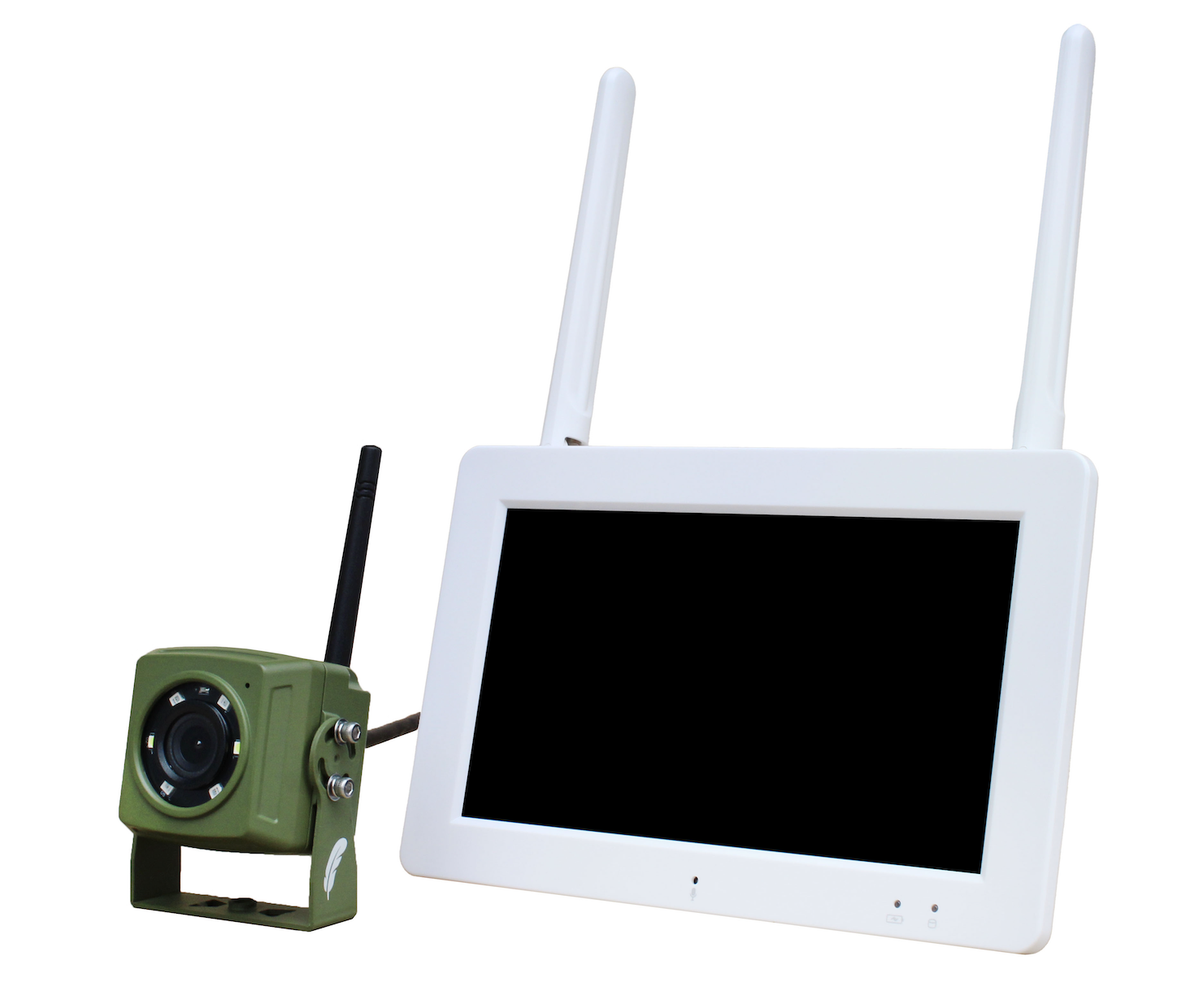
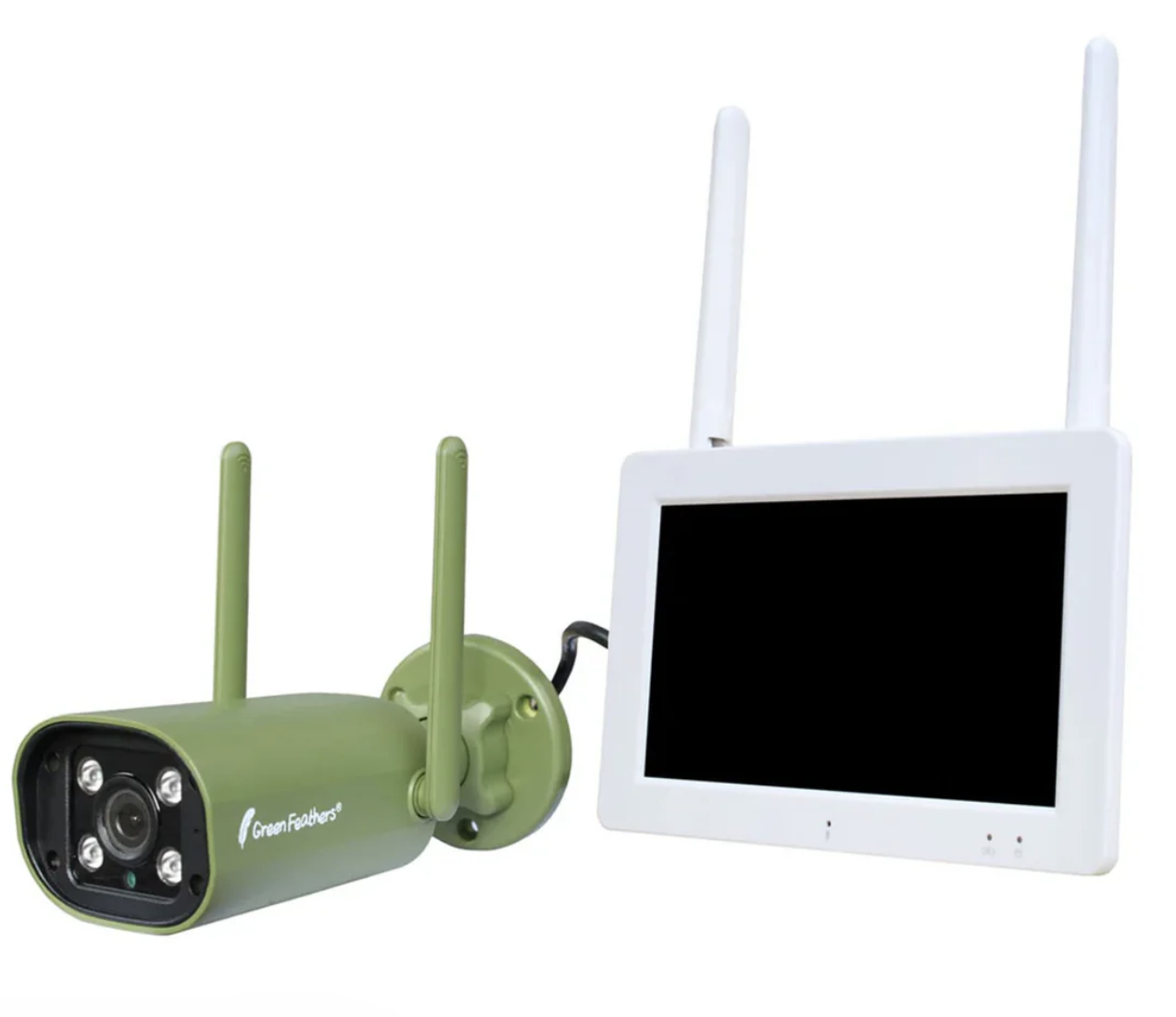
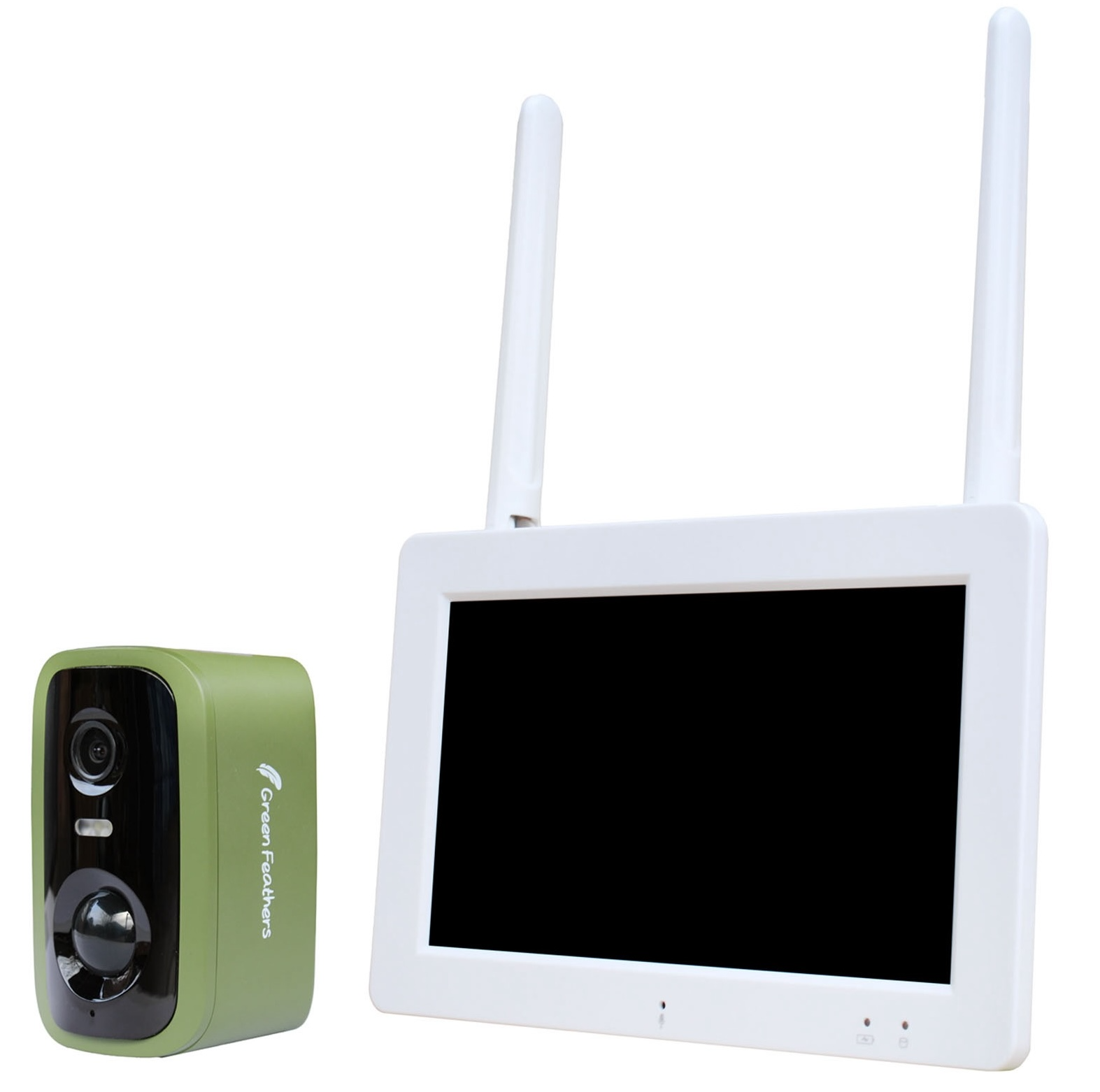
This guide will advise on how to either pair an additional camera to the screen, or re-pair an existing one that has become disconnected. This guide applies to our Wireless Screen and Camera packs (GFTX2SC2N1GB-B07/GFTX2SC2B1GB-B07/GFTX2SC2R1S1-B07) pictured below. If you are unsure of which camera you have please check here.
 |  |
| |
Before you Begin
If you have only just opened the box for the first time or have reset the system and are starting from the beginning we recommend looking at our initial setup guide here.
Let's Begin
We will start on the live view page. The image included shows one camera connected, but if you have lost connection to your camera you will likely be seeing 4 blank video channels. Tap on the live view screen to bring up the menu bar along the bottom and tap the home icon to bring up the main menu.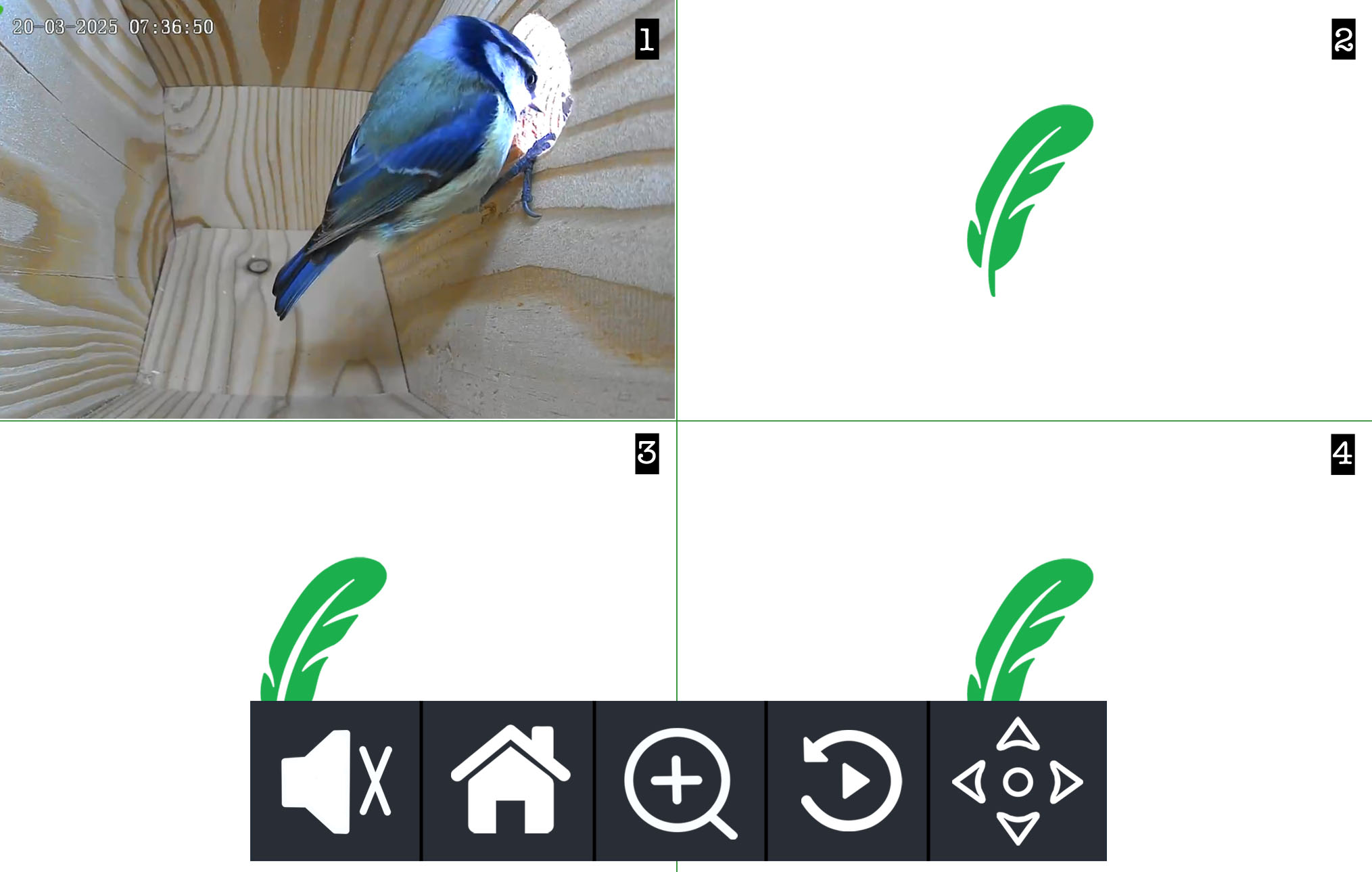
Now that you're on the Main Menu, tap on the Pair Camera option (bottom left pink icon).
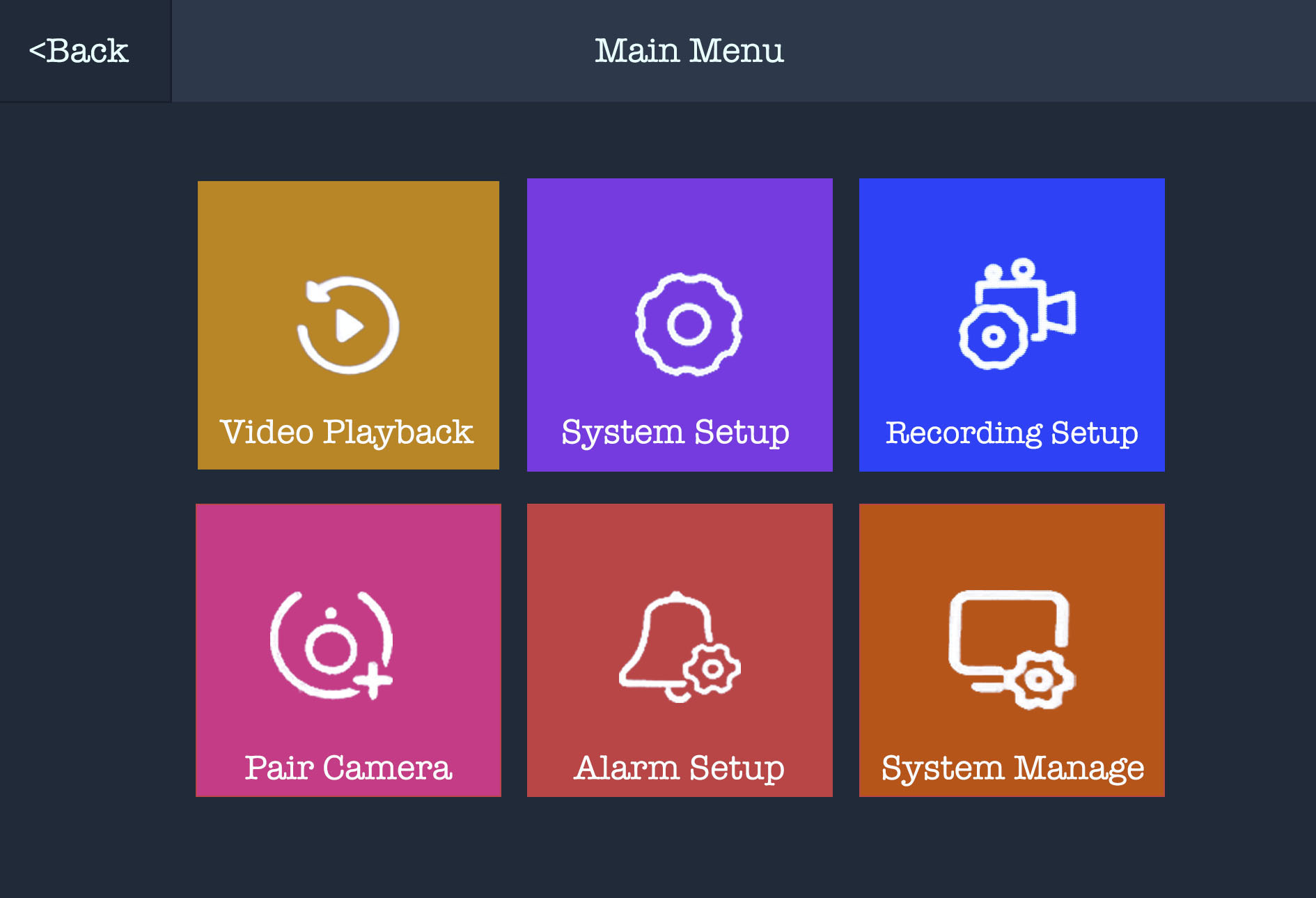
In the Pair Camera page you should see your existing camera listed under the Camera-1 channel: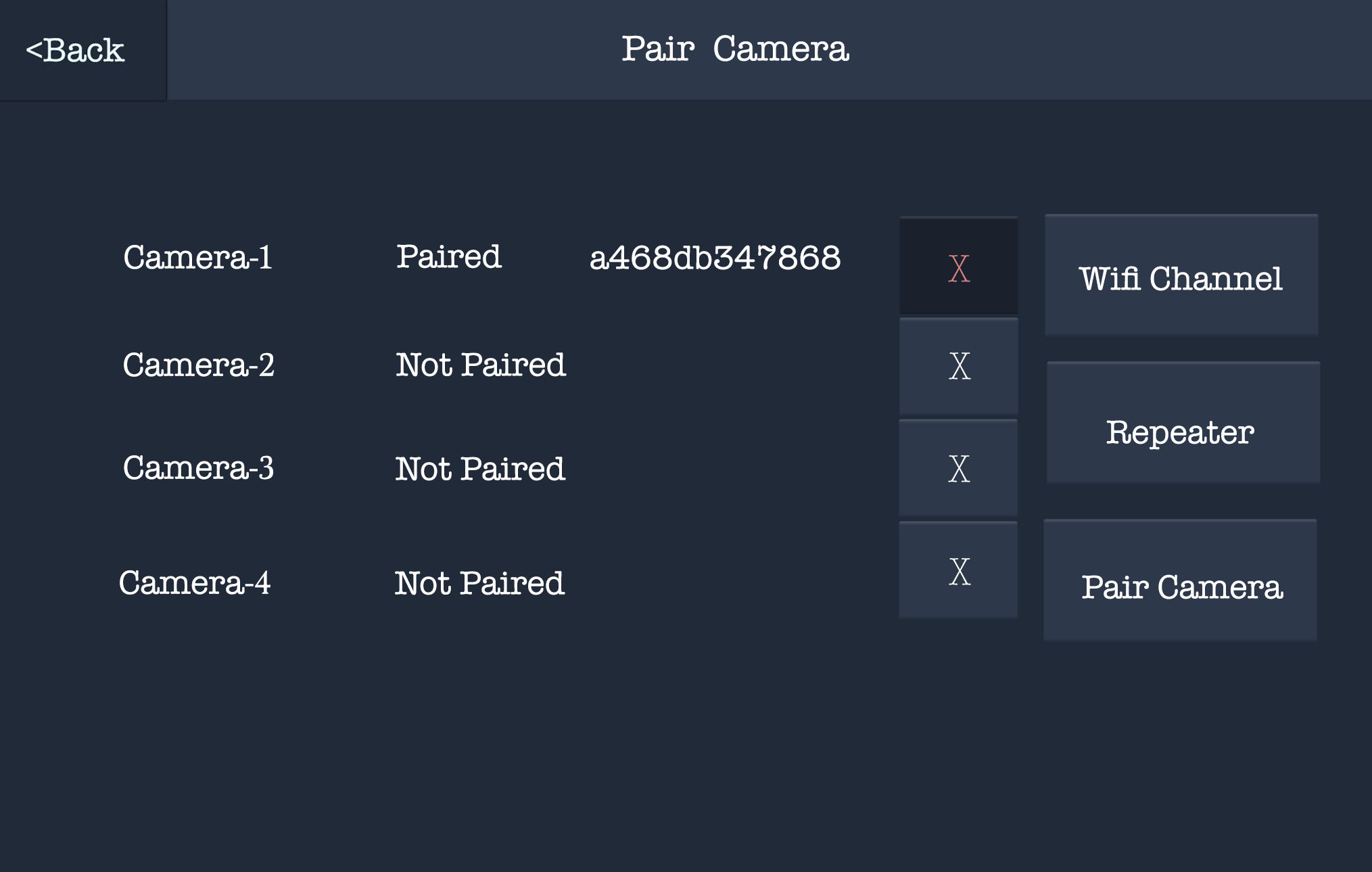
If you are re-pairing an existing camera - If you are no longer receiving an image from your camera and you need to re-pair it, simply tap the X button next to the camera to remove from the screen. Then hold down the reset button on the camera for 5 seconds to reset this ready to re-pair
If you are pairing an additional camera - If you are pairing an additional camera to your screen please make sure your new camera is connected to power, before holding down the reset button for 5 seconds.
Once the camera you want to pair is reset, tap the "Pair Camera" button in the bottom right of the screen to begin pairing. Once you can see that the camera has appeared in the relevant camera channel, you can tap the same button to "Stop Add".
Now that your camera/s are paired you can tap the "< Back" button in the top right to leave this page and return to the main menu. Tapping this button again will take you to your live view page where you should be able to see the image from your camera.
That is all done! You can go back and customise any of these options as and when you please. If you require some information on all of the options available on the screen itself, have a look here.
Need more help?
If you need help with anything else please check out our other guides or get in contact.