
How to: Download and export videos/screenshots on the older style Green Feathers app (GFWF3GB/NCIP3WF, GFIP320BWF, GFIP3)Updated 15 minutes ago
This guide explains how to operate the playback function and how to export footage in the older version of the Green Feathers app.
Please note: some features may be missing from the app for your camera depending on it's model and when it was purchased.
To see a more in depth overview of the Green Feathers app and the settings, please have a look at this guide here.
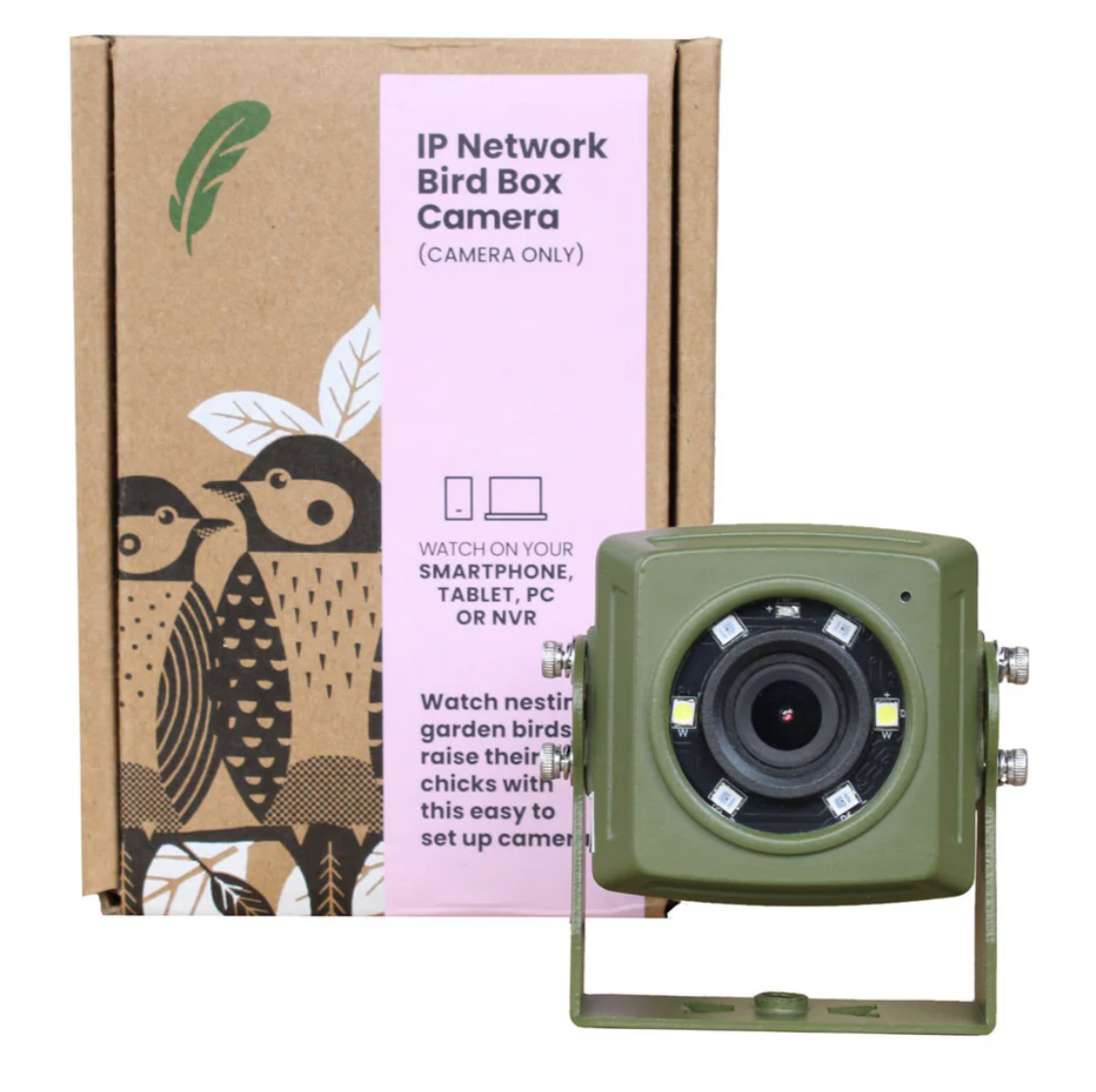
This guide is not compatible with all of our cameras, if you are unsure of which camera you have, check this guide here. Please see below the cameras this guide is designed for:
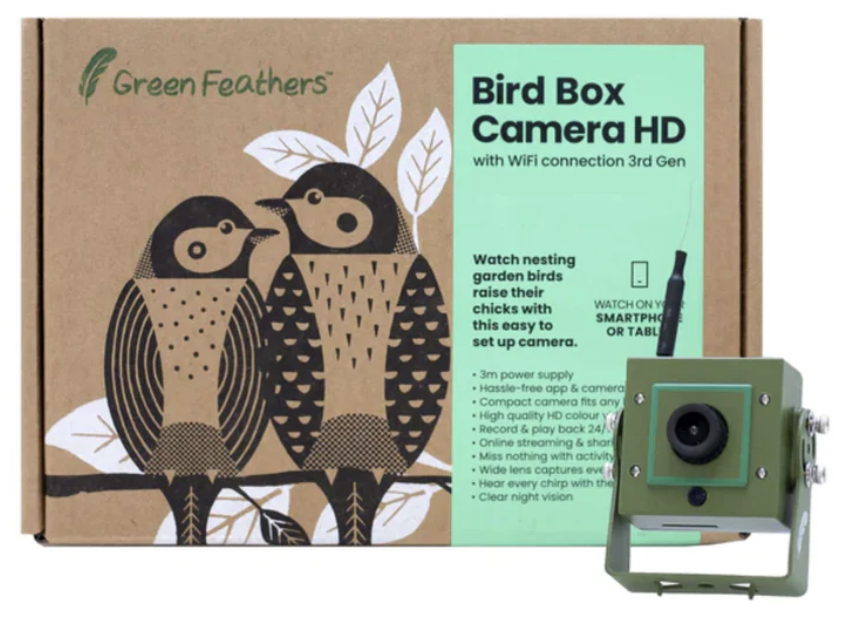 | 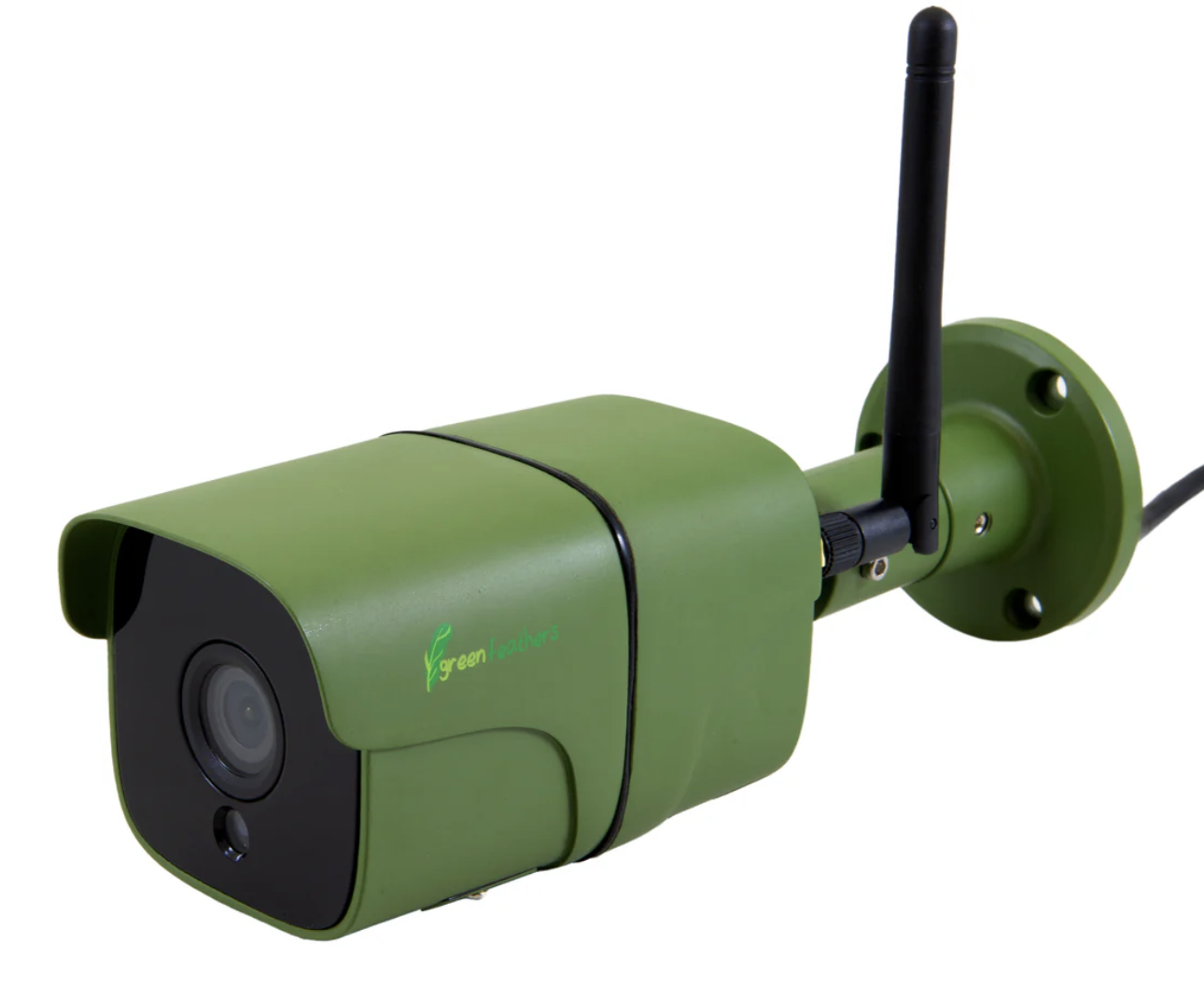 |
Let's Begin -
Please note: You can only access this section of the app if you have a cloud storage subscription or an SD card installed.
The playback feature acts only as a temporary way to catch up on footage you may have missed. Once your SD card is full, the oldest footage is forgotten as new footage is added. It is up to you to export the footage you want to keep.
Playback Information:
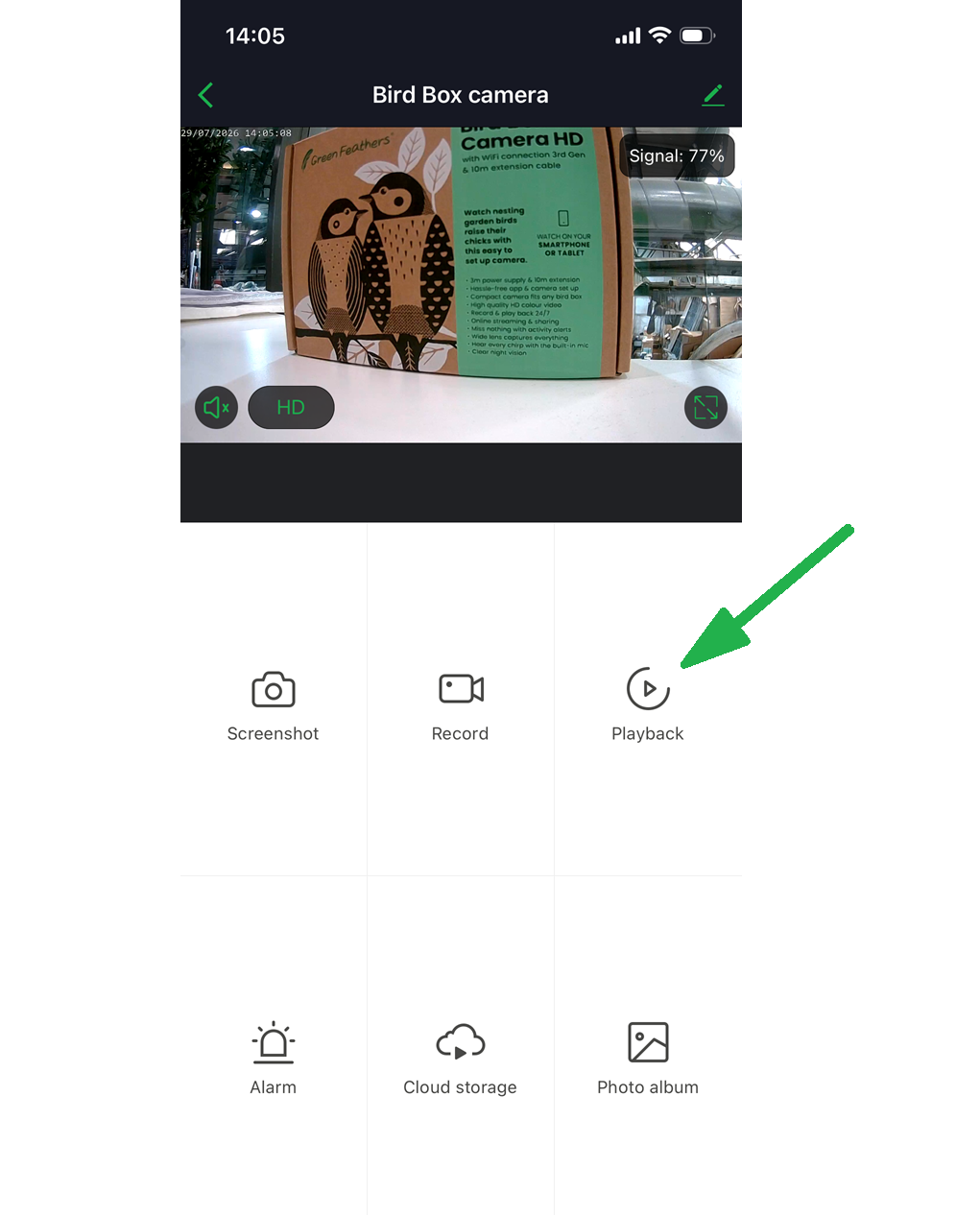
If you click onto the playback section it will take you to a page that looks like this:
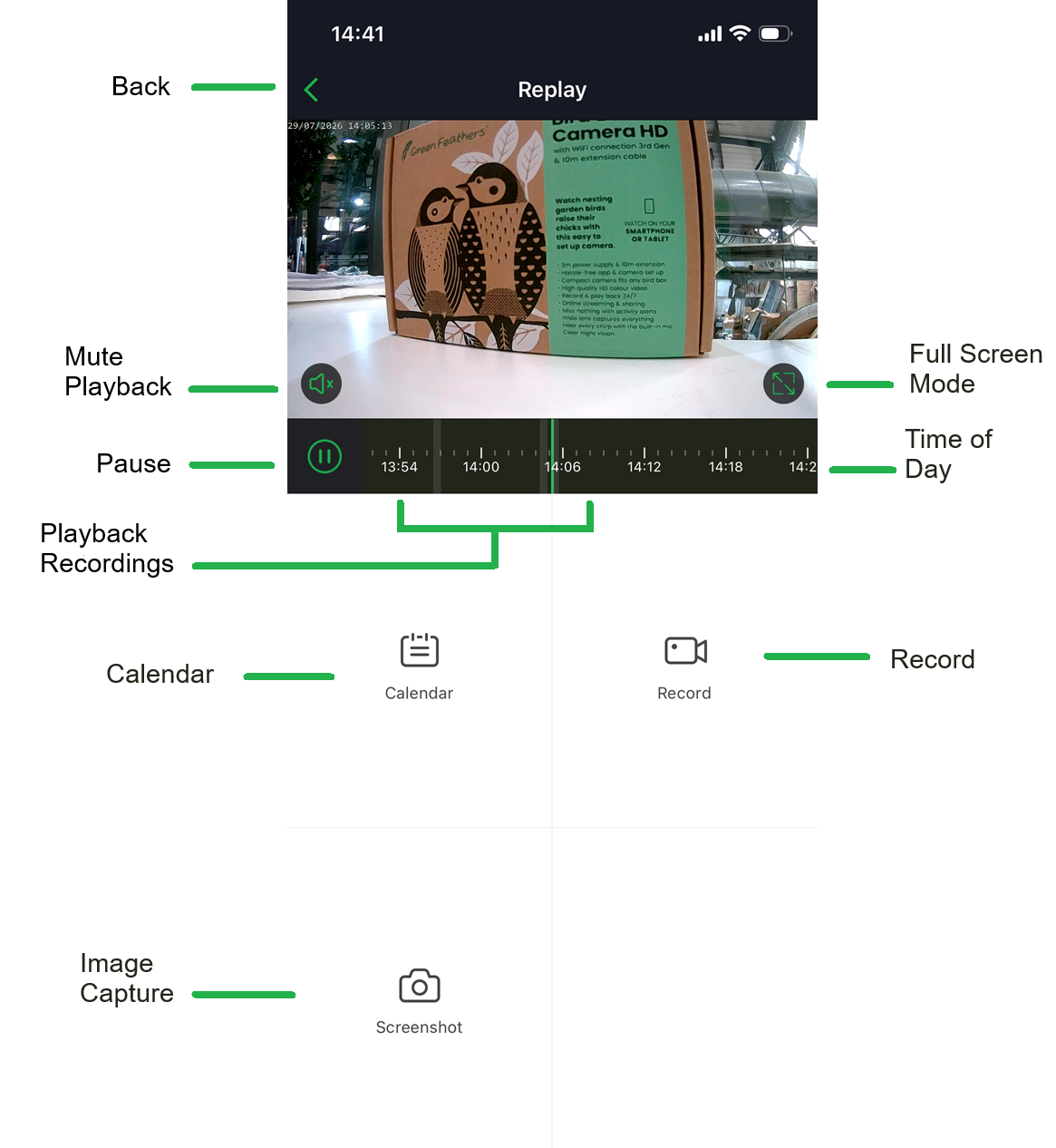
Back - This will take you back to the live view of the camera.
Record - This allows you to record sections of the playback that you want to keep and export. Anything recorded from the playback will be available in your gallery.
Full Screen Mode - This will rotate the video to landscape and go to full screen.
Pause - This allows you to pause the playback.
Playback Recordings - You will see these blue lines on the timeline, these are recordings that your camera has captured, triggered by motion detection. You can drag the timeline along and select the sections you want to view.
Mute Playback - This allows you to mute the playback footage.
Image Capture - Image capture allows you to take a still image of a section of playback.
Calendar - The calendar option opens up a calendar where you can choose particular dates where playback was recorded.
Time of Day - The time across the top shows you the time of day the recordings were made
How to export footage -
Once you have recorded a section of video that you want to save you need to navigate back and select 'Photo album'
This will show you all of the recordings and images you have saved. Select one and you will see three options pop up at the bottom.
Alternatively, if you press 'Record', it will record a video for a chosen length of time.
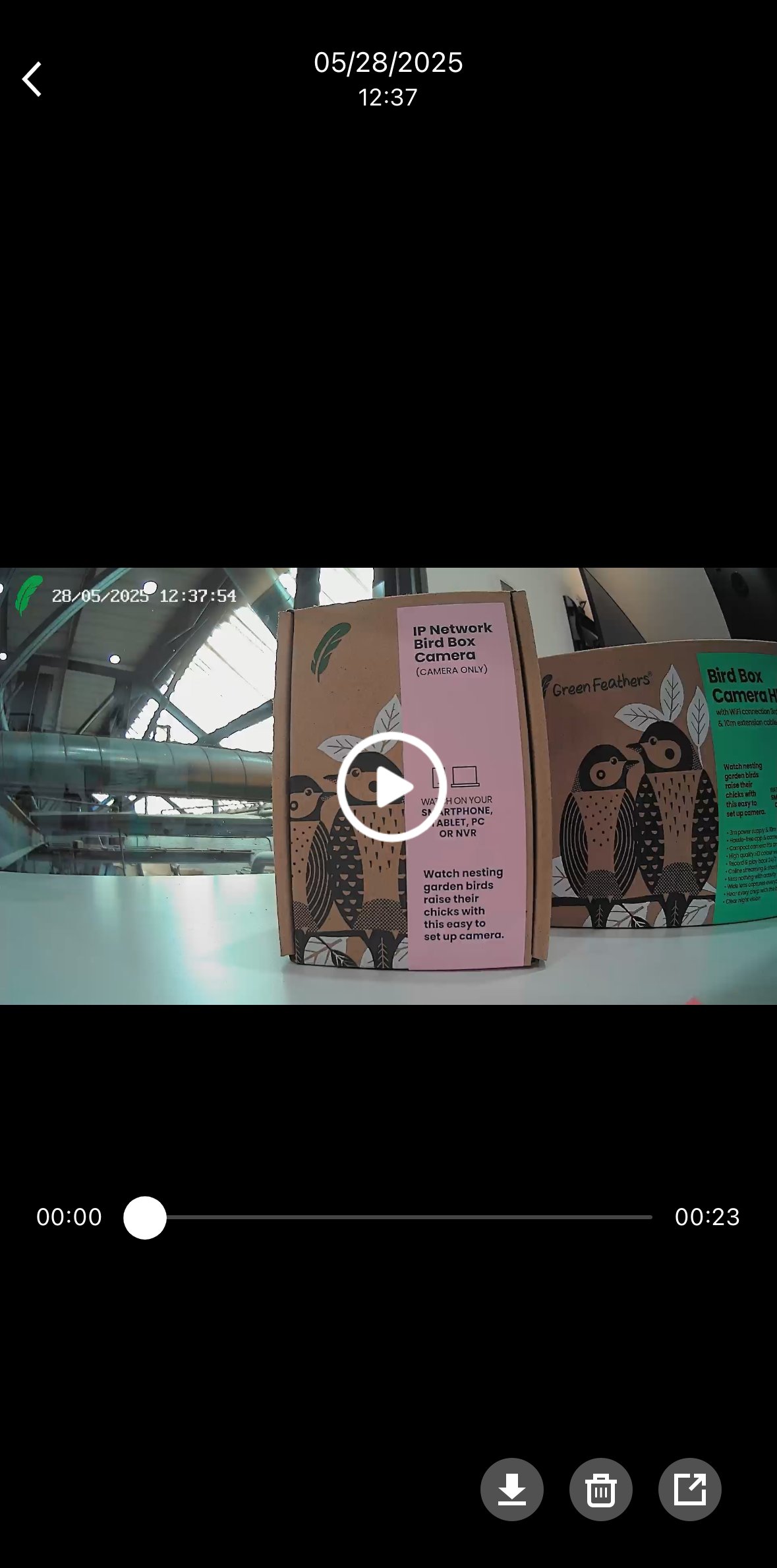
 Download (Left) this one allows you to download straight to your device.
 Delete (Middle) this will delete the file
 Share (Right) This allows you to share the image in multiple different ways, email, text etc.
Need more help?
If you need help with anything else please check out our other guides or get in contact.