
Camera Settings Information in the older style Green Feathers app (GFWF3/NCIP3WF, GFIP320BWF, GFIP3)Updated a month ago
This guide will run you through the settings information for the following cameras (GFWF3/NCIP3WF, GFIP320BWF, GFIP3) pictured below. If you are unsure of which camera you have please check here.
Please note: some features may be missing from the app for your camera depending on it's model and when it was purchased.
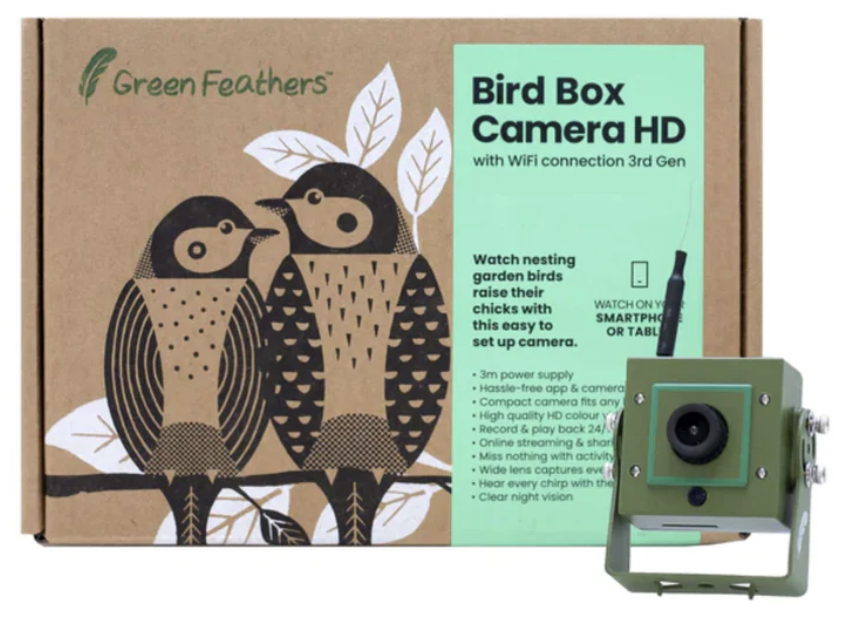 Wi-Fi Bird Box & Wildlife Habitat HD Camera (GFWF3GB/NCIP3WF) | 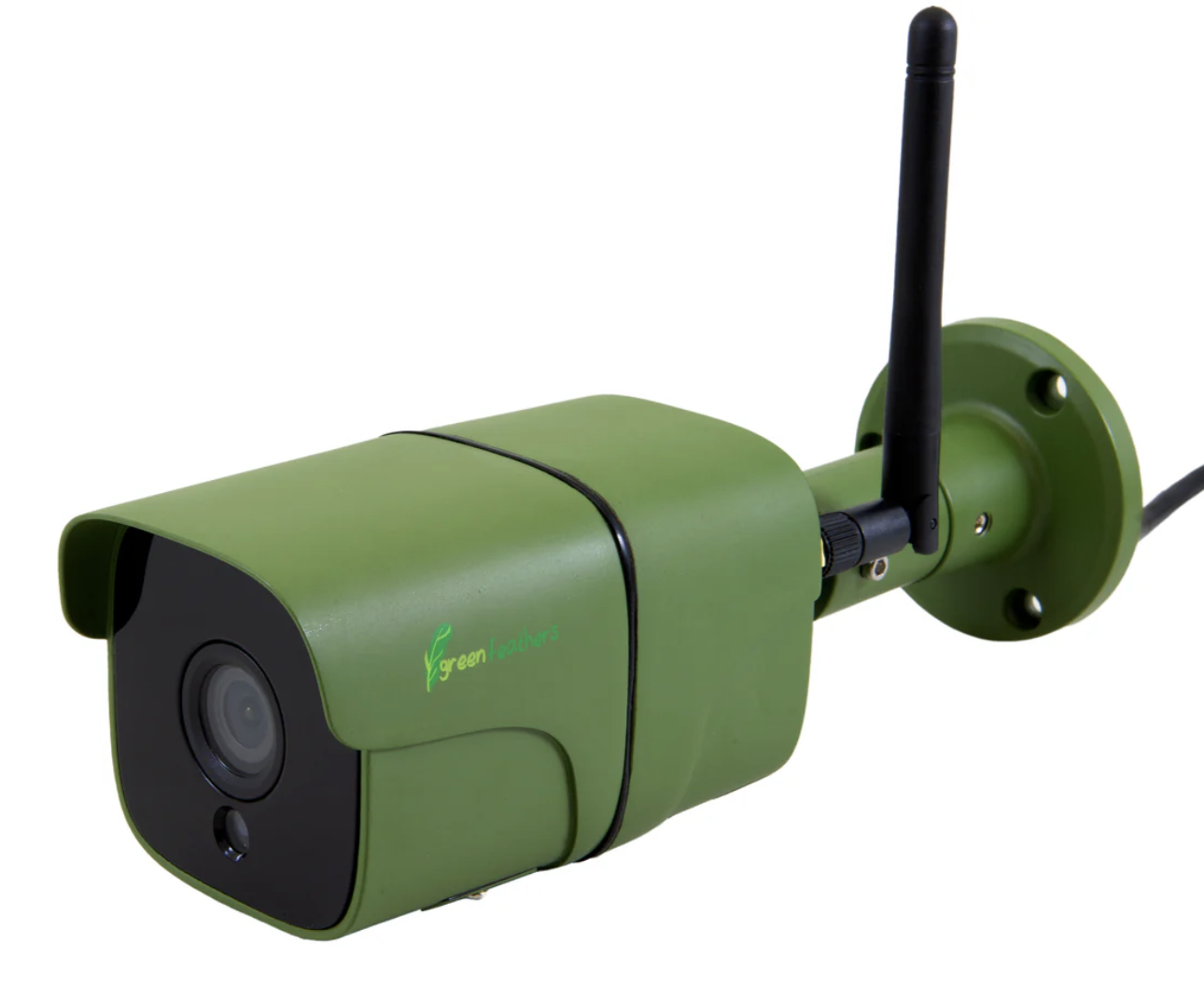 Wi-Fi Outdoor Wildlife HD Camera (GFIP320BWF) |
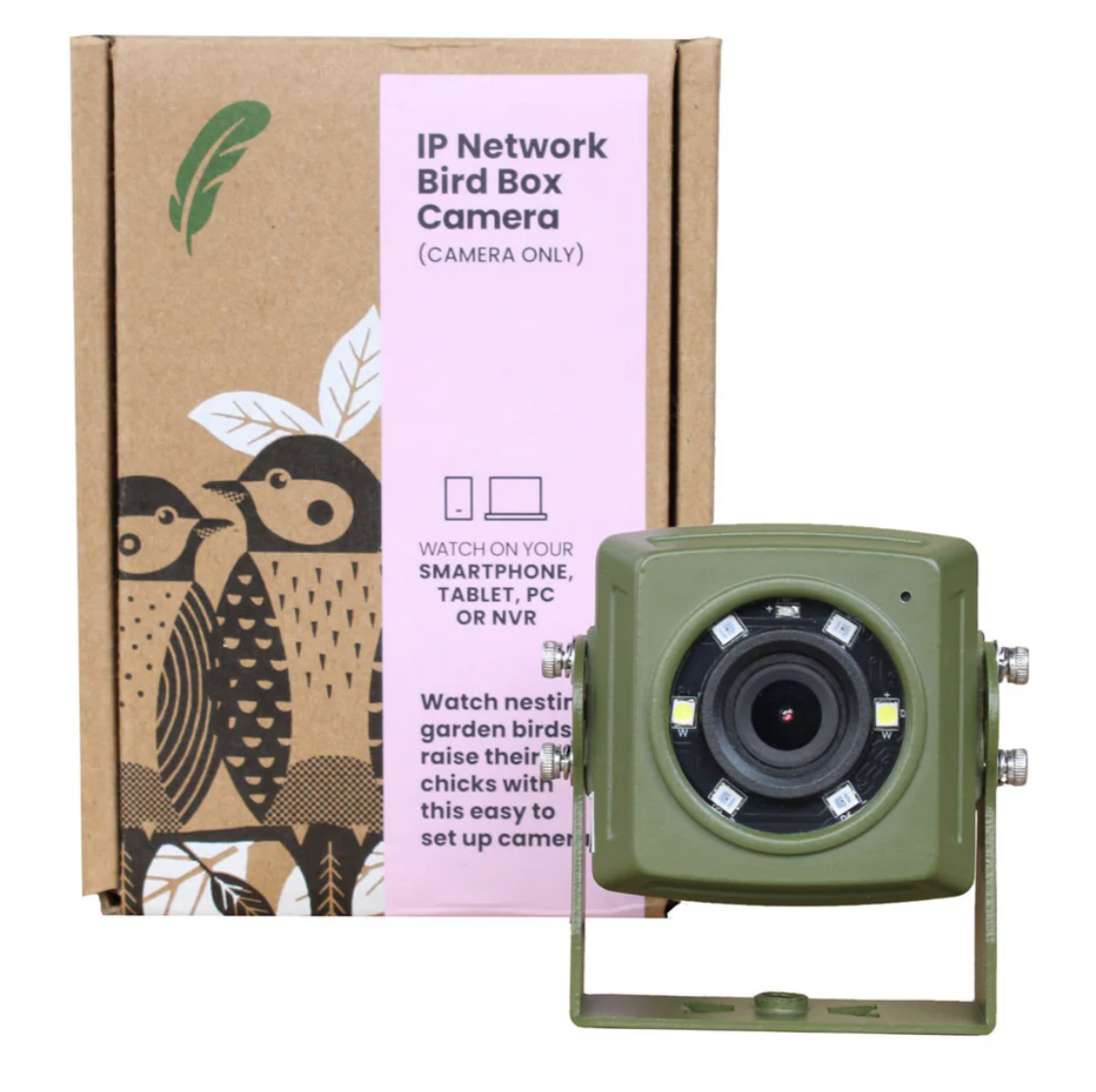 Wired IP Network Bird Box Camera | |
You will need to navigate to the settings page for your camera. You can do this by selecting the three little pencil icon in the top right corner of the live view page.
Please note: Each settings page is per camera, if you change any settings in there you are only changing the settings for that particular camera.
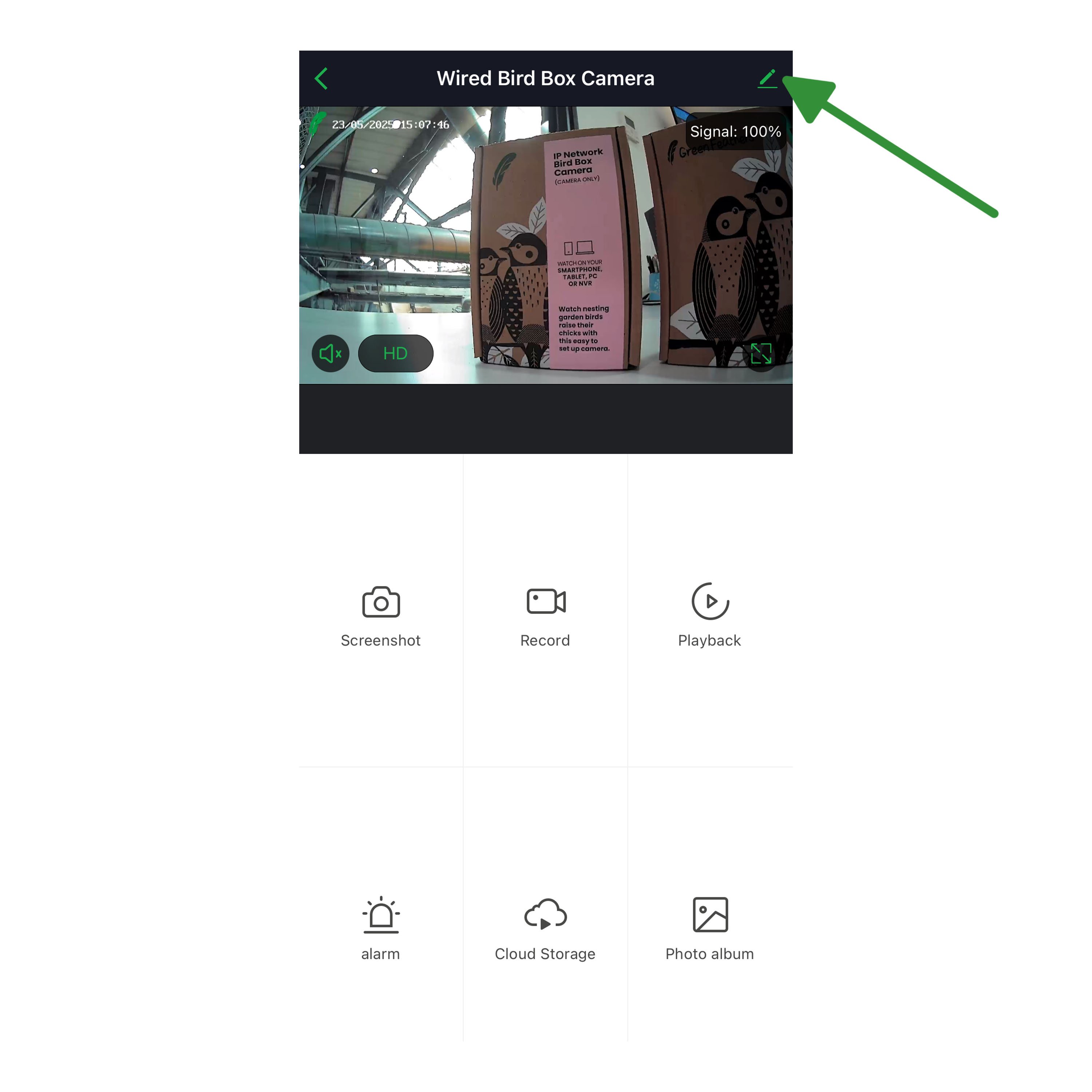
Once you're into the settings page you will see the following list - 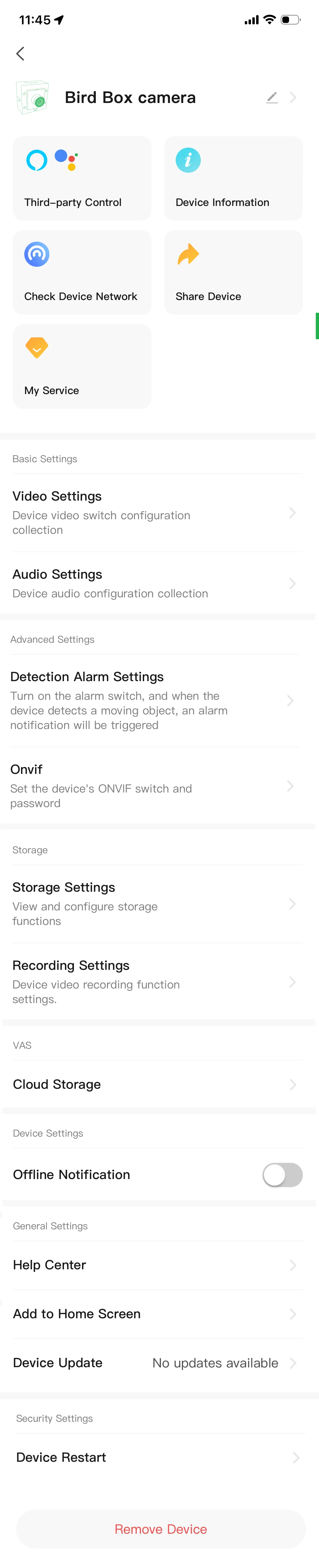
We will go through these one by one in order.
The very top option where you see the camera name and the little pencil icon is the customisation of the camera, here you can change the icon image, the name and the location.
Third Party Control - For this camera, you can enable use with Google Home and Alexa devices. To see how to connect to Amazon Echo Show, see here. To see how to connect to a Google Home Hub, see here.
Device Information - This page will show you the Virtual ID, the IP address of the camera, the time zone and the current signal strength.
Check Device Network - This will show you the current connection status between the camera and your router.
Share Device - Click here to share your camera to someone, if you want some more information on how to do this, have a look at this guide here.
My Service - This will take you to your Cloud Storage subscriptions. You can find out more about cloud storage subscriptions here.
Video Settings - This will give you options for:
Flip Screen: This displays your cameras image upside-down which is useful if you have to install your camera in an unorthodox location.
Time Watermark: This lets you choose whether to display the current time on your camera's live feed.
IR Night vision: Selecting this will show you the following options - Auto/Off/Open. We recommend keeping the camera on Auto but this allows you to switch between them. Off means the IR Night Vision is switched off and Open means it stays on.
Audio Settings - All audio settings are not available or have been disabled for the older style app.
Detection Alarm Settings - This will show you the settings for the motion detection, for more information on this, have a look here.
Storage Settings - This section becomes available once you have inserted an SD card into your camera. Once an SD card is added to your camera your camera can start recording Playback.
Recording Settings - This section becomes available once you have inserted an SD card into your camera. From here you can choose your recording settings for Playback.
Cloud Storage - Here you can purchase cloud storage or view your current subscription. You do not need to purchase a cloud storage subscription if you have an SD card inserted. For more information on the cloud storage have a look at this guide here.
Offline Notification - Tick this one if you want to receive a notification if your camera goes offline.
Help Centre - Our help centre is currently in the works, there is some useful information on there but with our app upgrade some of it has become disjointed and muddled. We are working on getting this fixed ASAP.
Add to Home Screen - This allows you to add a homepage widget on your phone.
Device Update - This will show you any current device updates.
Device Restart - This performs a soft restart for the camera. It does not reset the device.
Remove Device - Remove device will remove the camera from the app and do a factory reset.
Need more help?
If you need help with anything else please check out our other guides or get in contact.