
Why has my GFIP3 camera gone offline?Updated 20 days ago
This guide will help you troubleshoot the cause of your GFIP3 camera going offline, and hopefully help you get it back online. If you are not sure what camera you have, please check here.
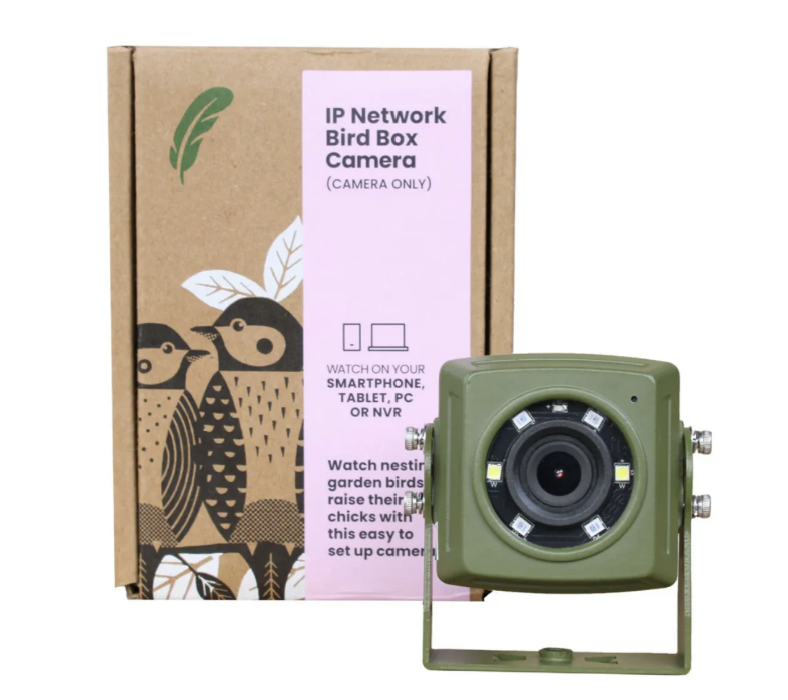
Wired IP Network Bird Box Camera (GFIP3)
We will be checking everything that is involved in making the camera work, starting with indoors then moving towards the camera.
Sometimes, the simplest advice applies: If you have a problem that doesn’t seem to be caused by a physical fault, just turning the camera off and on again can resolve the issue.
If this is your first time setting the camera up
- If this is your first time setting up your camera, please see this guide here with instructions on how to do this.
If your camera has already been set up and has gone offline, please follow the steps below:
Check your internet
- Make sure that your Wi-Fi router, Wi-Fi extender, or Wi-Fi bridge that the camera is connected to is still on; most people use Wi-Fi devices, so it is normally quite obvious if your Wi-Fi router has been turned off or stopped working.
- If you have recently replaced your internet router or reset your current one, you will need to reset the camera and re-connect it.
Check your phone/tablet/computer
- Make sure the device you are using to view the camera is still connected to the internet.
- Exit the Green Feathers app and open it back up.
- Try viewing the camera on a different device; if this works then the issue likely lies with the device you were using previously.
Check the connections
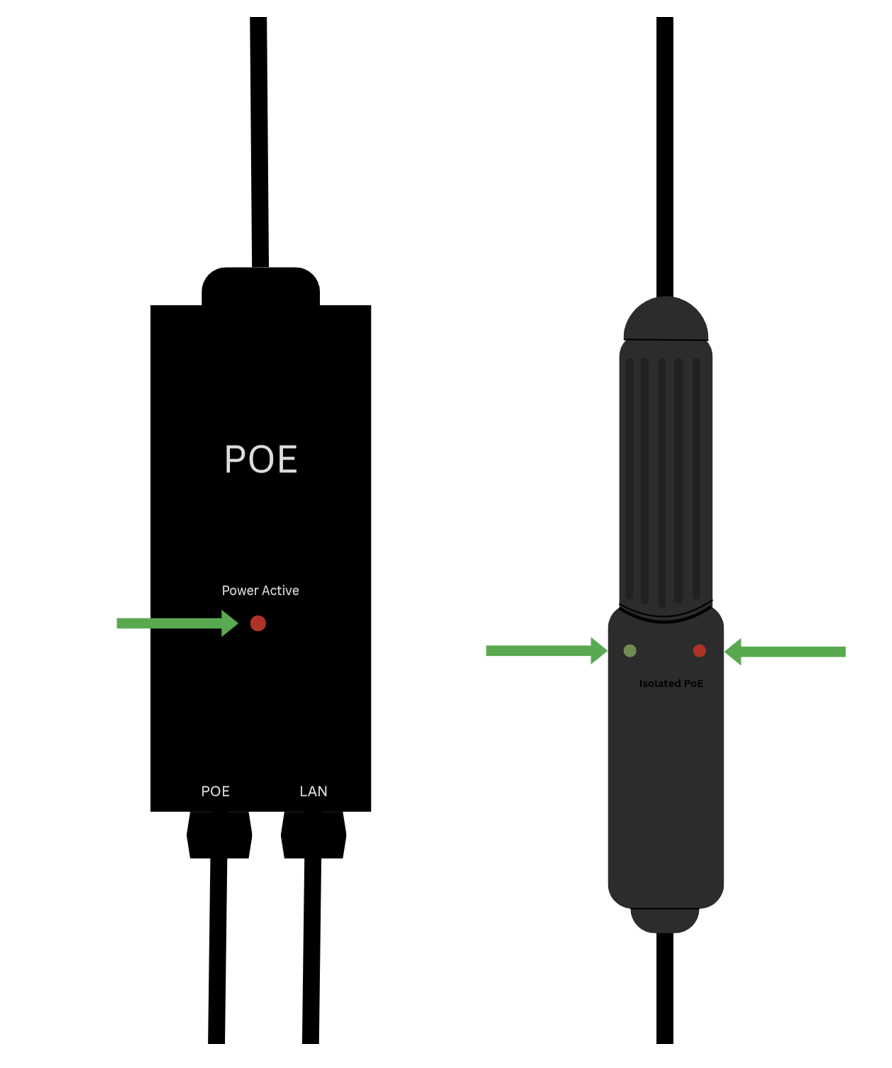
- If you have the following components in place, please check them to see if the connections are all correct and not corroded or rusted: PoE injector connections, network cable connection to the camera, any power supplies and/or extension leads.
- Check the wiring to see if this has been cut at any point along the length.
- If you are using one, check that the PoE injector has a solid light on the front of it.
- Check the lights on the network cable connection to the camera (there should be one solid light and one flashing light – the colour of these may vary depending on the age of your camera).
- If you are using a power supply with your camera, check that this is working; if possible, use a voltmeter to test it.
Check the camera
- There are a few ways to check that the GFIP3 camera is receiving power, these are listed below:
- Touch the camera to check if it is warm; after being on for about ten minutes it should be noticeably warm, if not then this is an indication that the camera is not receiving power.
- Additionally, if you take the cap off of the light sensor in daylight, the light should switch on around the lens of the camera.
- Check if the camera makes a click when it is turned on at the mains power, this is an indication that the camera is receiving power.
- Check the reset button on the camera and make sure it isn't rusted or broken; if the button malfunctions due to water damage (among other reasons) it may become stuck and cause the camera to continuously reboot. Try loosening the button by pressing it repeatedly or clean out the area around the reset button.
- Has the positioning of the camera changed at all or the distance between the PoE injector and the camera increased? This may impact the camera’s ability to connect successfully.
Try resetting and setting it up again
- If the camera is still receiving power and seems to be working properly, but says that it is offline still, it is a good idea to try resetting the camera and setting it up again. In order to do this, you will firstly need to remove the camera from the Green Feathers app before re-adding it. Instructions on how to do this are listed below:
- Firstly, go onto your Green Feathers app home page
- From here, press and hold the thumbnail of the camera that you want to remove (a tick should appear next to the camera once it is successfully selected).
- Next, select the option to ‘Remove Device’ in the bottom right-hand corner (you may need to scroll across to see this option).
- Next, re-add the camera using the instructions here.
Need more help?
If you need help with anything else please check out our other guides or get in contact.