
How to: Set up your 4th Generation Wi-Fi bullet camera using Ethernet mode on Green Feathers app (GFWF4B)Updated 44 minutes ago
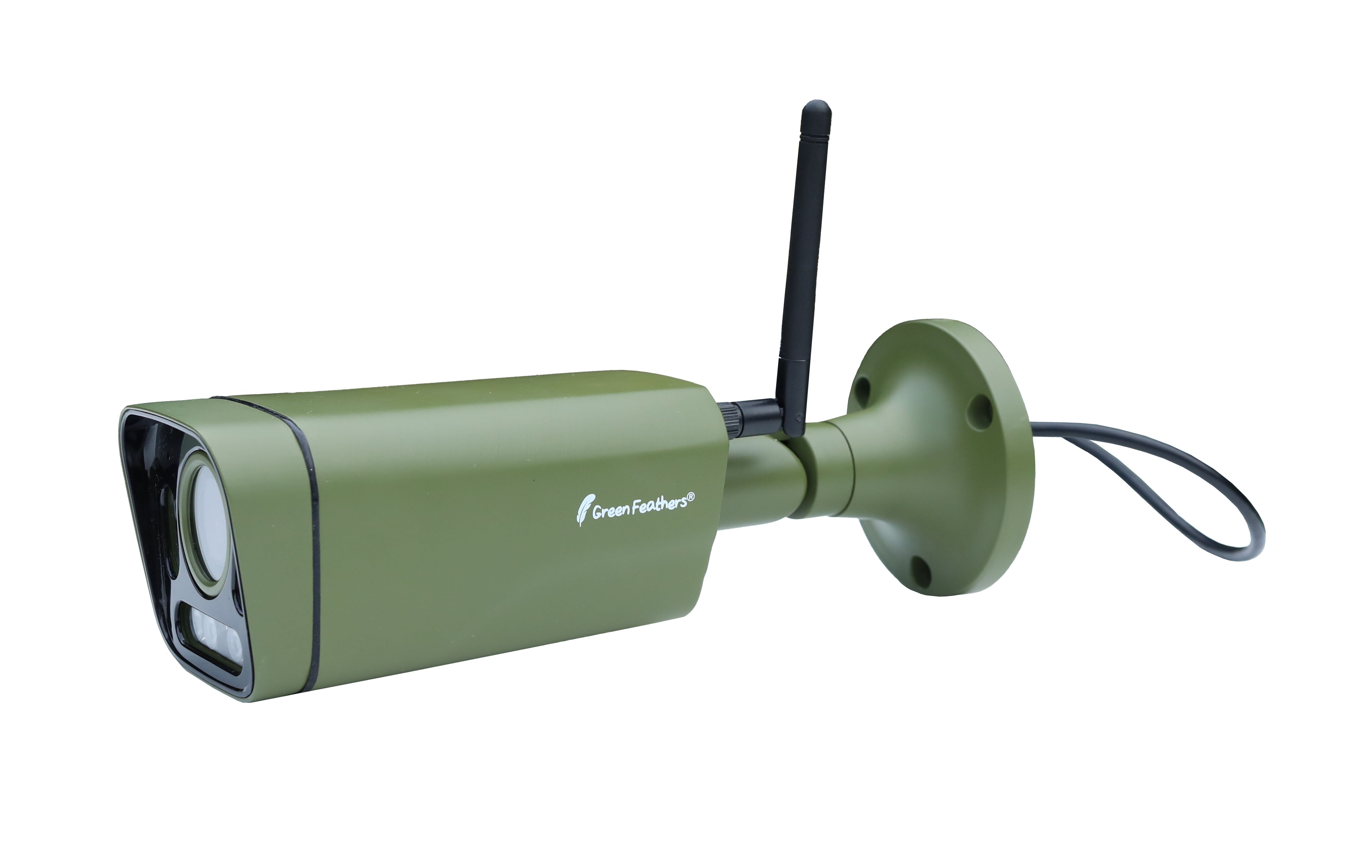
This guide will run you through the Ethernet set up method on the Green Feathers app for the 4th Generation Wi-Fi bullet camera (GFWF4B) pictured below. If you are unsure of which camera you have please check here.
 |
To Start:
Before you mount the camera, make sure that it is connected to your internet and can be viewed on the app. It’s best to set the camera up indoors first, then you can install it in its final location.
Android from the Google Play store - click here.
iOS from the App store - click here.
To get started, open the app:
1. Registering an account
Tap 'Sign Up' to create an account, then select 'Agree' for the 'User Agreement and Privacy Policy'. If you have already signed up then skip below to the section called 'Adding the camera to the app'.
- Enter your email address, tick 'I Agree User Agreement and Privacy Policy' then tap 'Get Verification Code'. If you would like to use your Google or Facebook account to sign up you can do so by tapping the relevant icon at the bottom of the page.
- Enter this code into the app.

- Set a password for your account - make sure it is something memorable.

Once your account is all setup, just log in to the app!
2. Adding the camera to the app
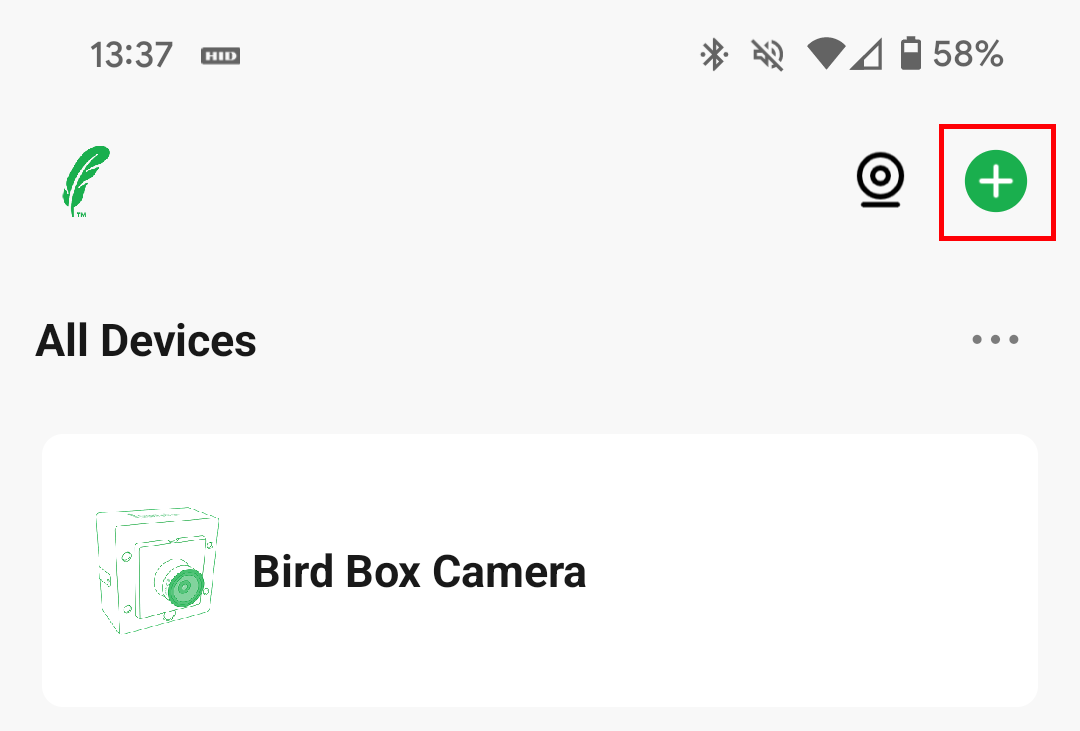
On your Green Feathers app, the first time you go to the Home page, you can choose to allow the app to use your device location. This is not essential, but helps with some features. Next, click the green '+' icon at the top right of the screen and select 'Add Device'


3. Ethernet mode
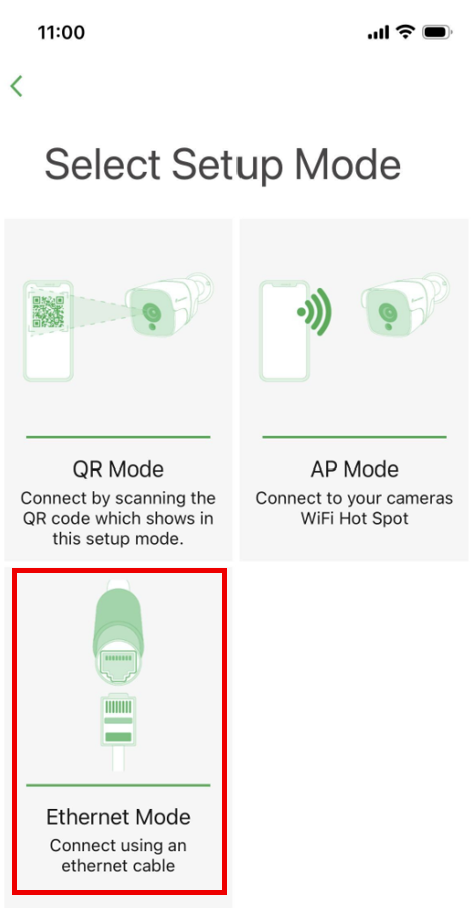
From here, select 'Garden Wildlife Camera 4th Gen' and then 'Ethernet Mode'.
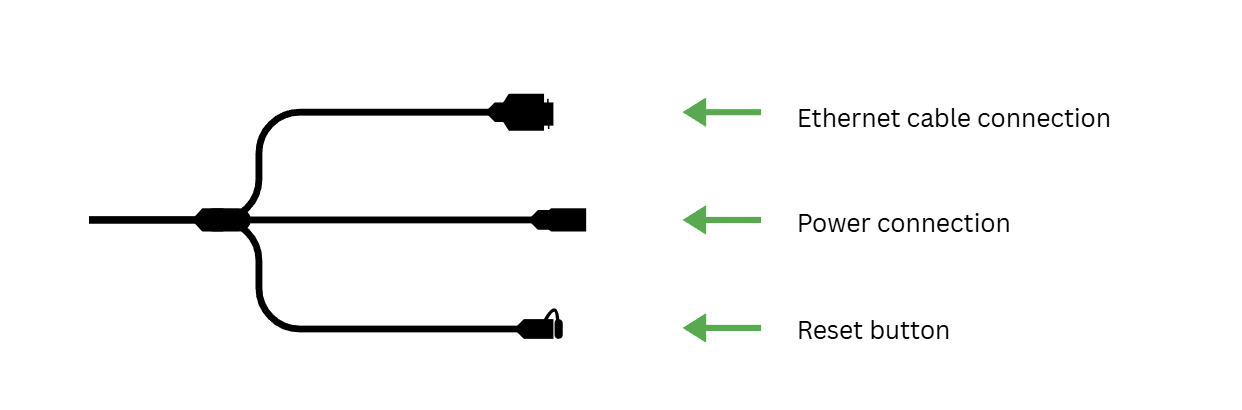
Next, make sure that the camera is connected to power and that the ethernet cable is plugged in and connected to your internet router. When everything is connected there should be a flashing light visible on the cable that leads to the camera.
Once completed, press ‘Next’.
4. Resetting the camera
Press and hold the reset button on the cable for 5 seconds and then release. Wait 20-30 seconds for the camera to fully reset.
The indicator light will cycle through the reset process, and you should hear the camera click.
Now select 'Next'.
5. Pairing the camera
Your camera is now ready for pairing, select ‘Next’.
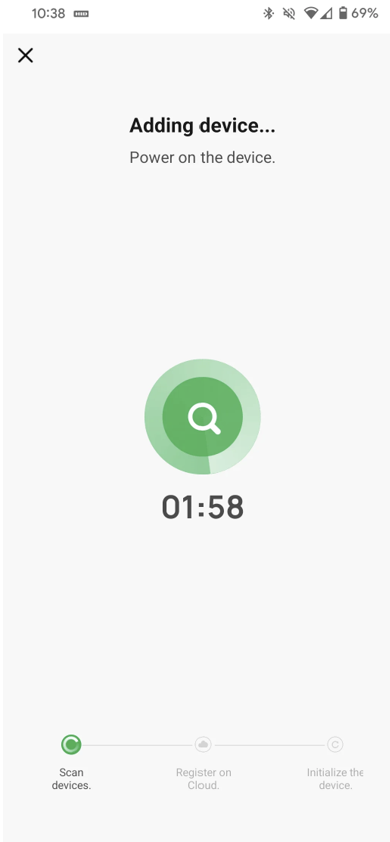
You should be presented with a 2-minute countdown timer, after a minute or so it should have found the camera and added it to the app. You can set a name for the camera now or later in the settings menu.
Make sure to place the cap back on the reset button before placing the camera outside.
Troubleshooting
If the camera does not connect to your internet:
- Try resetting it and start again.
- Make sure that the cable connections are secure and that the camera is connected to your router via an ethernet cable.
- You can also try the QR mode setup method or the AP mode setup method.
- If you have connected it to your internet router, but it shows the message 'Establishing encrypted channel' and doesn't load:
- Try closing the app and re-opening it.
- If that doesn't work, please check what version of app you are using (go to the 'Me' section of the app, then select Settings > About). You will not need to set the camera back up if you do this, it will remain connected to your Wi-Fi router.
For more information on the Green Feathers app:
For a run through of the app, have a look here
To read about the motion detection and recording settings have a look here
To share the camera to other devices check this guide here
Need more help?
If you need help with anything else please check out our other guides or get in contact.