
How to: Re-Add your offline camera back onto the Green Feathers app (GFWF4B)Updated a month ago
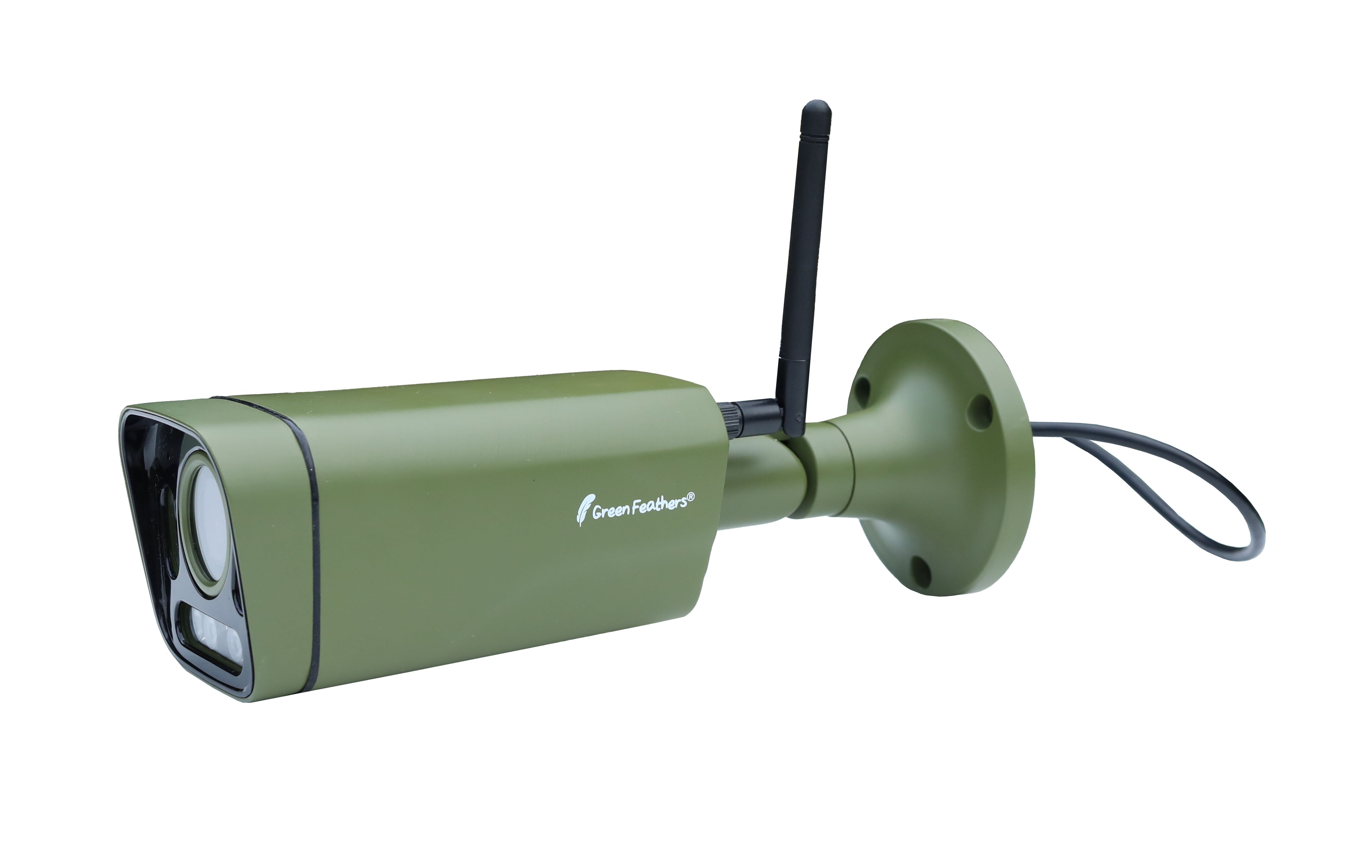
Your camera has gone offline and you're not sure why or what to do? No problem, this guide will help! This guide is for the Green Feathers app compatible Wi-Fi camera below. If you are unsure of which camera you have please have a look here.
 |
If you are on the app and your camera is saying 'Offline' on the homepage and you cannot access it, it may have simply lost connection. If you have changed your router or it's lost connection, you will need to get it back online by following these steps -
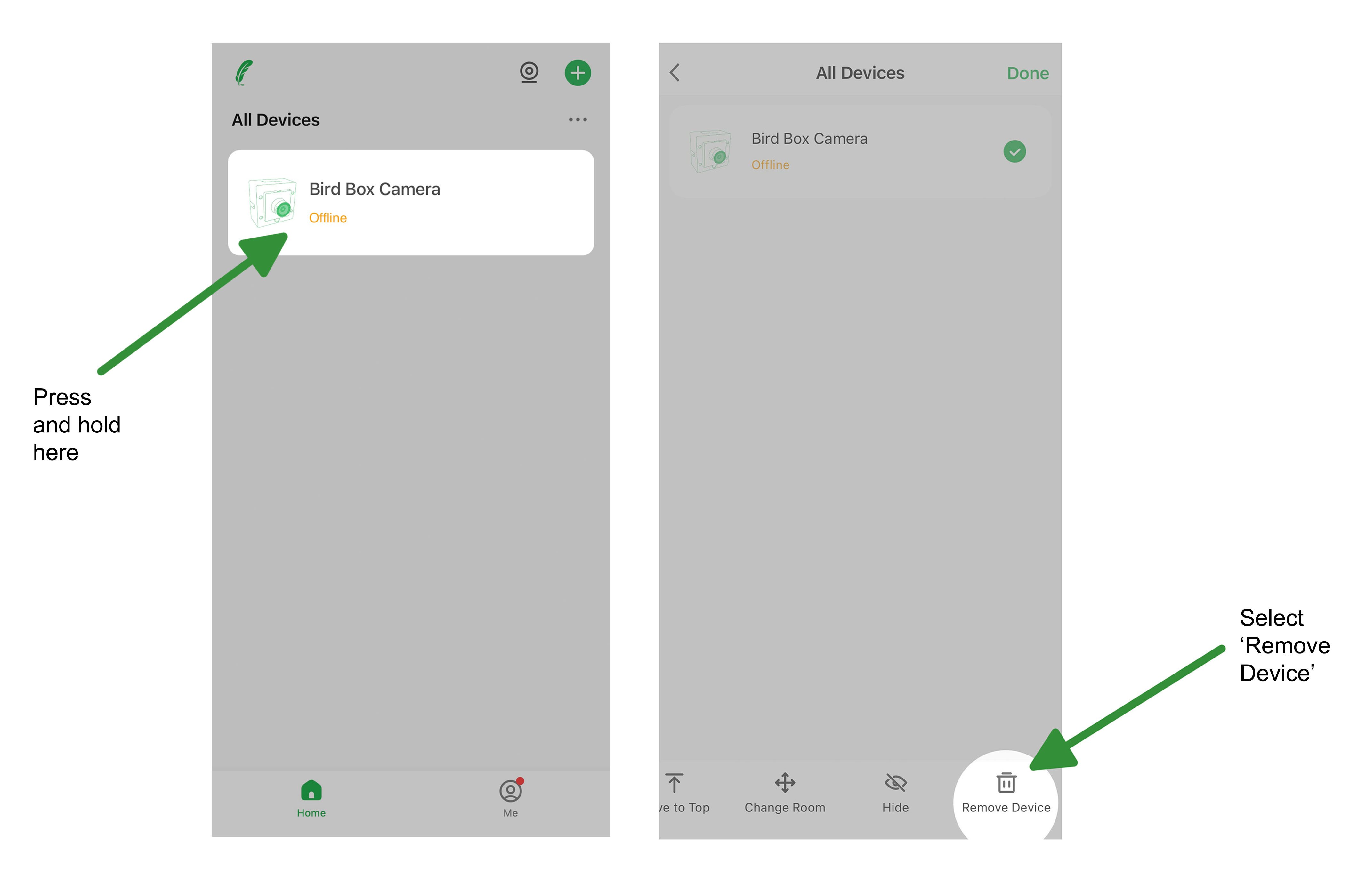
1. Delete the camera from the app, you need to do this before you do anything else. The app will not allow you to connect the same camera twice. To remove the camera you need to be on the homepage of the app, press and hold where it says 'Offline' and you will see some options pop up at the bottom of the screen. Select 'Remove Device' and select 'Confirm' on the pop up that appears.
2. Go out to where the camera is and hold down the reset button for 5 seconds and then release. Wait 20-30 seconds for the camera to fully reset. The indicator light will cycle through it's reset process and you should hear the camera click.
You can then follow our Setup Guide to add your camera automatically to the app. Otherwise you can follow our two other guides below to add your camera manually in:
AP Mode - (for when the camera is inaccessible, i.e. in a bird box or somewhere up high)
QR Mode - (for when you can access the camera and you have clear line of sight to the camera lens)
Ethernet Mode - (If you are connecting your camera directly to your network via an ethernet cable)
This should get you back up and running!
A few things you can check if this does not work -
- Is the camera responding to the reset button being pressed? For example, are you not seeing the indicator lights change or hearing the camera click?
- If the reset process does not appear to be working properly then the reset button may be stuck. Check the reset button is clicking nicely and try holding it down for longer (10-20 seconds).
- If this still does not work, it may mean the camera is not receiving power. Check the power supply has not been damaged and is still connected.
Need more help?
If you need help with anything else please check out our other guides or get in contact.