
How to: Connect your Wireless Camera and Screen to the Green Feathers app (GFTX2SC2N1, GFTX2SC2B1, GFTX2SC2R1S1)Updated a day ago
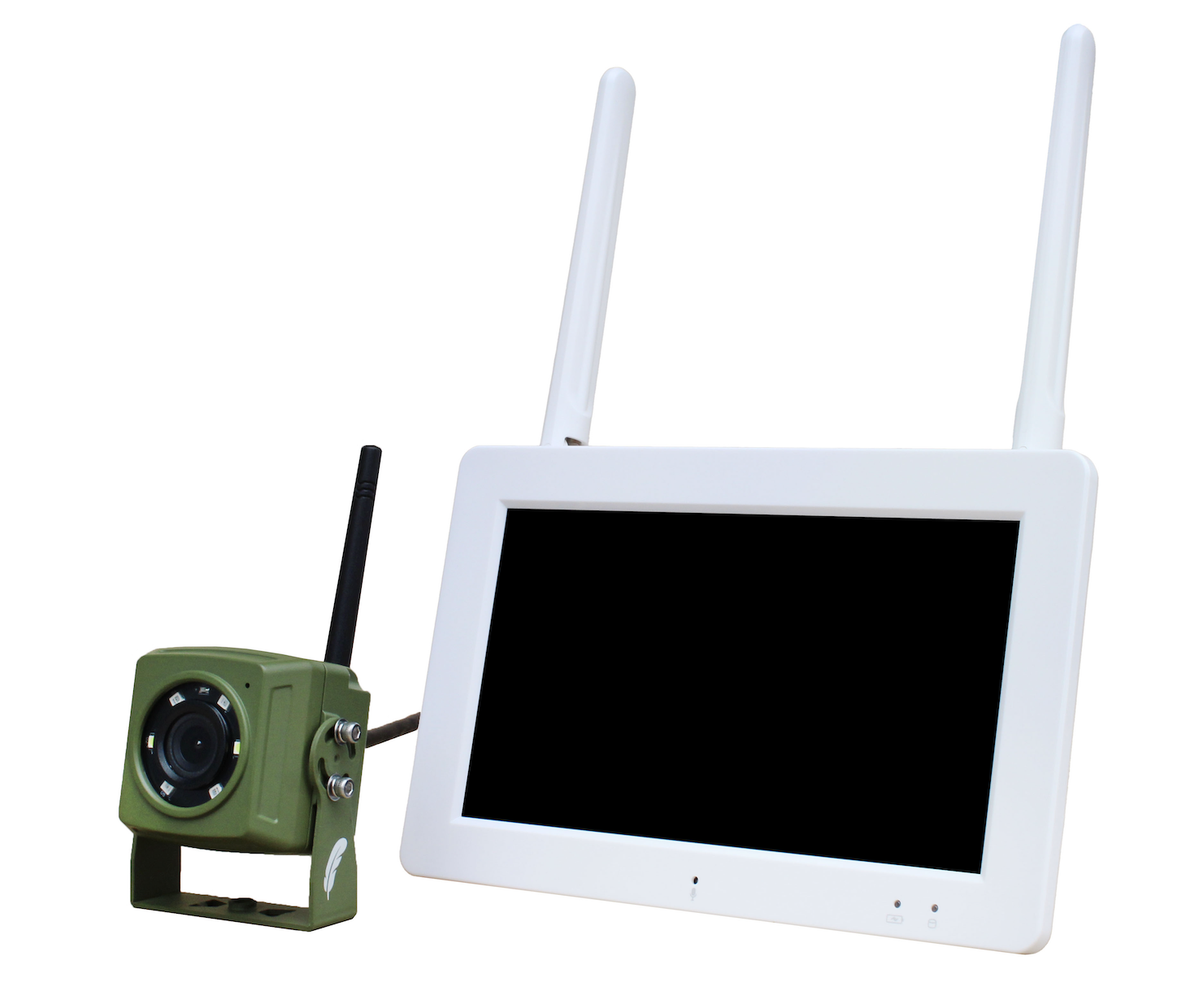
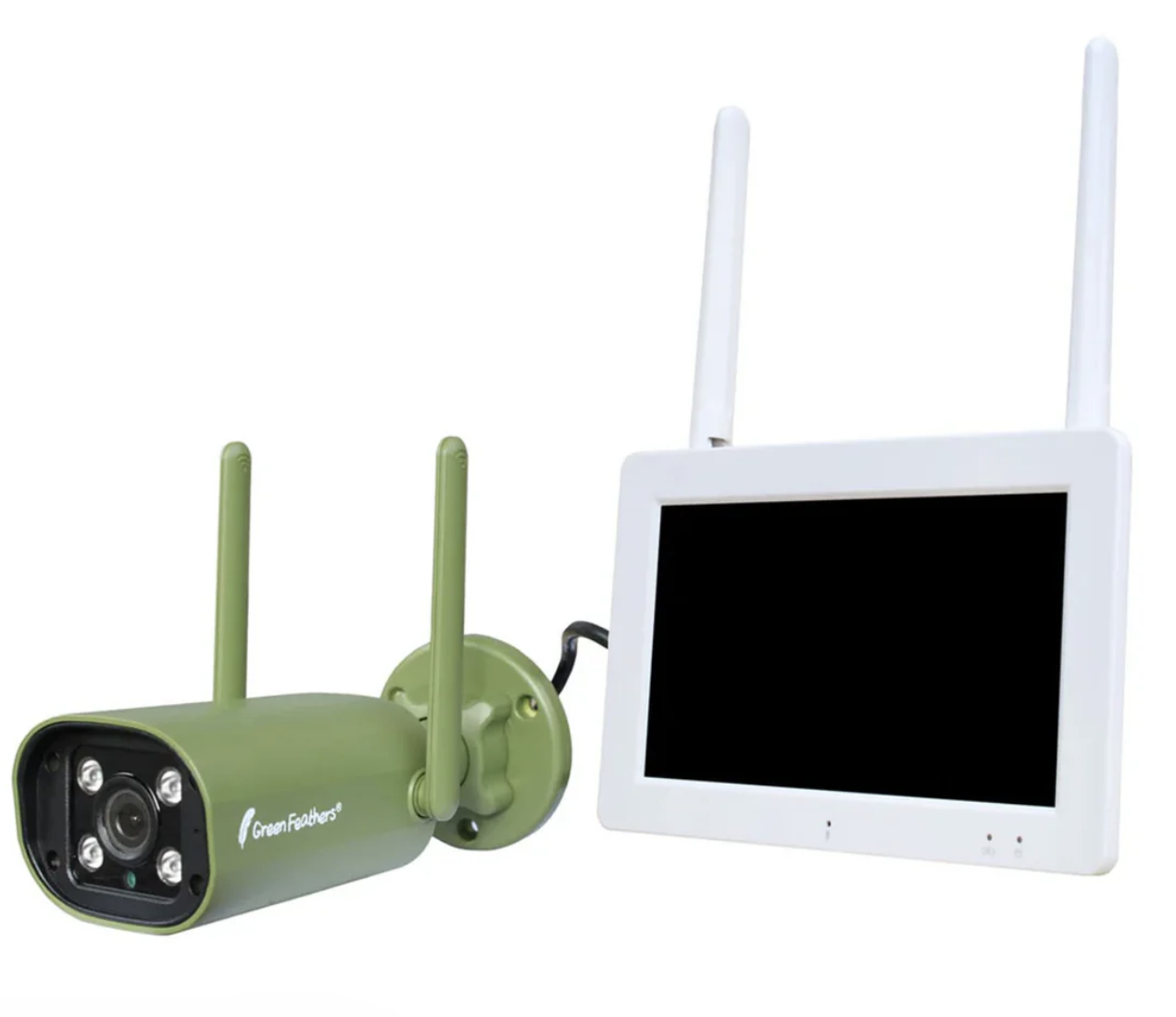
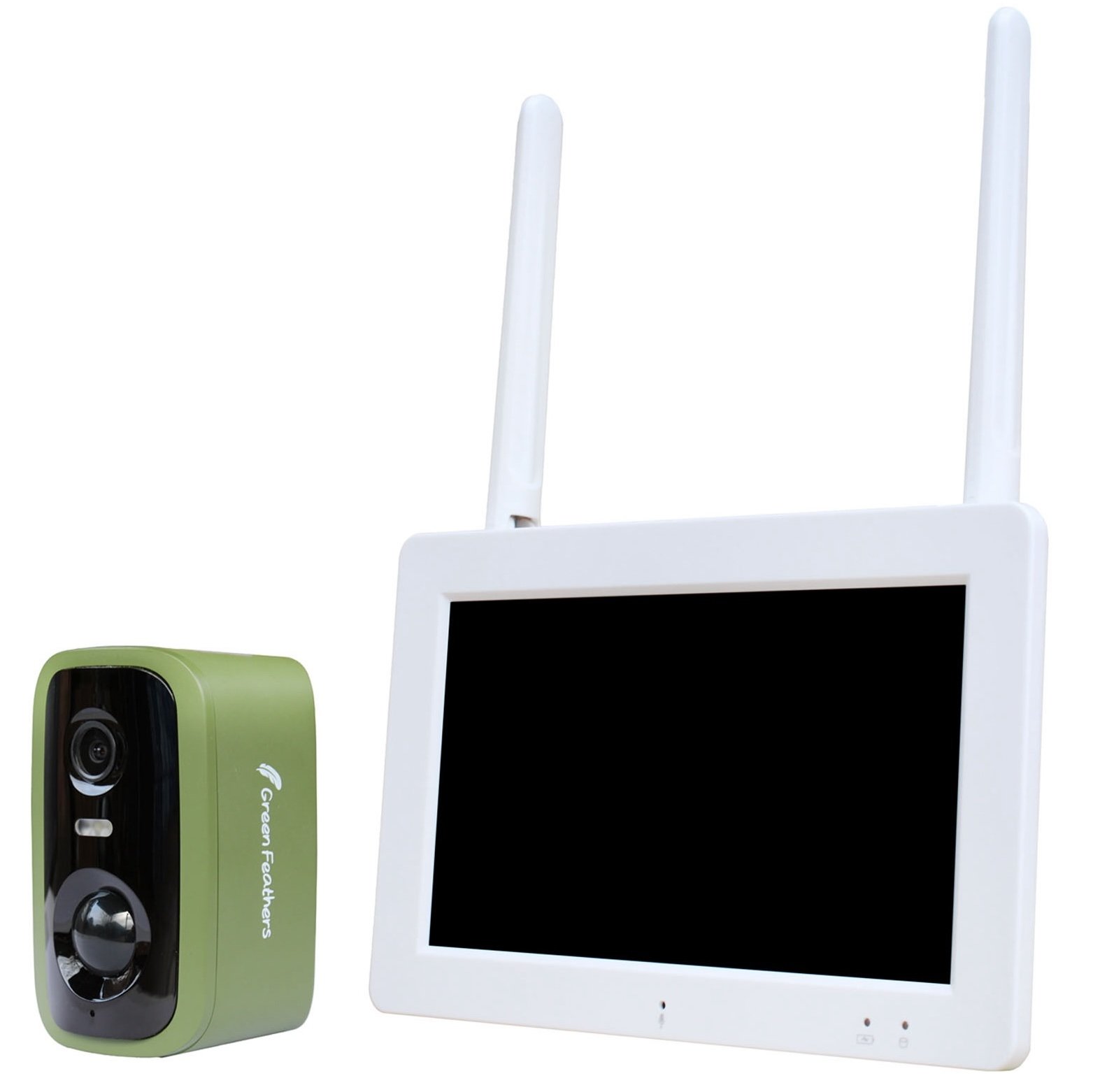
This guide will advise you on how to connect to the Green Feathers app for the Wireless Screen and Camera packs (GFTX2SC2N1, GFTX2SC2B1, GFTX2SC2R1S1) pictured below. If you are unsure of which camera you have please check here.
 |  |
Before you Begin
If you have only just opened the box for the first time or have reset the system and are starting from the beginning we recommend looking at our initial setup guide here. This will make sure you have a live video feed on the screen from the camera. You will need to make sure your screen is connected to the internet.
If you have not connected the screen to your internet, we will start with this:
Go to the Main Menu on the screen and select 'System Setup'
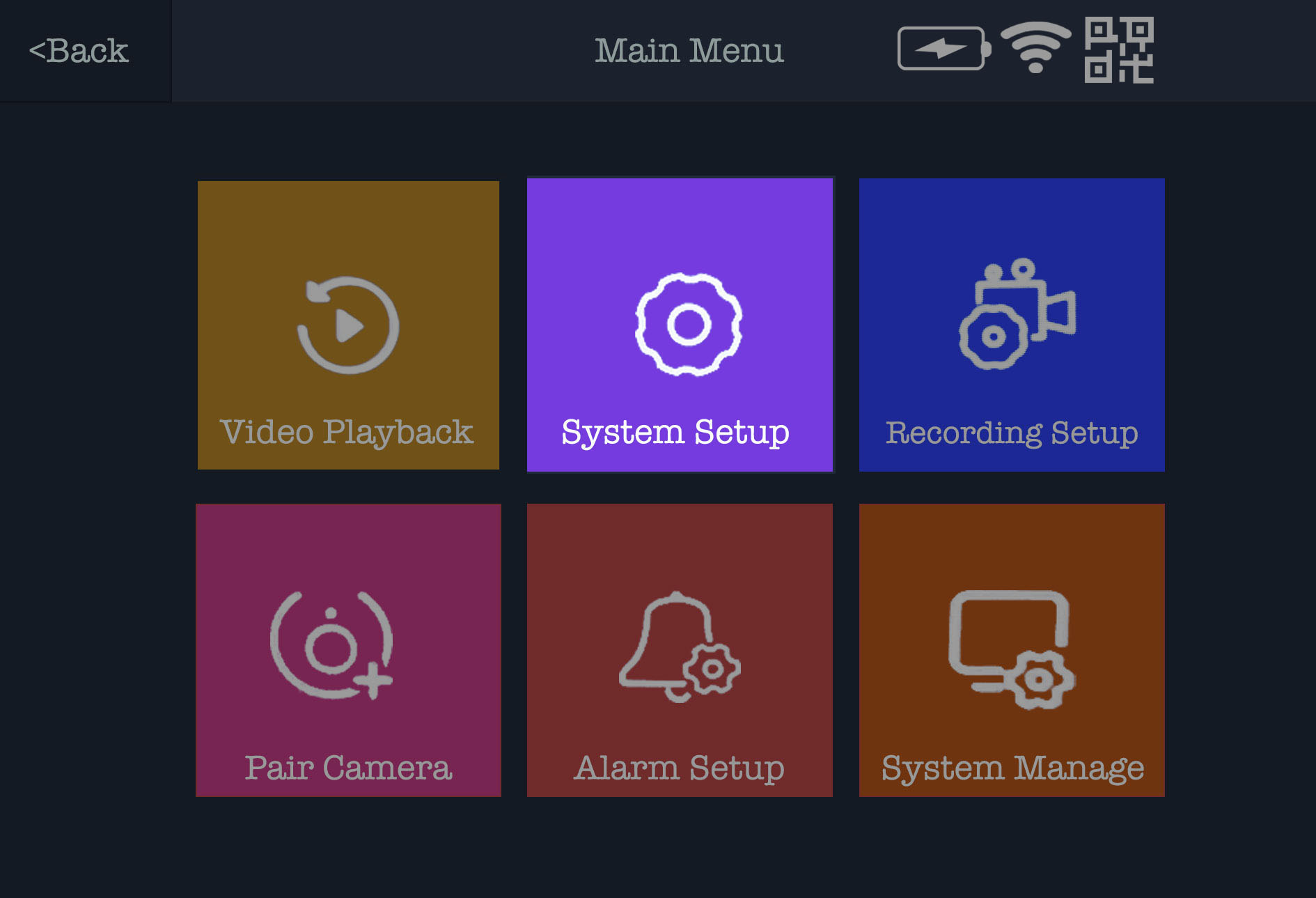
This will take you to this page below, select 'Wireless Internet'
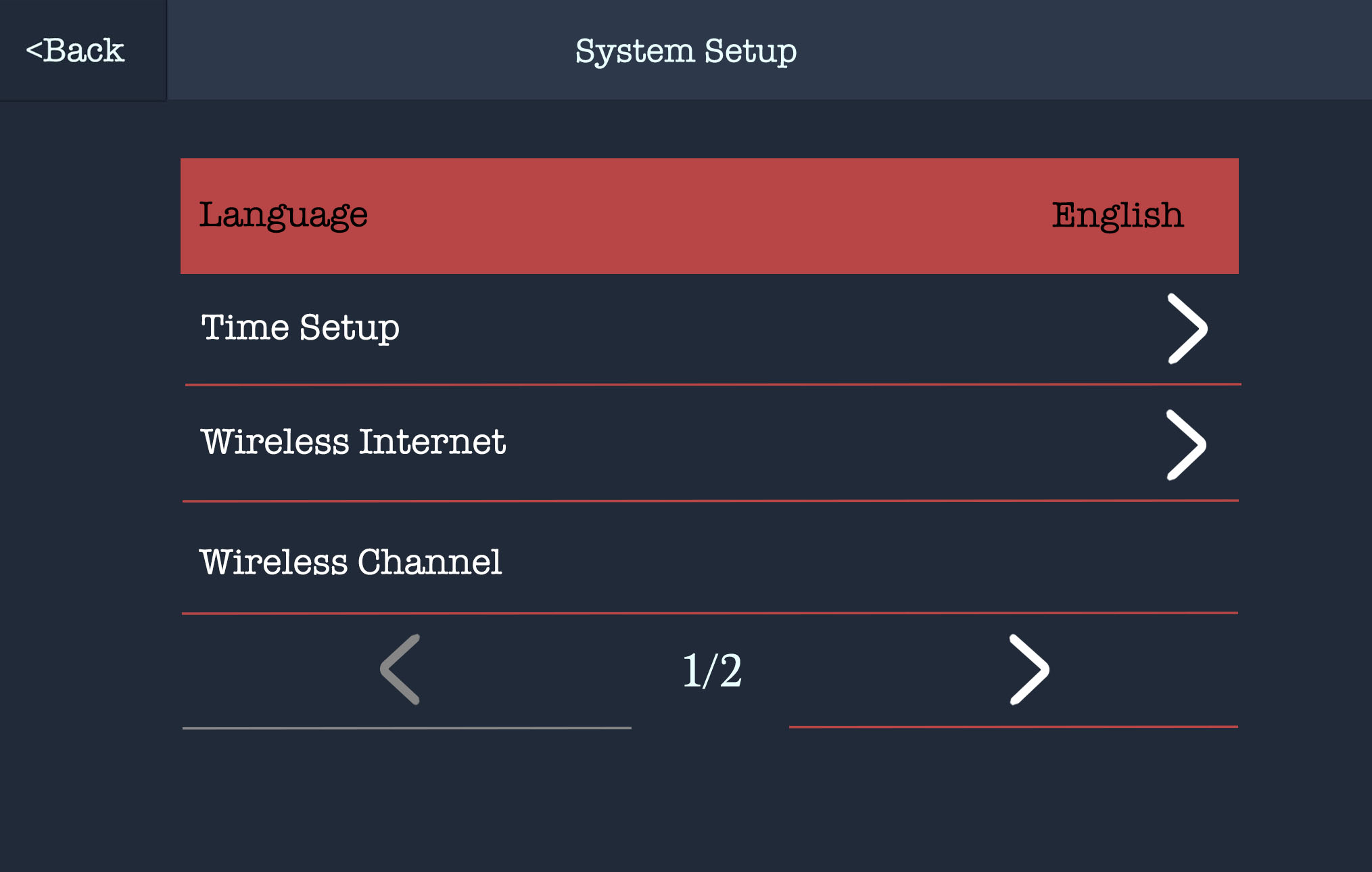
From here you will see the following screen, you want to slide the WLAN to on:
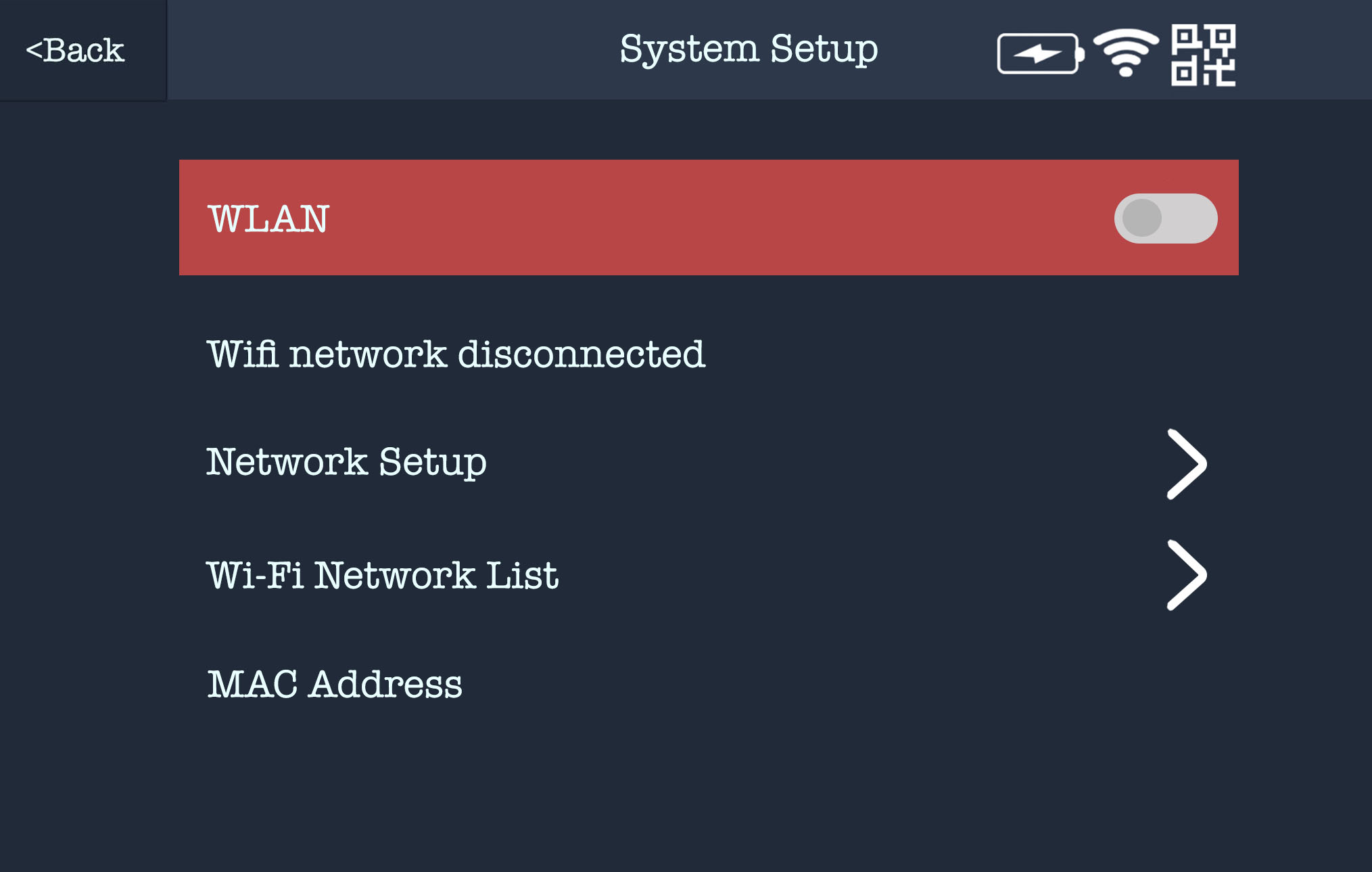
Once you have done this you will be able to go into 'Wi-Fi Network List', from here, find your Wi-Fi network, click on it and put the password in and select 'Enter'. Now you will be connected to your internet.
Connecting to the app -
Now that you are connected to the internet you will be able to connect the screen to the app. You want to also make sure you have an account on the Green Feathers app. We will start with the screen side first.
Go to the main menu of the screen and you will see a QR code in the top right of the screen (like below)
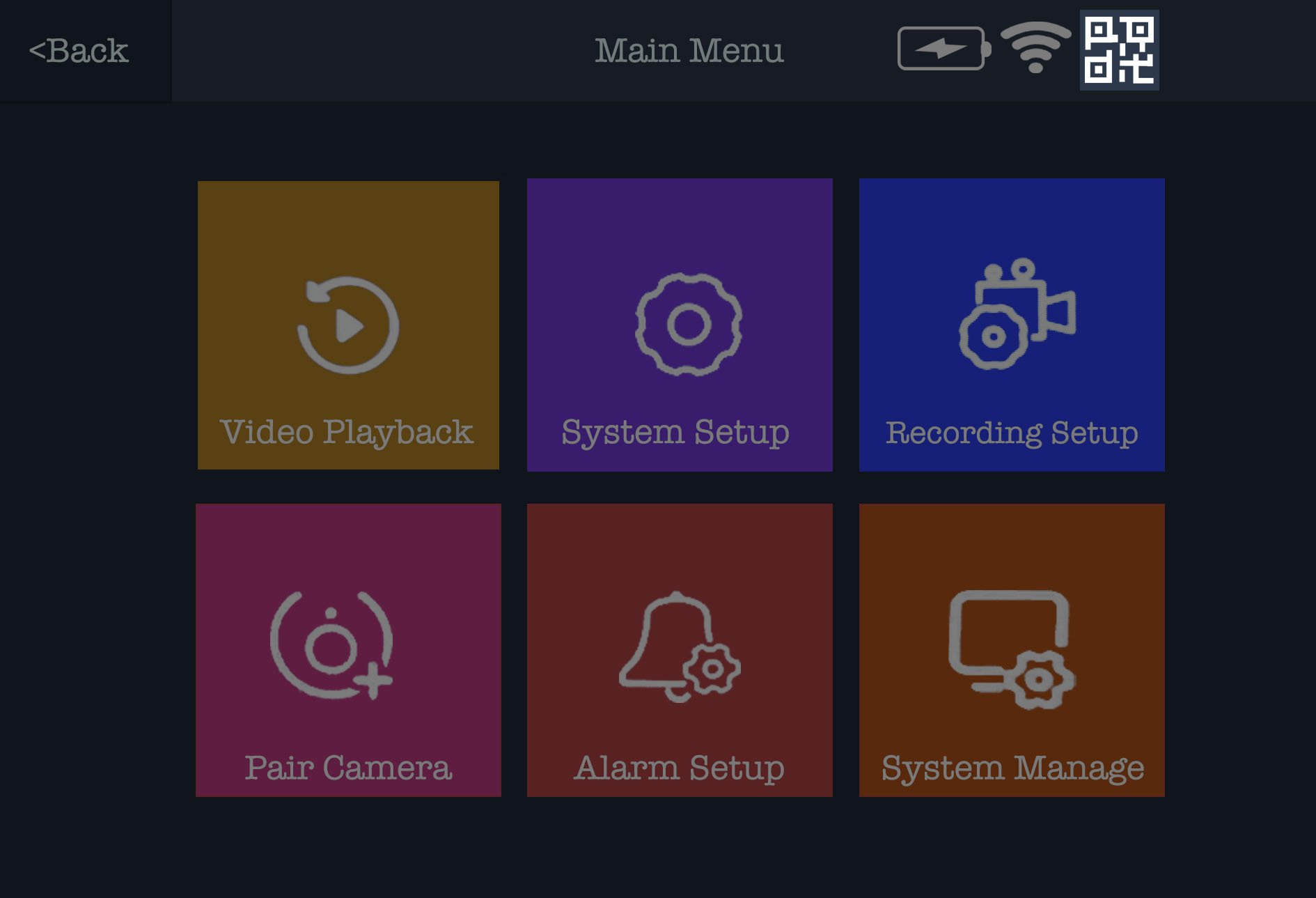
Click on the QR code and you will find yourself on a page that looks like the one below -
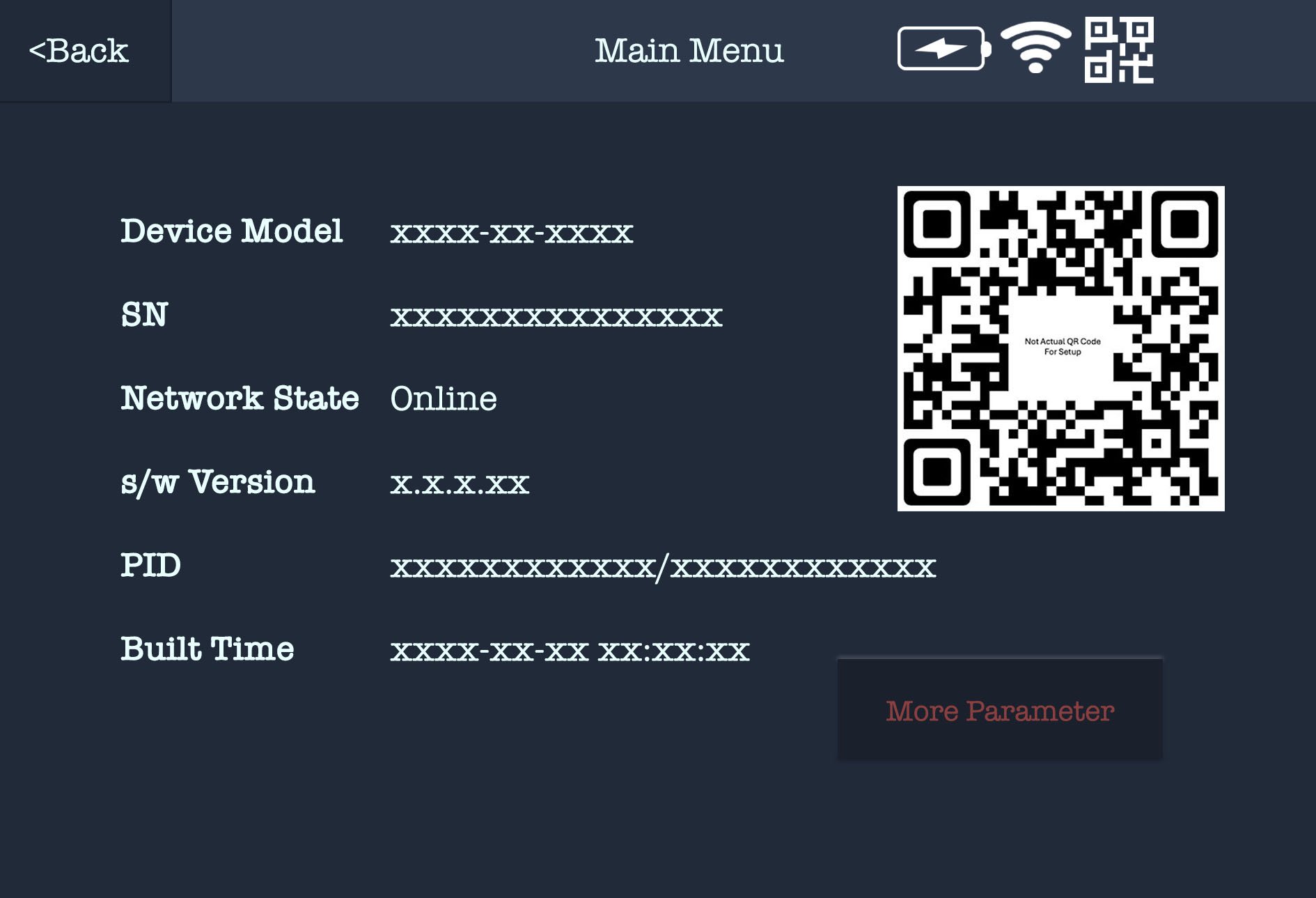
The QR code on the right hand side is the one you need to connect the screen to the app.
So now you need to open up the Green Feathers app on the phone and you should have a screen that looks like this -
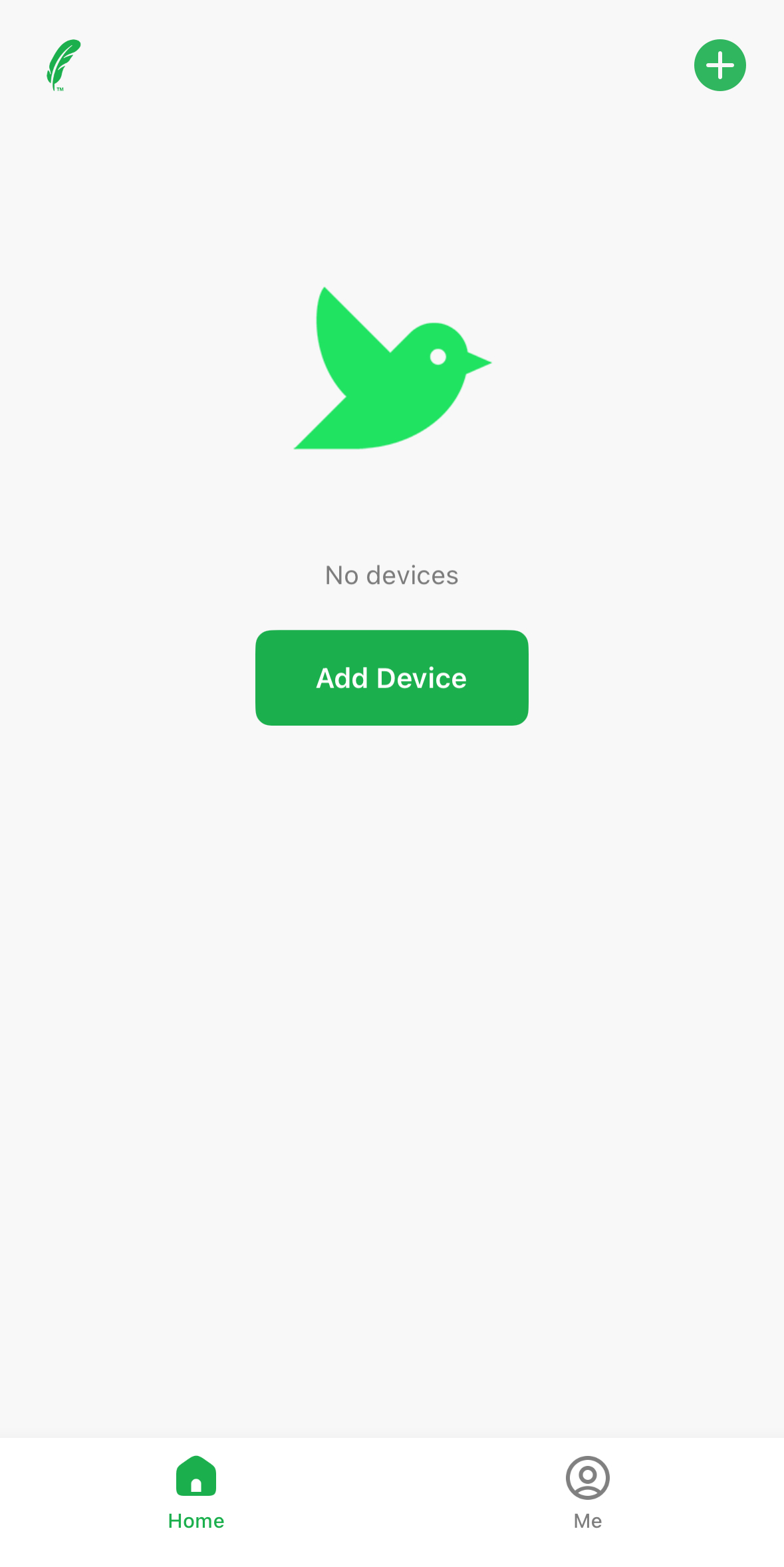
You want to select the green plus symbol button in the top right hand corner which will give you two options -
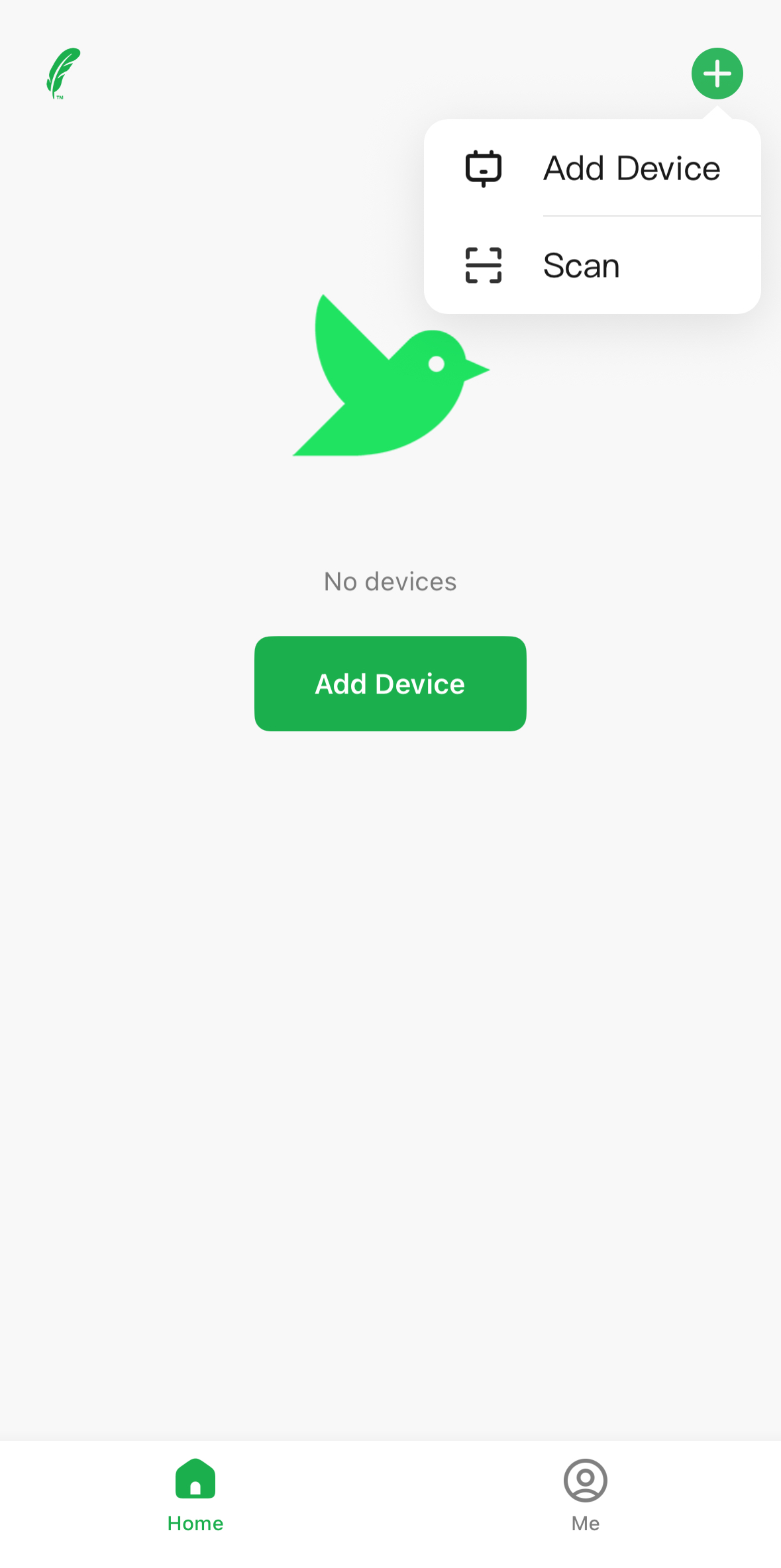
You will need to select 'Scan' which may need to allow camera access for, allow the access and it will show you a scanner -
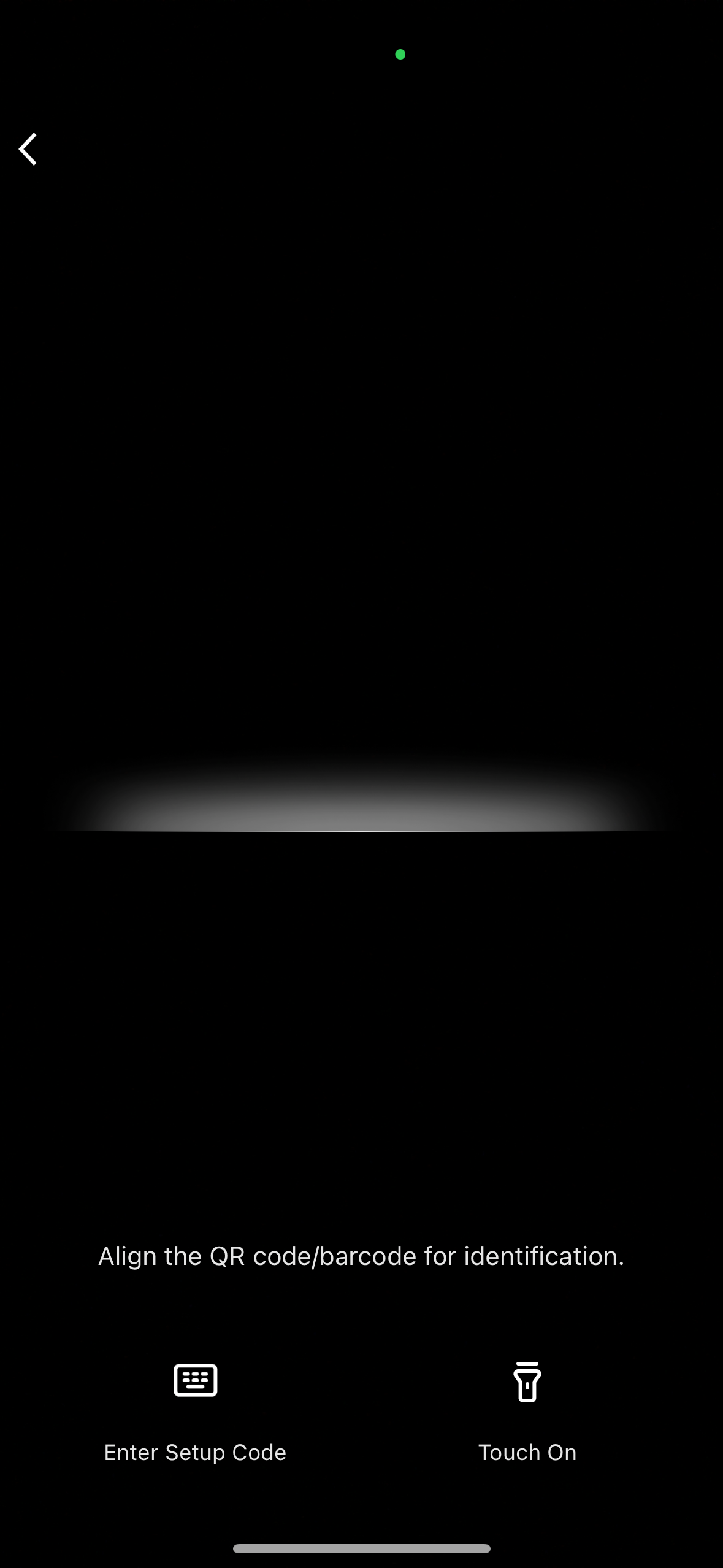
Point the scanner at the QR code on the screen and this will now connect the screen to the app and you will see the live feed from your camera on here.
That's it, you're done! If you do run into any issues please do get in contact with us using the 'get in contact' link below.
Need more help?
If you need help with anything else please check out our other guides or get in contact.