
Account settings in the older style Green Feathers app (GFWF3/NCIP3WF, GFIP320BWF, GFWF3R1S1, GFIP3)Updated 10 days ago
This guide will run you through your account settings in the Green Feathers app for the following cameras (GFWF3/NCIP3WF, GFIP320BWF, GFWF3R1S1, GFIP3, GFWF4B) pictured below. If you are unsure of which camera you have please check here.
Let's Start -
We begin at the homepage of the app, here you will see the following options:
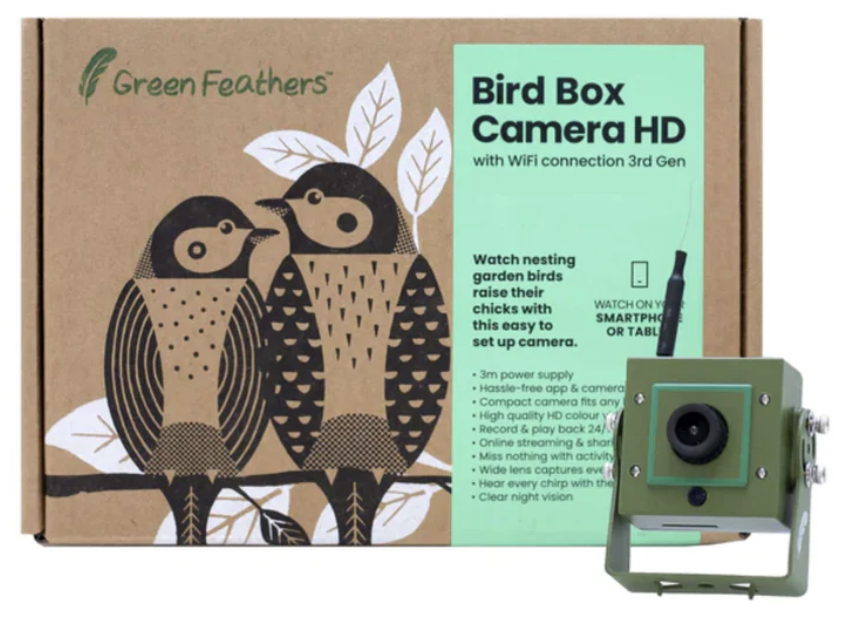 WiFi Bird Box & Wildlife Habitat HD Camera (NCIP3WF/GFWF3GB) | 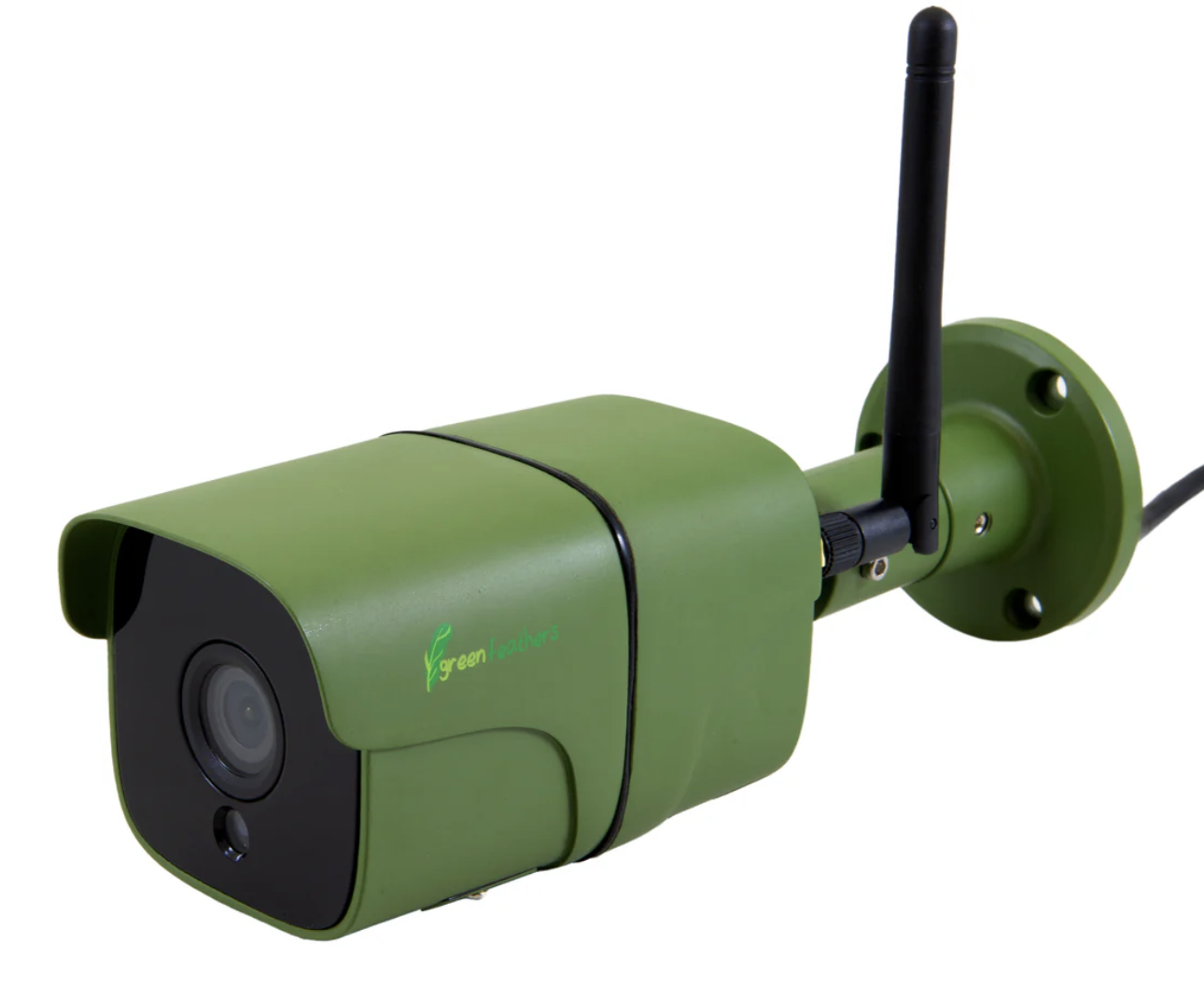 WiFi Outdoor Wildlife HD Camera (GFIP320BWF) |
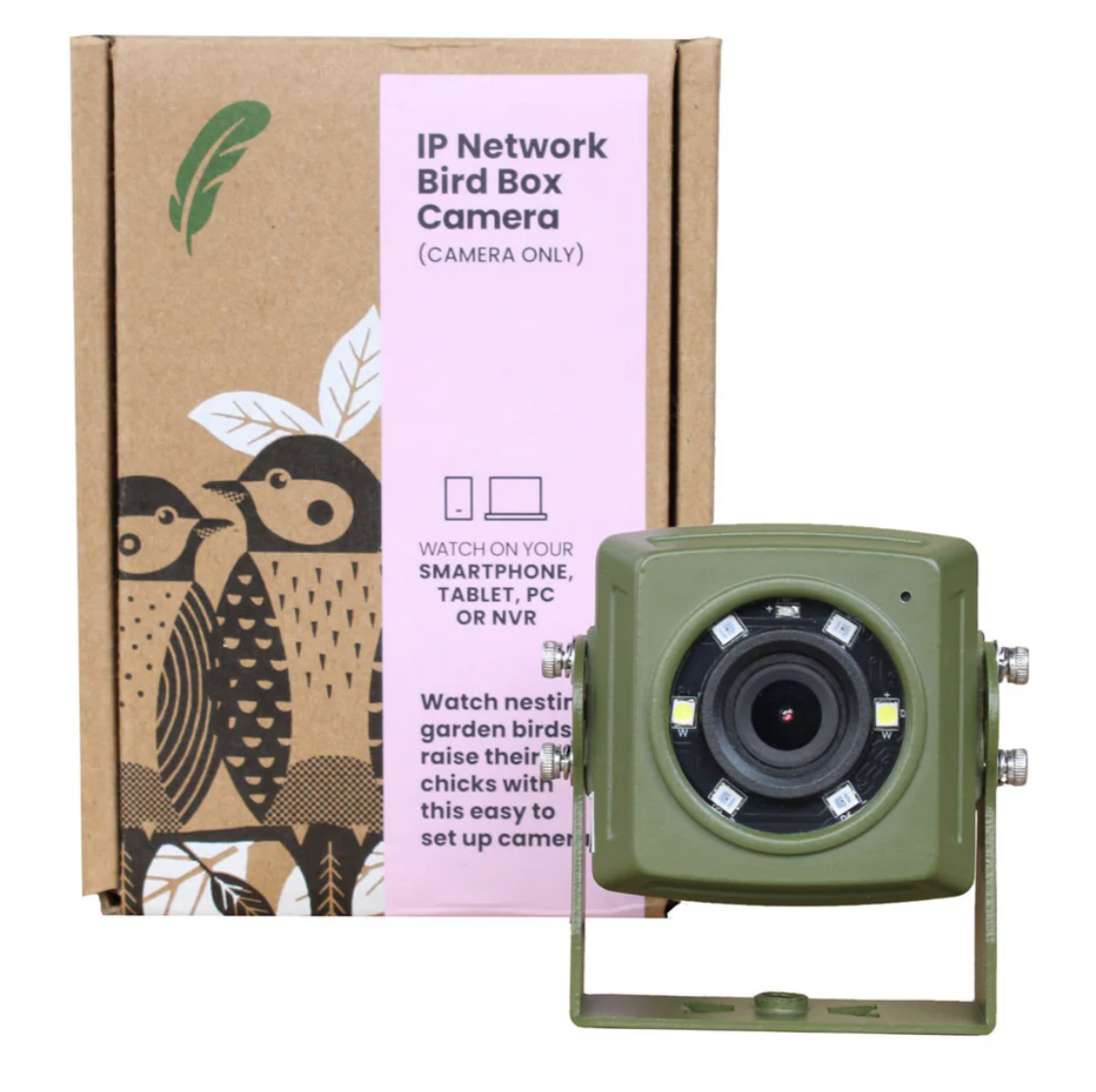 Wired IP Network Bird Box Camera (GFIP3) | 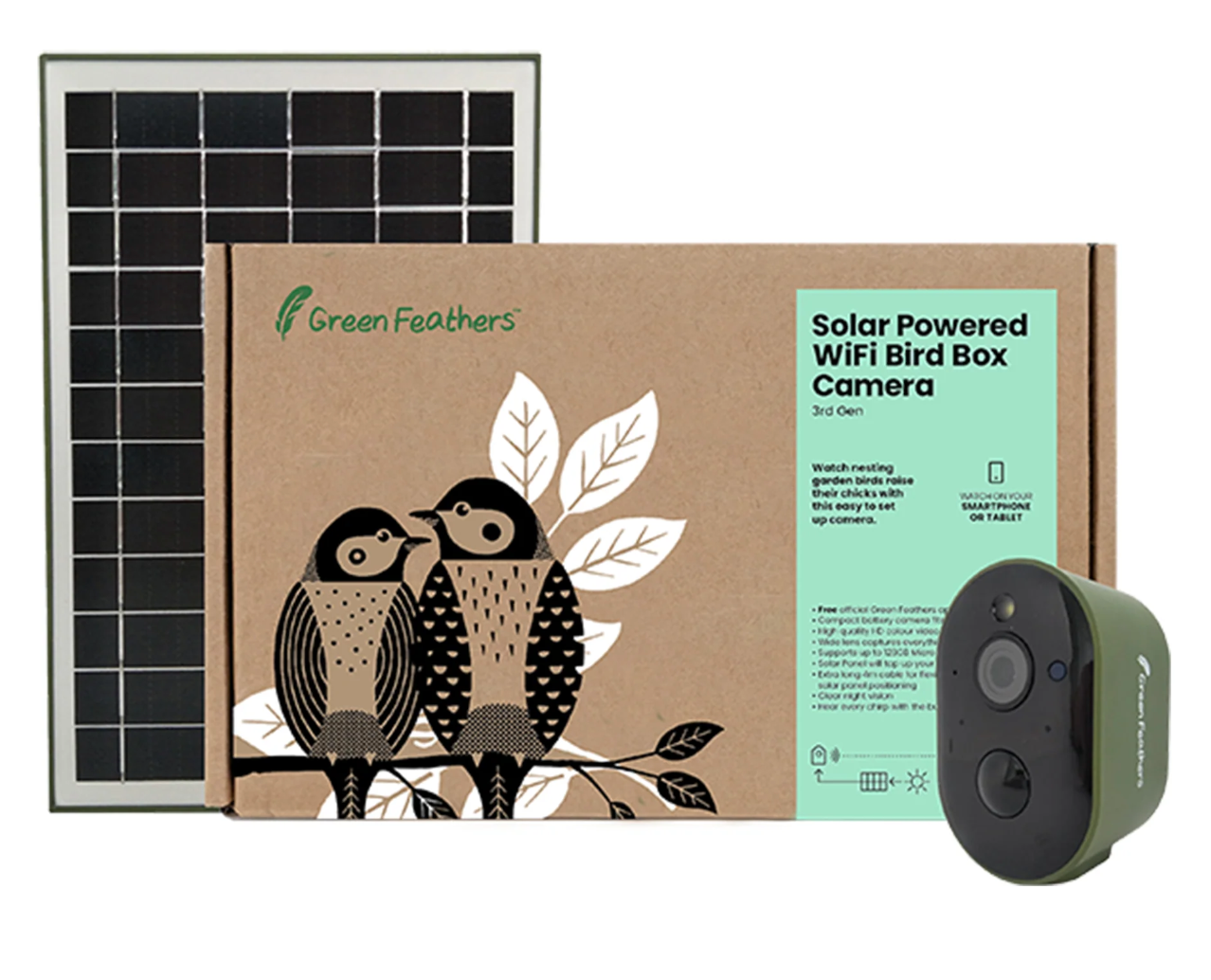 Solar Camera(GFWF3R1S1) Solar Camera(GFWF3R1S1) |
Let's Start -
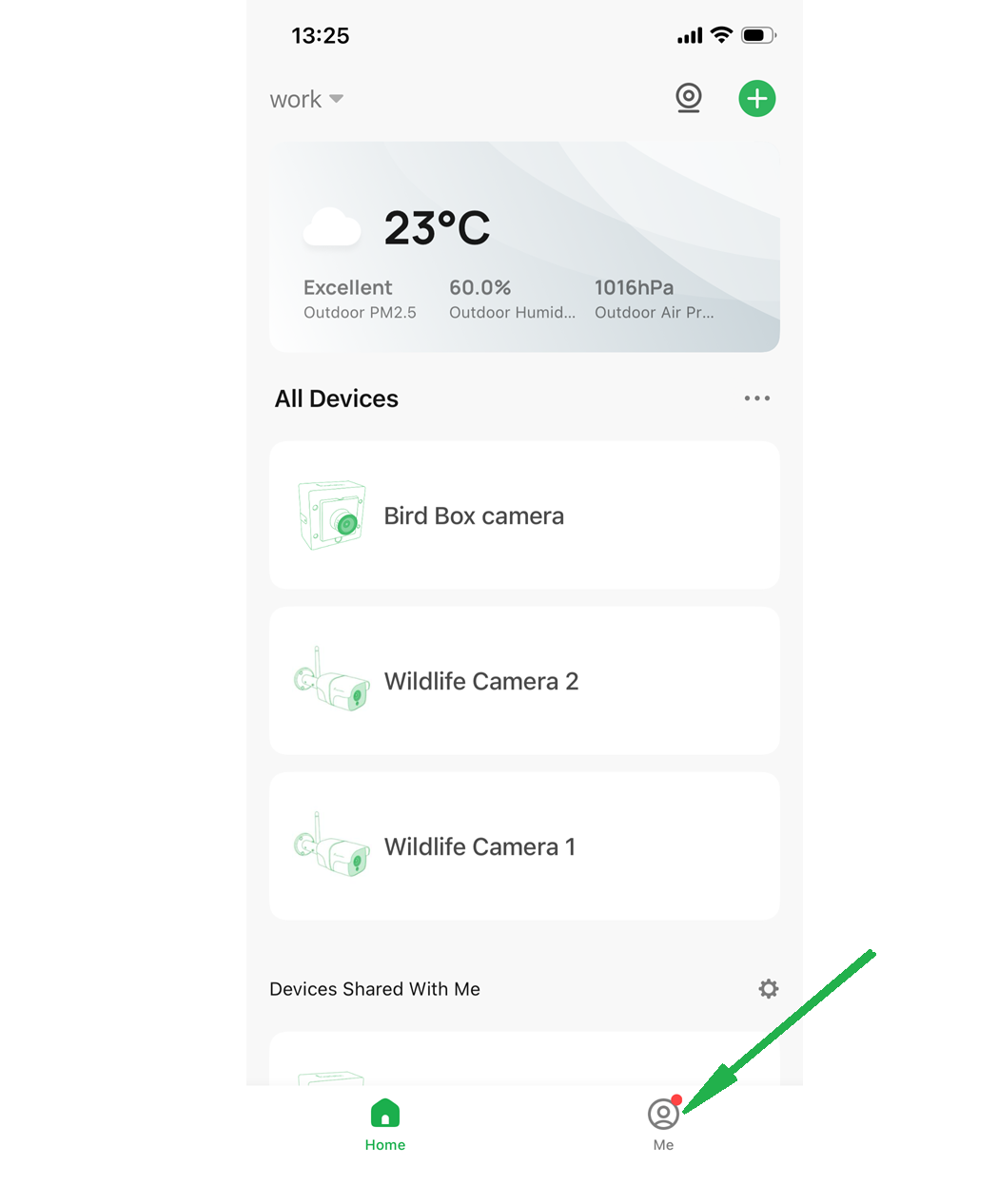
We begin at the homepage of the app. To access your account settings tap the "Me" icon in the bottom right of the screen:
Once you have selected the "Me" icon you will see the following page:
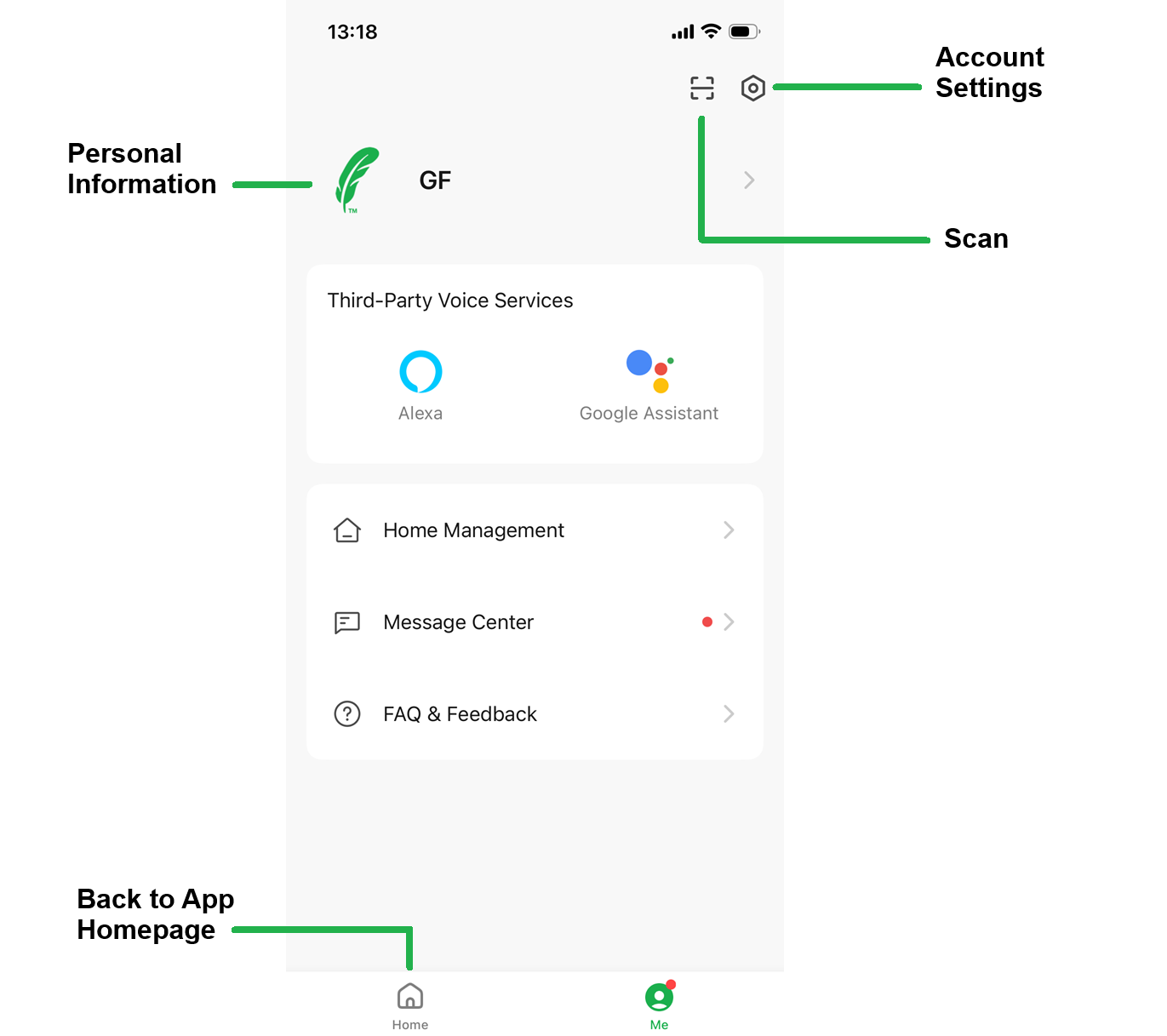
Personal Information:
This allows you to set a profile picture, nickname and time zone for your account
Account Settings:
These are all the settings for your Green Feathers account. This will be explained in greater detail later in the guide.
Scan:
The scan feature is used to connect your app to your computer web browser. You can see more information about how to do that here.
Third party Services:
This section relates to how you add your cameras to either Amazon Echo Show or Google Home Hub.
Home Management:
This allows you to organise your cameras into separate gardens, if you cameras connected to your account that are across different locations.
Message Centre:
This is where you can find the notations for your when your camera detects activity. You can find more about detecting activity here. Account messages will also appear here.
Back to Homepage:
This takes you back to your home page, where you can see your list of added cameras.
Account Settings:
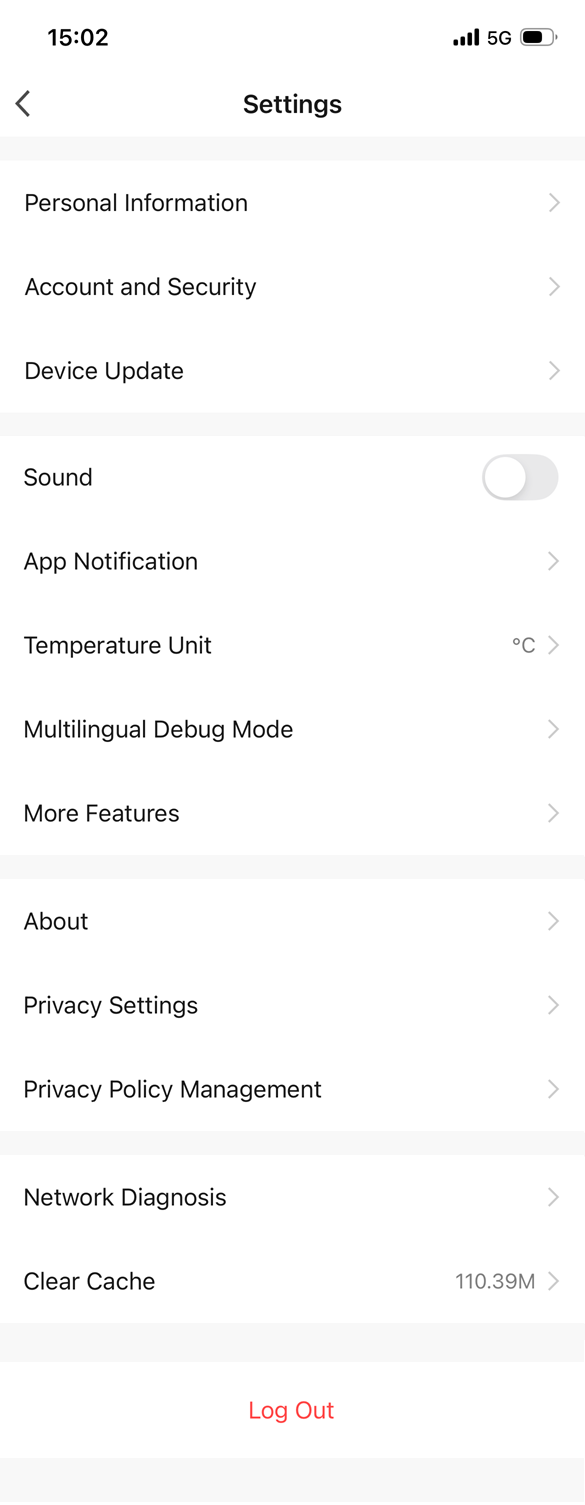
Tapping on the cog/bolt icon will bring up your account settings (you can tap the back arrow in the top left to go back to your "Me" page.
Personal Information:
This is the same section as shown in the previous page. it allows you to set a profile picture, nickname and time zone for your account
Account and Security:
This page shows you your region and the email address linked to your account.
It also shows you which third party voice services you have connected to your cameras (Amazon Echo Show or Google Home Hub)
You can also change your log in password - This is done via email verification
It also shows you your User Code and an option to delete your account.
Device Update:
This shows you whether there is an outstanding app update available for your phone.
Sound:
This controls in-app sounds, but does not stop you from hearing the audio picked up by your cameras.
App Notification:
This controls what push notifications you receive in the app (camera activity, camera locations or general app updates).
Temperature Unit:
This controls whether you see the temperature in °C or °F.
Multilingual Debug Mode:
This allows you to display the app in a different language
More Features:
This allows an added device to automatically come back online once it starts receiving power. It is turned on by default.
Temperature Unit:
This controls whether you see the temperature in °C or °F.
About:
This page provides some company and app information.
For the upload log this is to record how the system is functioning, which is something we may sometimes ask for if something doesn't appear to be running properly.
You can also see the current app version you are using.
Privacy Settings:
This allows you to control data analysis and market research. You can also control how the app accesses your phone.
Privacy Policy Agreement:
Here you can find the Privacy Policy and User Agreement
Network Diagnosis:
Sometimes we may ask you to perform a network diagnosis and upload the system log to help us determine any network problems.
Clear Cache:
A cache where frequently used data is temporarily stored. You can clear your cache to free up space on your phone.
Need more help?
If you need help with anything else please check out our other guides or get in contact.