
How to setup your USB video capture device with OBS StudioUpdated 11 minutes ago
This guide covers how to use your USB video capture device with the OBS software.
First start by connecting the USB Device to your computer and install the ‘AV TO USB 2.0’ driver.
Please make sure to have downloaded the OBS software prior to setup.
OBS Download: https://obsproject.com/
Once you have the software downloaded and installed please run it, if this is the first time it has been used it will ask you to go through a setup wizard as this software has many features to it, if you are only using it to view you camera then I would suggest just pressing the cancel button to skip.
Once either skipped or you have progressed through the setup window you will be greeted with the below screen.
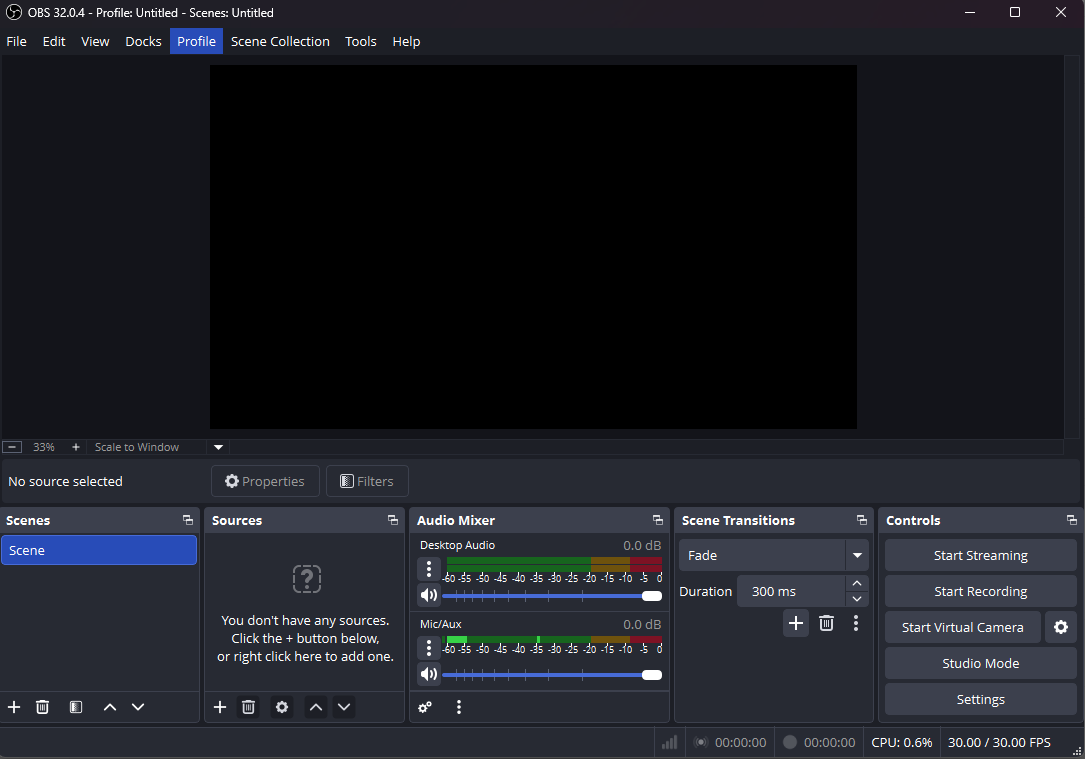
Once this is how the software looks please make sure your USB capture device is plugged in as this will now be required to continue the setup.
Once plugged in click the + symbol under the Sources section on the bottom left, you will get a menu appear like below.
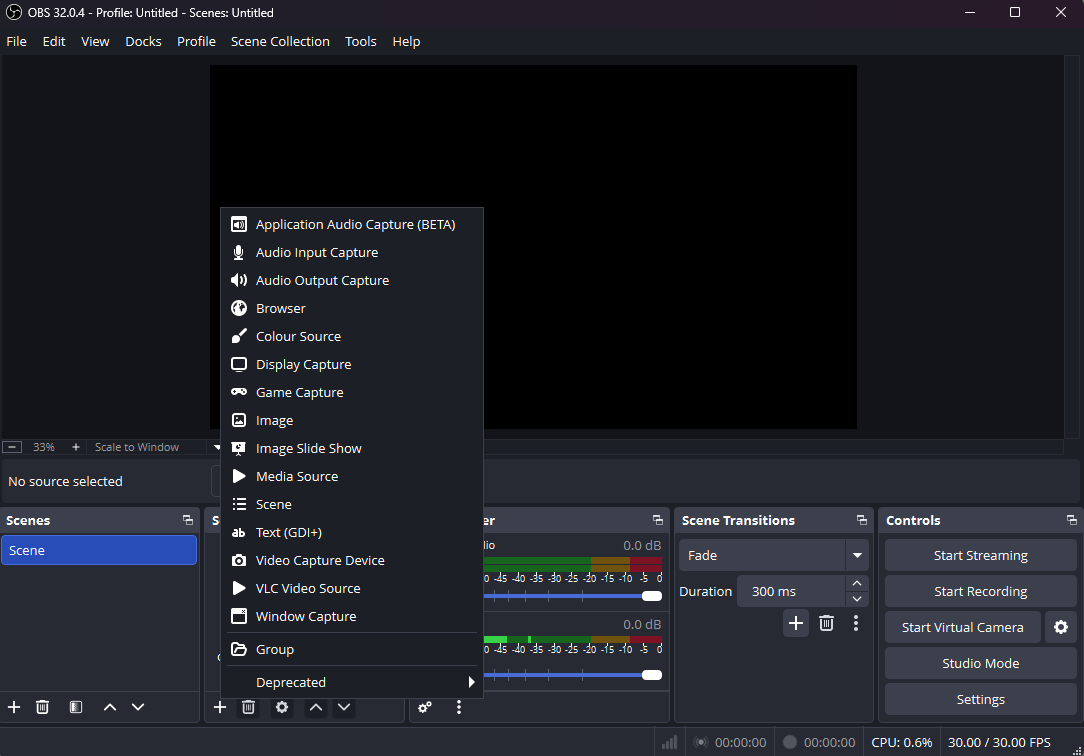
On this menu please select Video Capture Device, a new box will appear for this you can just click Ok or give the device a name and then click Ok.
It will then change to look like below.
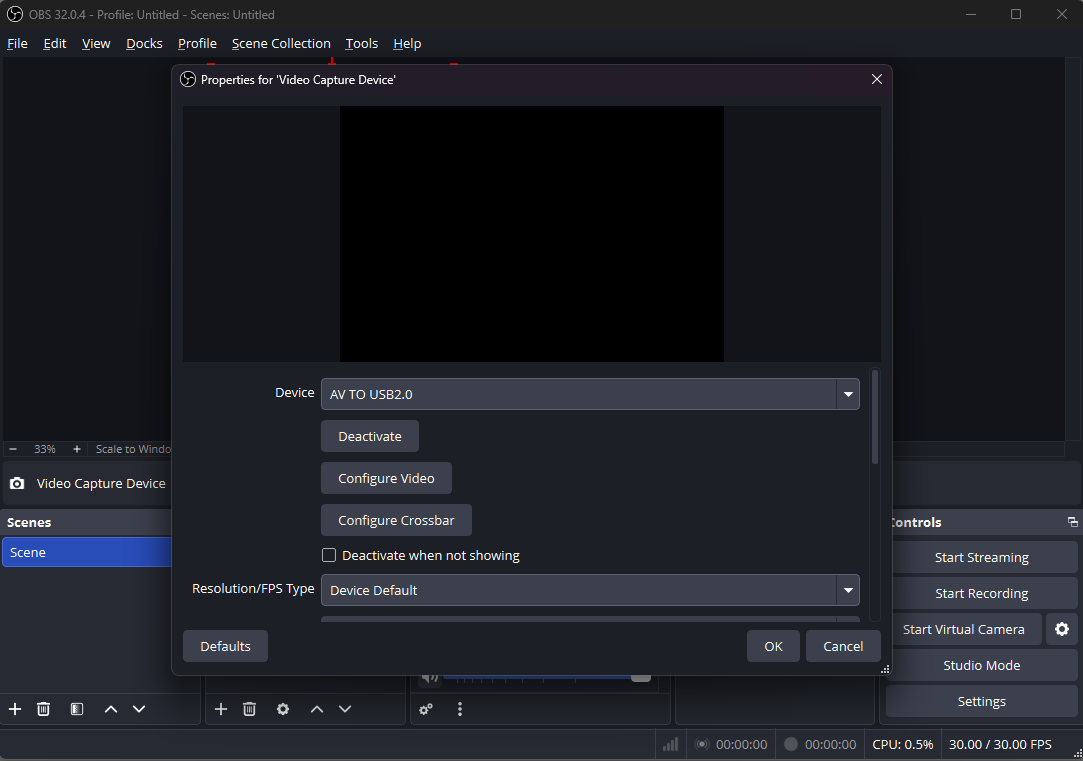
The important part here is the Device, you can see in my screenshot it is showing "AV To USB2.0" this is the capture device we are using, if you have a camera plugged in you will also get a image appear in the box, as I do not mine is just a black box.
If you click on Ok at the bottom right this will then go back to the main screen and show you an image from your camera as long as it is plugged in and turned on.