
How to: Get your camera working remotelyUpdated 2 hours ago
This guide is designed to help get your wired birdbox camera working remotely. If your camera works on when at the same location but does not work when you go out then this is probably due to a setting on the camera that needs to be changed.
To do this you will need to use a computer and to download and run a piece of software called VMS, below are the download links for both Windows and Mac versions.
For windows please click here.:
For Mac please click here.
Once downloaded you will need to install and then run this software, you should get a login screen appear which will have the username/password already inputted, please click Sign In to continue, once loaded it will look like below.
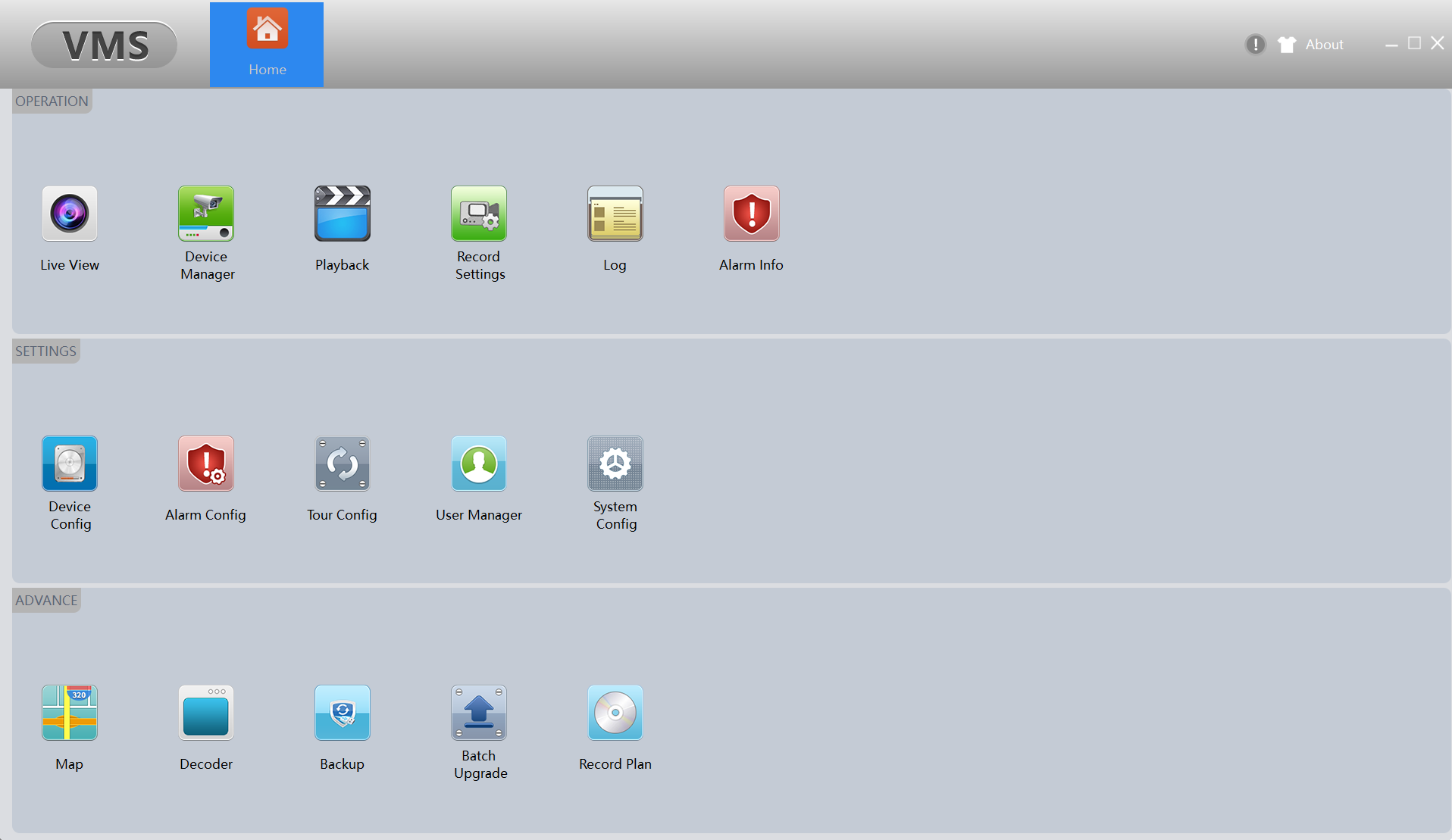
To start off we need to add your camera to this software, to do this you will want to click on the "Device Manage" icon which is the second icon on the top row, you will then get an screen like below appear.
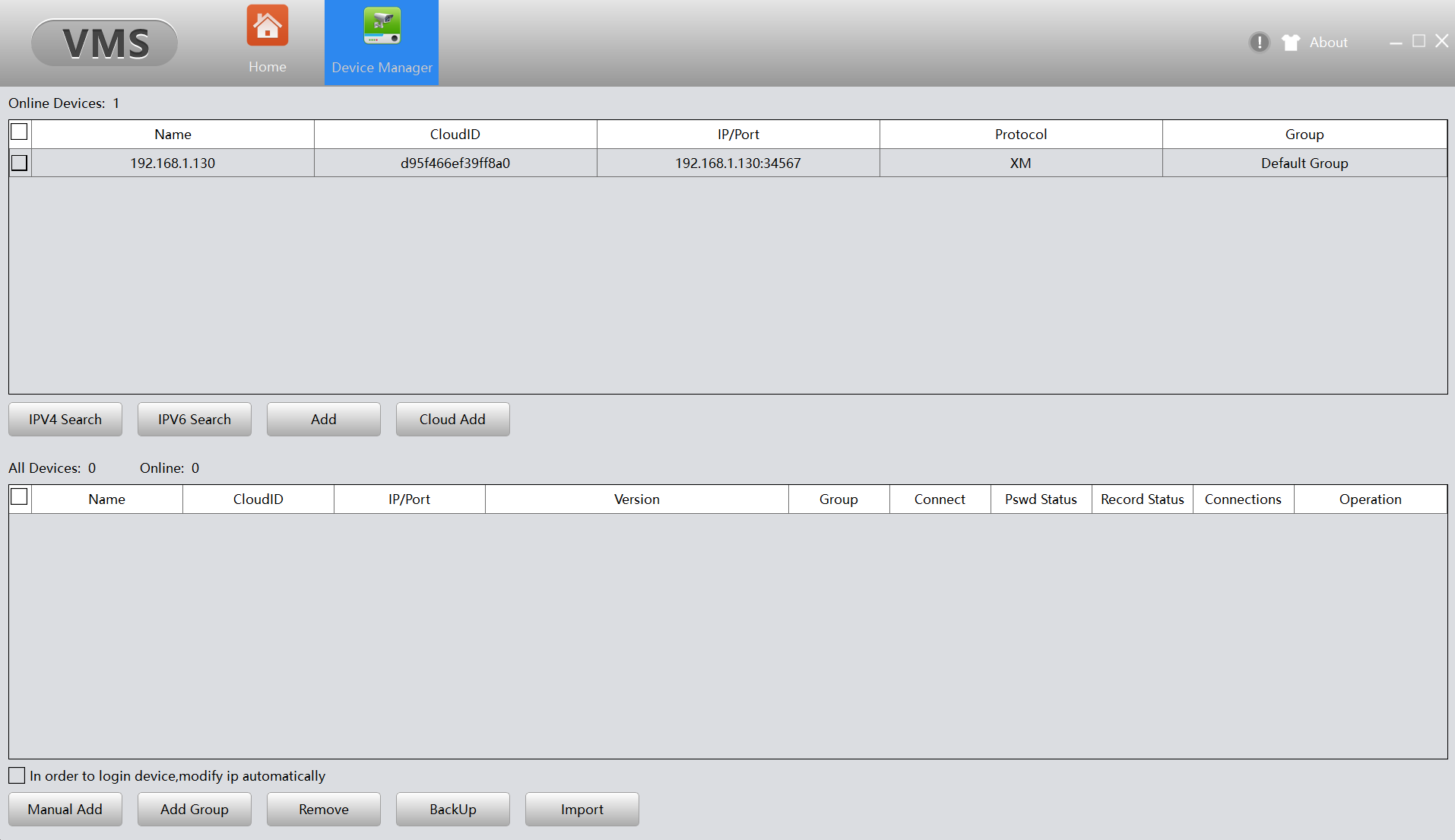
In this image the camera has been detected for us as can be seen in the top section, if it does not appear please click on the IPv4 Search button and it should find it after a few seconds, you then need to click on the tickbox to the left of it and click the Add button to finish adding it to the software.
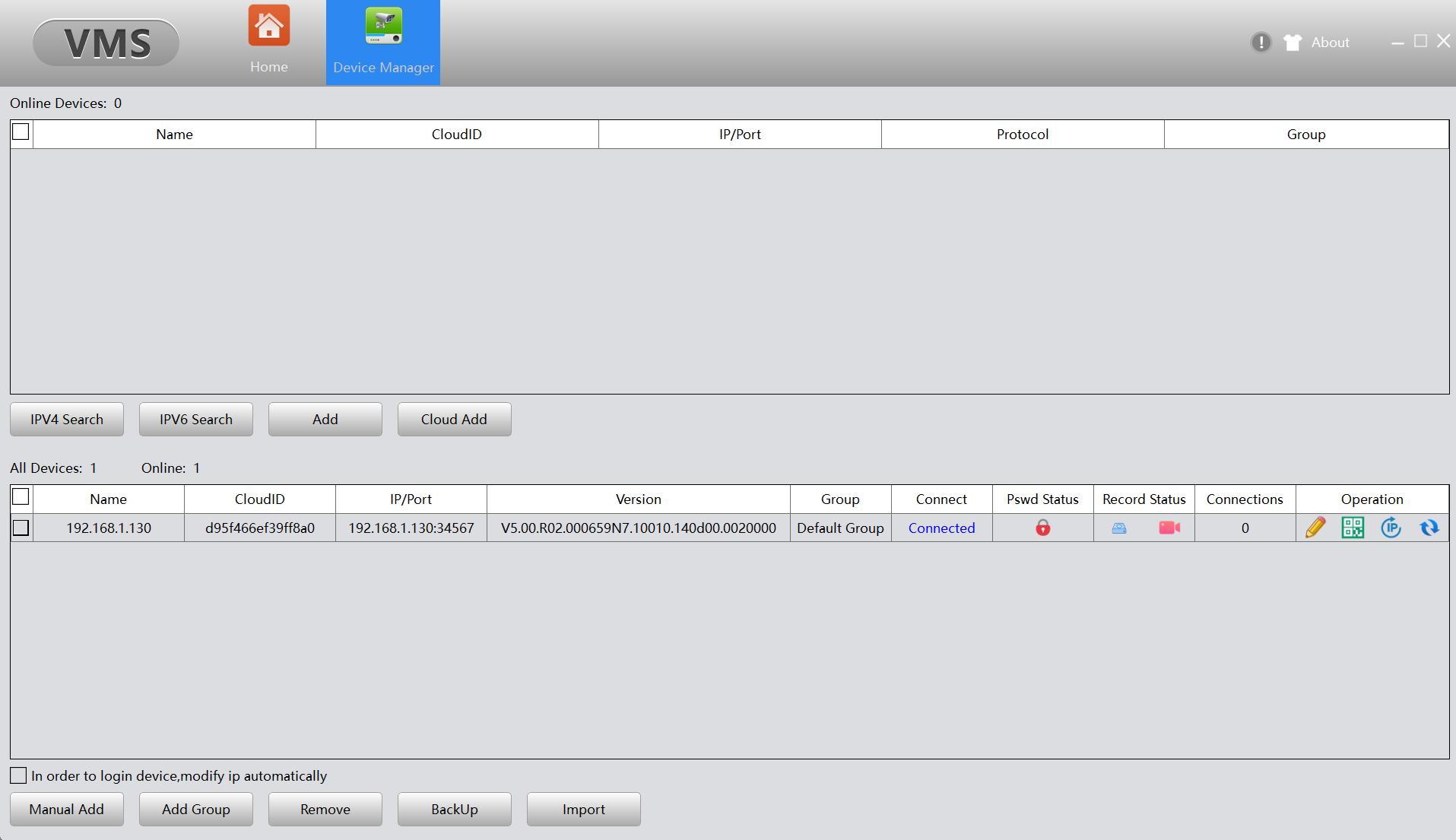
Once this is done it should move to the lower field and show connected.
From here we now want to go back to the Home screen, by clicking on home on the top left, we then want to go into Device Config, which is the 1st icon on the second row, this will provide a screen like below.
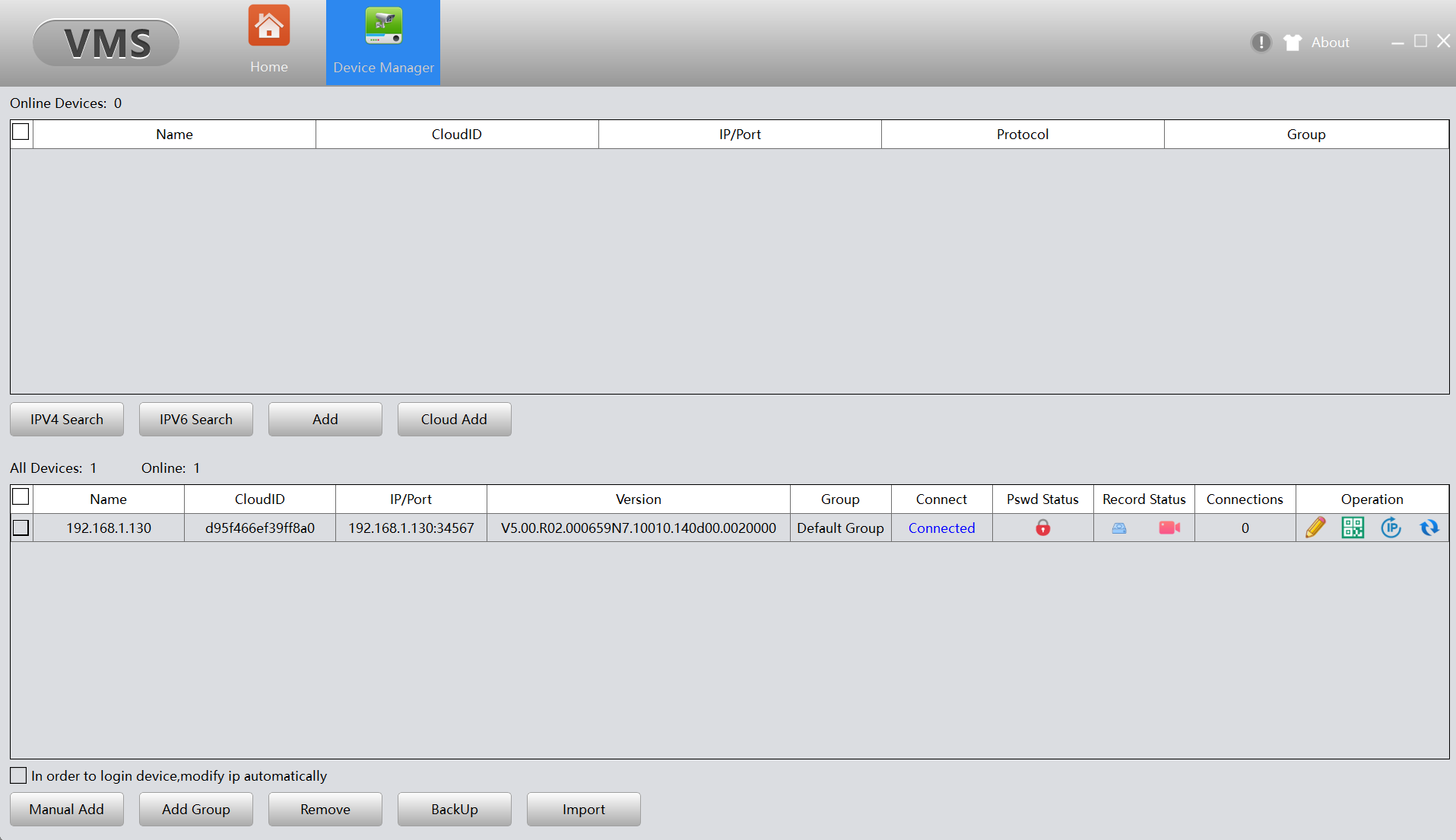
On this page you have a list of your cameras on the left hand side, in the above image I have clicked on the camera to highlight it which then lets us click on the various options, the setting we will need to check and change will be in the Network settings so please click this next.
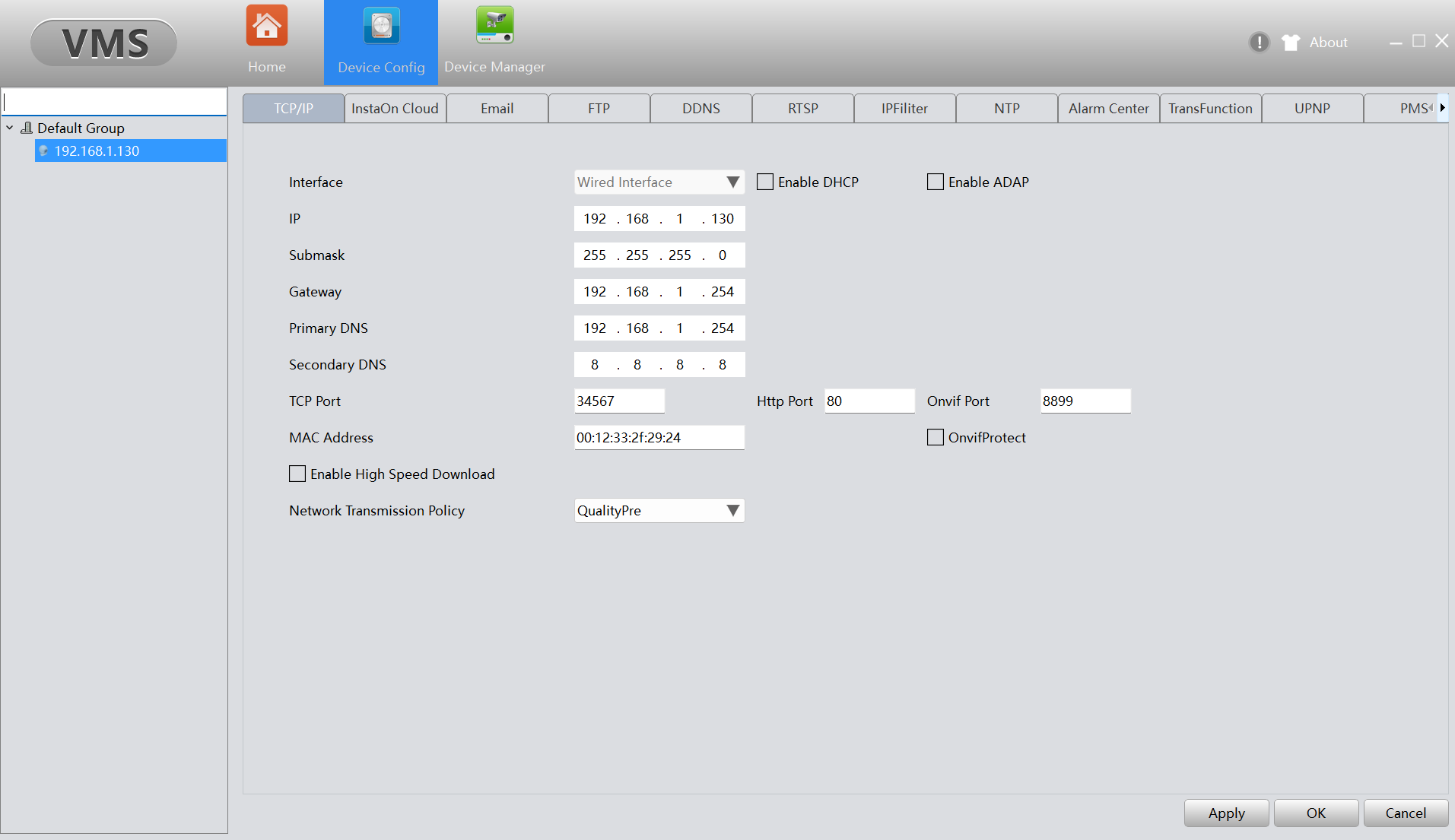
The likelyhood is that the setting listed as Gateway is probably wrong as if so this will stop the camera from working when you are not on the same network, if you know what your Gateway address is you can put this in and click Apply in the bottom right, if you are not sure this can be found a few different ways, below is a guide on how to check this, once you have the correct information and pop it in this should solve the issue.
https://www.noip.com/support/knowledgebase/finding-your-default-gateway